Saved Wi-Fi Password Won't Connect? Fix It Fast
Windows remembers your Wi-Fi password, but it still refuses to connect, or it connects and drops at once. A saved password can go stale when the router password changes, so forgetting and rejoining is the honest fix.
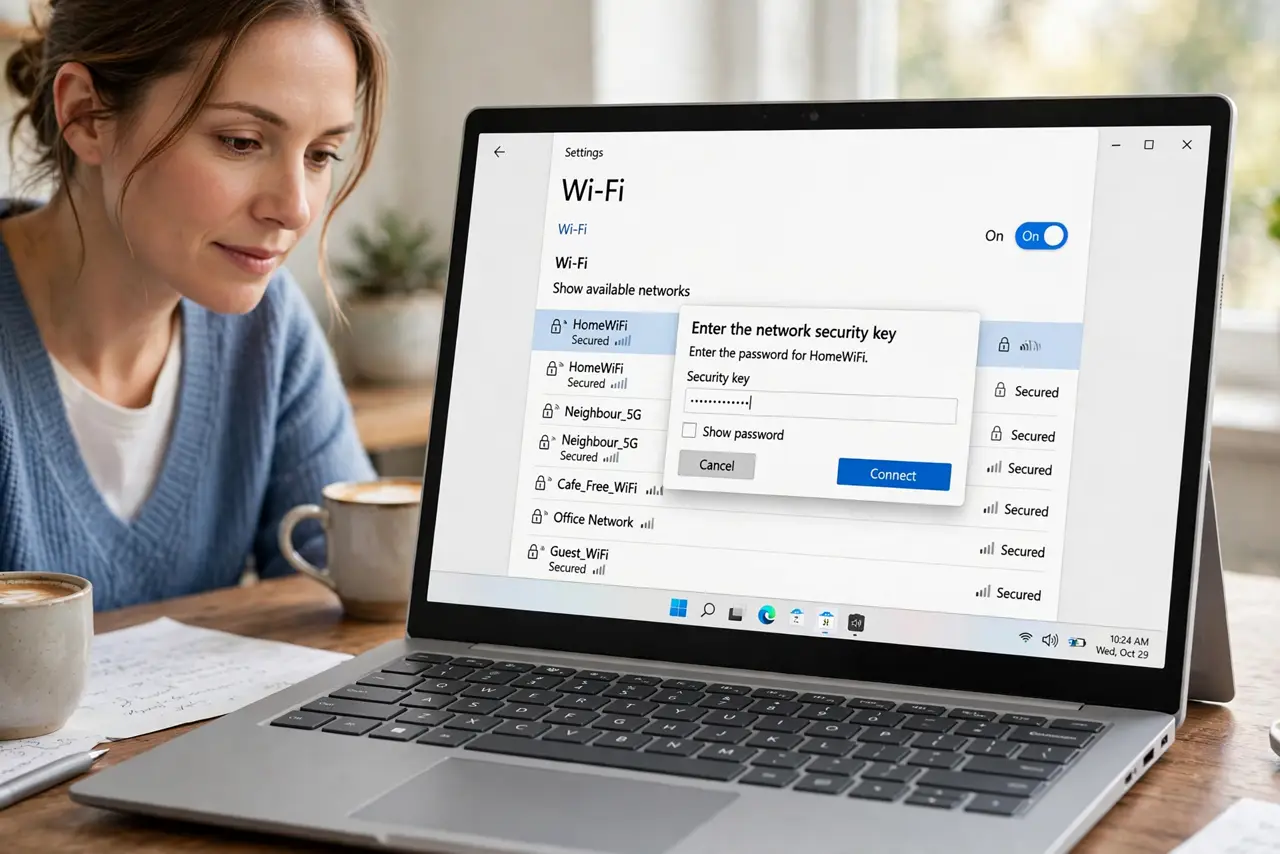
TL;DR / Quick Fix
Quick fix: forget the network in Wi-Fi settings, then join it again and type the password slowly, watching capitals and symbols. If it still fails, restart the router, move closer, and check whether another device connects with the same password.
Follow these steps
- Forget the network. Open Settings, then Network and internet, then Wi-Fi, then Manage known networks, find the network, and choose Forget. This clears the stale saved password completely.
- Rejoin and type the password slowly. Select the network again, type the password carefully, and show the password while typing if the option is available. Capitals, numbers, and symbols are the usual typing traps.
- Check the password on another device. Look at a phone or tablet that already connects, and confirm it uses the same password. If the router password changed, the old saved password on your computer is simply wrong now.
- Restart the router. Unplug the router power, wait thirty seconds, plug it back in, and wait for its lights to settle before trying again. A router restart clears stuck connection states.
- Move closer to the router. Move the laptop closer to the router and try again. A weak signal can make a correct password look wrong, because the connection fails before it finishes.
- Restart the computer and try once more. Save your work, restart, and join the network once more with the confirmed password. If it still fails, run the network troubleshooter before changing anything else.
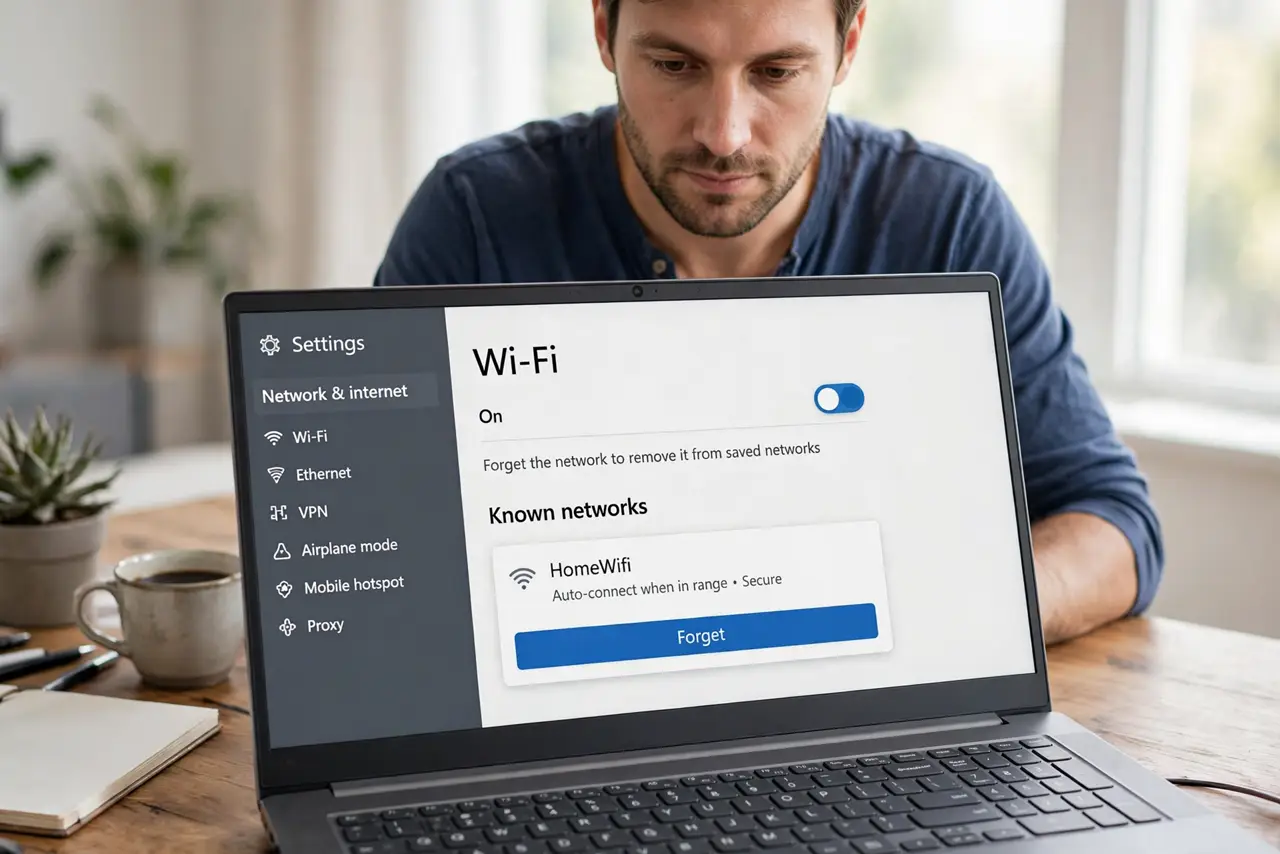
What NOT to do
- Do not keep retrying the same saved password. If it failed twice, forgetting the network and retyping it is faster than a third identical attempt.
- Do not share the password in a screenshot to get help. Show the password only to yourself on your own screen while typing, and hide it again afterwards.
- Do not reset the router to factory settings as a first step. A restart and a forgotten network fix most saved-password failures without erasing every router setting.
- Do not assume the laptop is broken because one network fails. If another device also fails with the same password, the router password or router is the problem.
Frequently asked questions
Why does a saved password stop working?
The router password may have changed, or the saved entry may have corrupted. Forgetting the network clears the old entry so you can save a fresh one.
How do I know I typed it right?
Use the show-password option while typing, and compare it with a device that already connects. Capitals and look-alike symbols cause most failures.
What if no device can connect?
Then the router password or the router itself is the problem, not your laptop. Restart the router and confirm the password with the person who manages it.