Get Printers on Wi-Fi
The printer worked fine on USB, but on Wi-Fi it vanishes every other day — or it never connected at all and the setup wizard might as well be in another language. Printers are the most temperamental Wi-Fi clients in the house: weak radios, 2.4 GHz only, and setup apps that assume ideal conditions. This guide gets the printer on the network and keeps it there. Since most printers are 2.4 GHz only, understanding why gadgets need 2.4 GHz helps here too.
TL;DR / Quick Fix
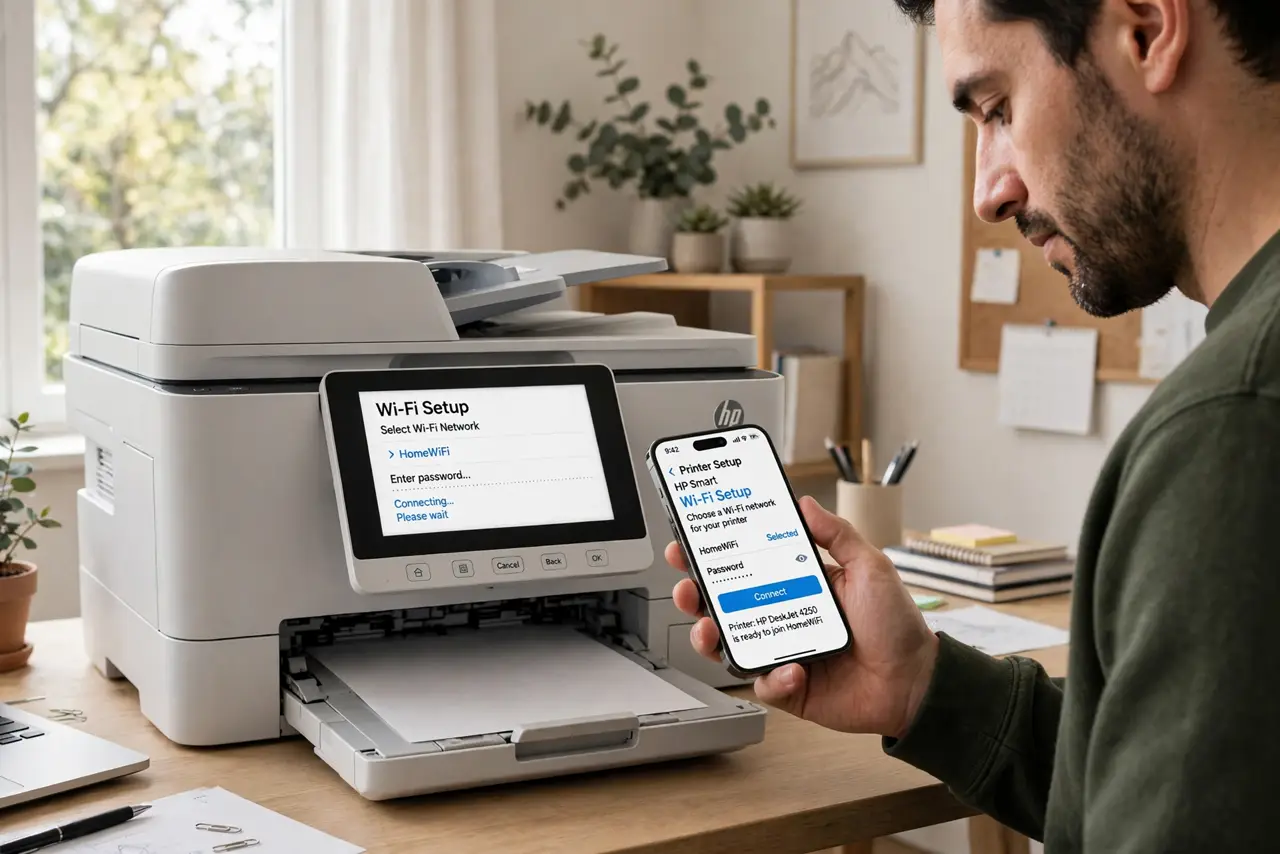
Quick fix: connect the printer to your 2.4 GHz Wi-Fi network — most printers cannot see 5 GHz. Use WPS if both devices support it, or the printer's own setup wizard. Give the printer a static IP in the router so it stops vanishing every few days.
Follow these steps
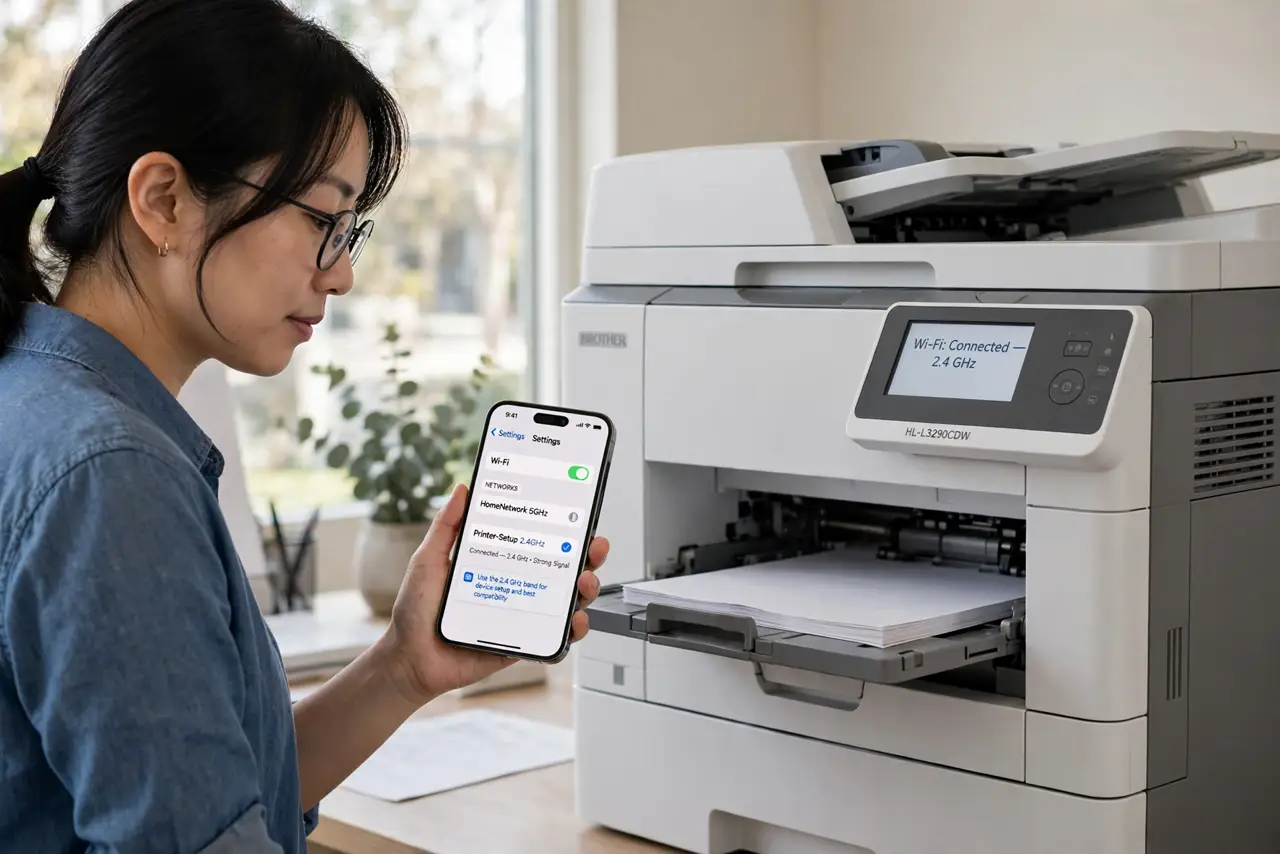
- Use the 2.4 GHz band. Printers are almost always 2.4 GHz only. If your router merges bands under one name, temporarily split them or move your phone to 2.4 GHz during setup so everything meets on the same band.
- Try WPS first. Press the WPS button on the router, then the WPS option on the printer within two minutes. When it works, it is the fastest setup — no passwords typed on a tiny printer keypad.
- Use the printer's wizard as backup. On the printer's display, open wireless setup and pick your network from the list. Type the password carefully — printer keypads make typos easy and error messages cryptic.
- Give it a static IP. In the router settings, reserve an IP address for the printer's MAC address. Printers 'vanish' when the router hands them a new IP; a reservation ends that permanently.
- Install the full driver, not just the basics. Download the printer maker's full software package on your computer rather than relying on the OS default driver. The full package enables scanning and ink monitoring too.
- Test from every device. Print a test page from the computer and the phone before declaring victory. Phones often need the maker's app; computers need the driver — confirm both.
What NOT to do
- Do not set up the printer with your phone on 5 GHz. The app and printer cannot find each other across bands — the classic setup failure.
- Do not skip the static IP. A printer that works Monday and vanishes Wednesday is almost always a DHCP address change.
- Do not place the printer in a Wi-Fi dead zone. The laundry room corner murders the already-weak printer radio — move it or add coverage.
- Do not ignore firmware updates. Printer makers quietly fix Wi-Fi bugs; an update often cures chronic disconnections.
Frequently asked questions
Why does my printer keep going offline?
Almost always the IP address changing. A DHCP reservation in the router fixes it permanently in five minutes.
Can I print from my phone?
Yes — with the printer maker's app, or natively via AirPrint (iPhone) if the printer supports it. Both need the same Wi-Fi network.
Is USB simpler?
Honestly, yes, for one computer. Wi-Fi earns its keep when several people and phones share the printer.