Private DNS Setting? What It Does
Android's Private DNS setting encrypts every DNS lookup your phone makes — on Wi-Fi and mobile data alike — with one toggle. It is the phone-wide cousin of the browser's Secure DNS. Here is what it does, the one place it breaks things, and the right setting for most people.
TL;DR / Quick Fix
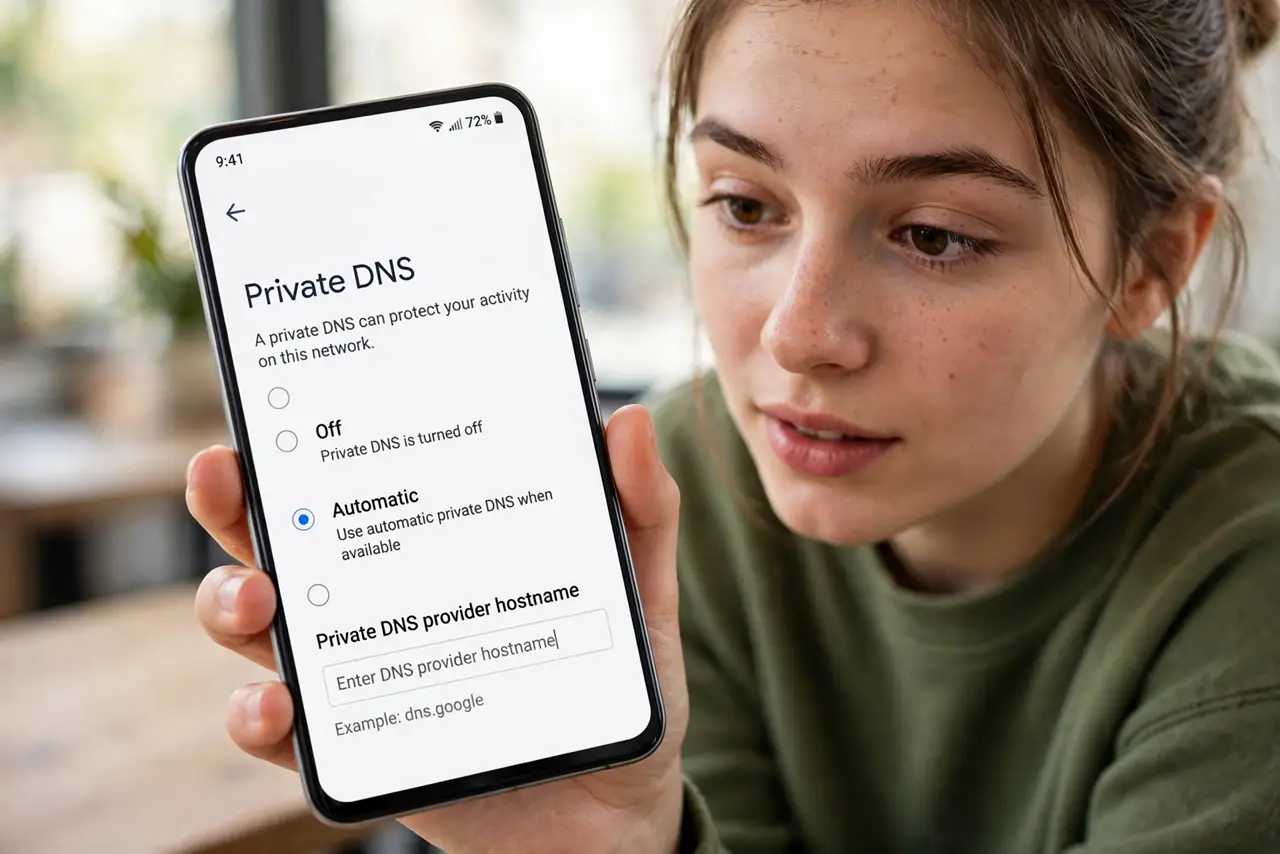
Quick fix: on Android, open Settings > Network & internet > Private DNS and set it to Automatic or a hostname like one.one.one.one. It encrypts DNS queries phone-wide. If captive portals break, switch it off temporarily. iPhones handle this per-browser instead.
Follow these steps
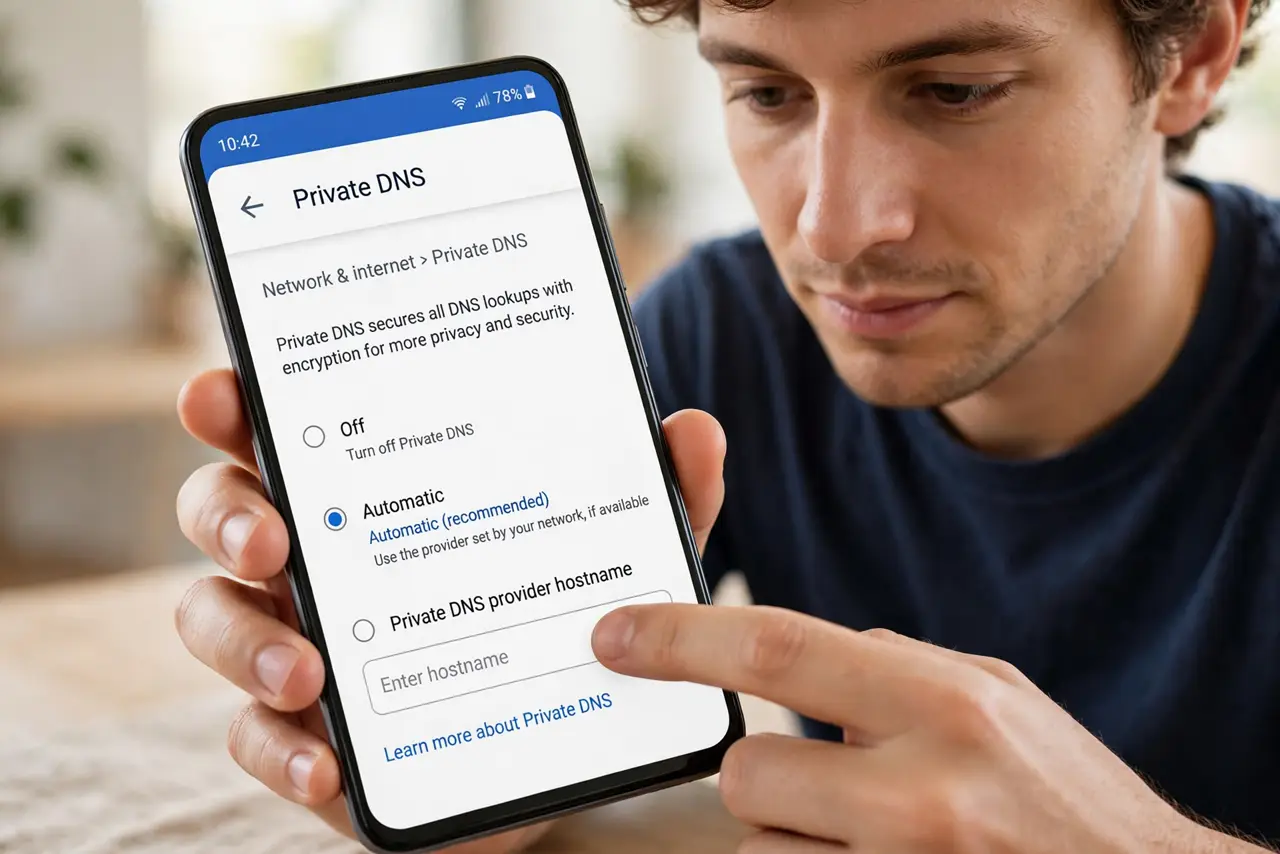
- Open the Private DNS setting. Go to Settings > Network & internet > Private DNS. You will see Off, Automatic, and a hostname field.
- Choose Automatic for most people. Automatic uses encrypted DNS when your network supports it and falls back gracefully. It is the safe default.
- Or enter a hostname manually. Typing one.one.one.one (Cloudflare) or dns.google forces encrypted DNS everywhere. Use this if Automatic never seems to engage.
- Understand the coverage. Unlike browser-only Secure DNS, this encrypts lookups for every app on the phone — maps, email, games, everything.
- Expect the captive-portal catch. Hotel and airport Wi-Fi login pages hijack DNS to show the login screen — encrypted DNS breaks that hijack. Switch Private DNS off, log in, then re-enable; see portal problems.
- Compare with browser [[DNS over HTTPS|wifi-dns-over-https]]. DoH covers the browser; Private DNS covers the whole phone. On Android, the phone-wide setting is usually the better single toggle.
What NOT to do
- Do not set a random hostname from a forum. Your DNS provider sees every lookup — use a provider you actually trust.
- Do not leave it off out of confusion. Automatic is safe and beneficial; Off just preserves the status quo of visible lookups.
- Do not expect it to fix slow internet. Encrypted DNS is a privacy feature, not a speed feature.
- Do not forget to re-enable after the hotel. The temporary-off for captive portals is the number-one forgotten toggle.
Frequently asked questions
What's the difference between Private DNS and a VPN?
Private DNS encrypts only DNS lookups. A VPN encrypts all traffic to one server. They solve different problems and work fine together.
Why won't the hotel Wi-Fi login page load?
The portal needs to hijack your DNS to show the login; encrypted DNS blocks the hijack. Turn Private DNS off until you're logged in.
Does Private DNS work on mobile data too?
Yes — it is phone-wide, covering Wi-Fi and cellular alike, unlike browser-only settings.