Prioritize Games With QoS
Someone starts a cloud backup and your game ping triples — classic bufferbloat-adjacent misery. QoS (Quality of Service) tells the router which traffic matters: your game first, the backup whenever. Set up right, it ends the ‘who's downloading?!’ wars.
TL;DR / Quick Fix
Quick fix: in your router's QoS settings, set your console or gaming PC as highest priority (by device or MAC address). Cap total bandwidth at 90-95% of your plan so the router can actually manage queues. Retest ping during a download.
Follow these steps
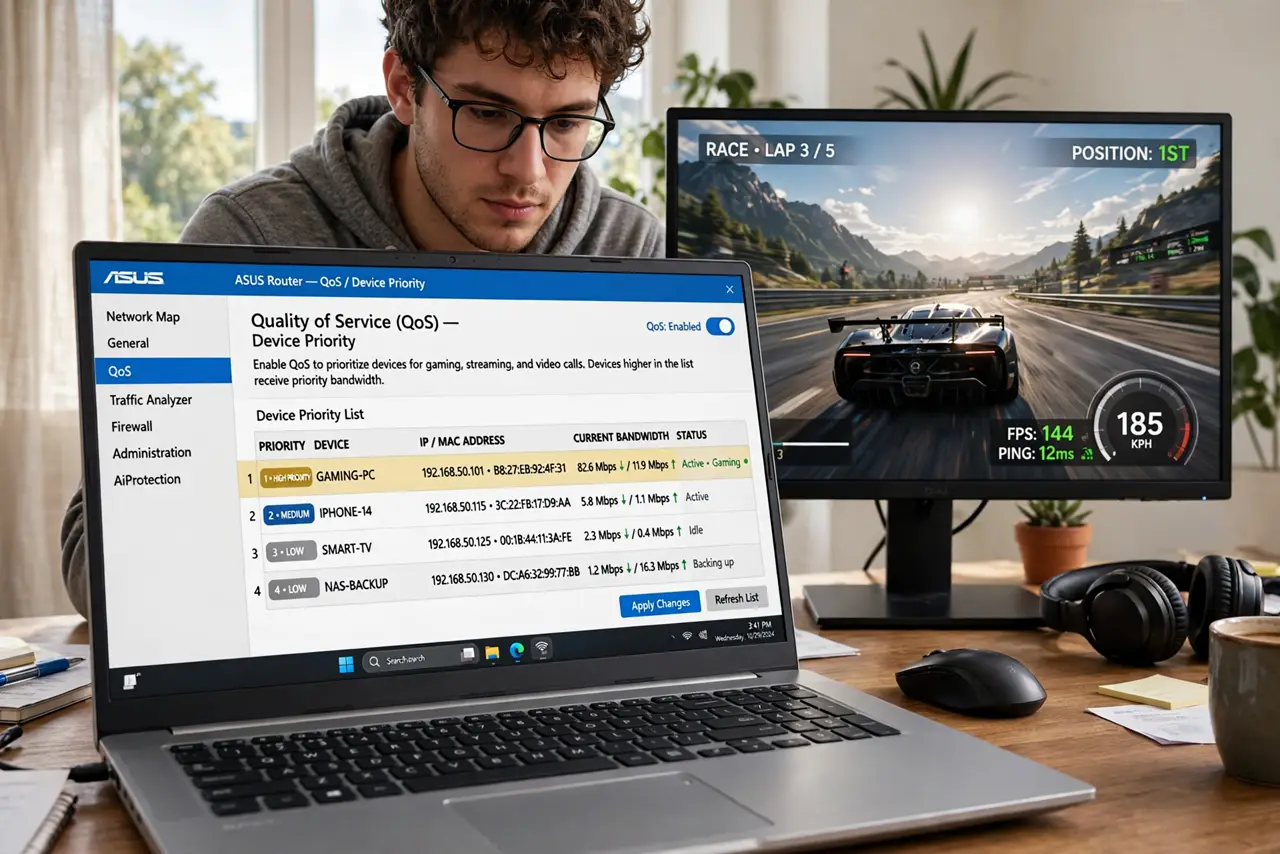
- Open the QoS settings. Find Quality of Service under advanced settings. Some routers call it traffic prioritization or device priority — same idea.
- Prioritize by device, not by guesswork. Add your console or gaming PC by name or MAC address and set it to Highest. Device-based rules beat port-based ones for simplicity.
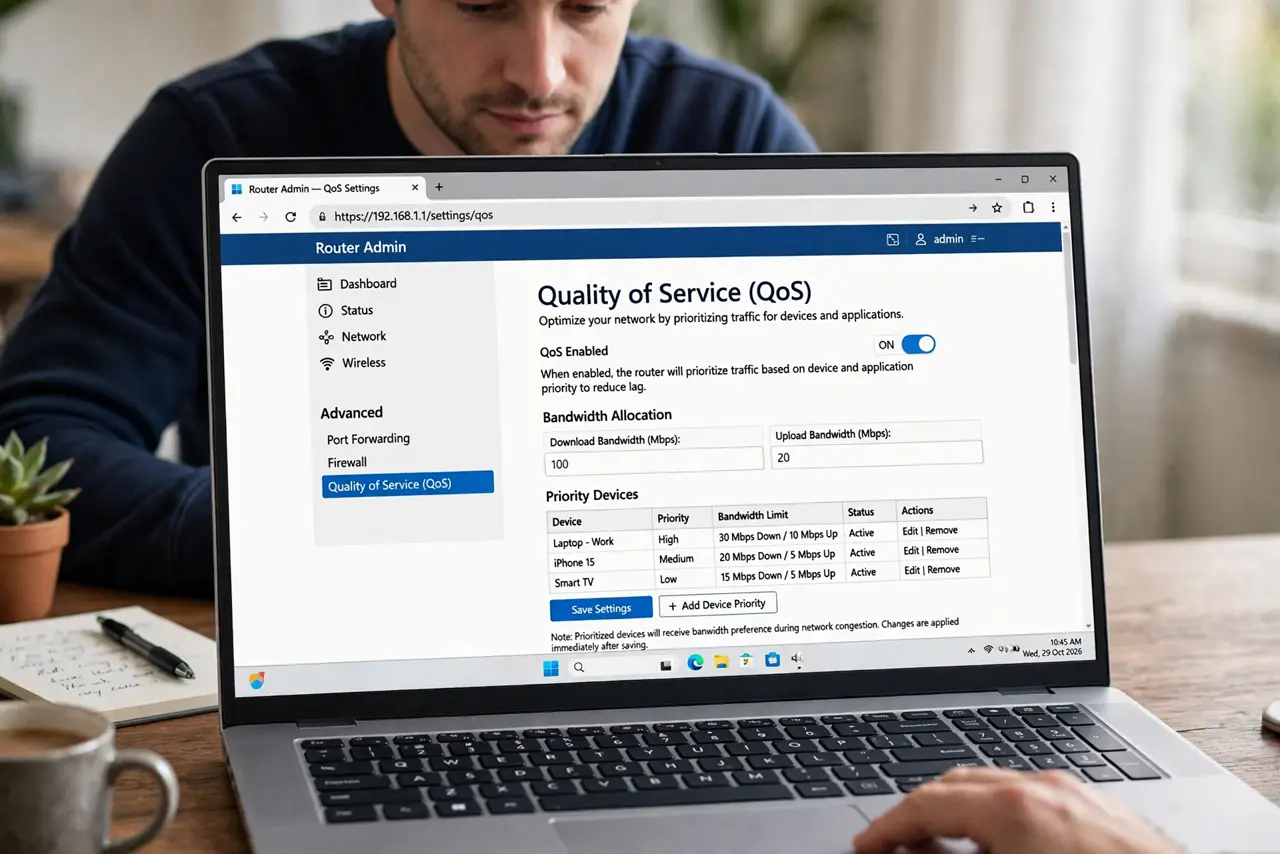
- Cap bandwidth at 90–95% of your plan. This is the crucial step: the router can only manage queues for traffic it actually controls. Run a speed test, then enter 90–95% of the result.
- Set the direction that matters. Prioritize upload if your ping spikes when others upload photos; download if streams stutter. Most homes need both capped.
- Test under load. Start a big download on another device and game simultaneously. Ping should stay near its idle value — that is QoS working.
- Consider [[SQM|wifi-sqm-router]] as the upgrade. Classic QoS prioritizes; SQM fairly shares. On routers that offer both, SQM usually wins for gaming households.
What NOT to do
- Do not enable QoS without the bandwidth cap. Uncapped QoS is decoration — the router cannot shape traffic it never sees queued.
- Do not prioritize everything. If the console, the TV, and three phones are all ‘highest’, nothing is.
- Do not expect QoS to create bandwidth. It divides the pie fairly; it cannot bake a bigger pie than your plan.
- Do not set it once and forget the plan speed. If your ISP upgrades you, re-enter the new numbers — stale caps throttle you.
Frequently asked questions
Will QoS lower my ping?
It prevents ping spikes during congestion — your idle ping stays the same, but it stops tripling when someone downloads.
What's the difference between QoS and SQM?
Classic QoS prioritizes chosen traffic; SQM (cake/fq_codel) fairly shares bandwidth so no single flow can hog it. SQM is usually better for mixed households.
Why cap at 90–95% instead of 100%?
The router must be the bottleneck to manage queues. At 100%, the ISP's equipment queues first — invisibly and unfairly.