Update Your Router's Firmware
Your router runs software called firmware, and like any software it gets security fixes and bug patches. Old firmware is one of the quietest causes of dropped connections, slow speeds, and security holes. Updating it is usually a few clicks in the router's admin page — but doing it wrong can knock you offline. This guide walks through the safe way.
TL;DR / Quick Fix
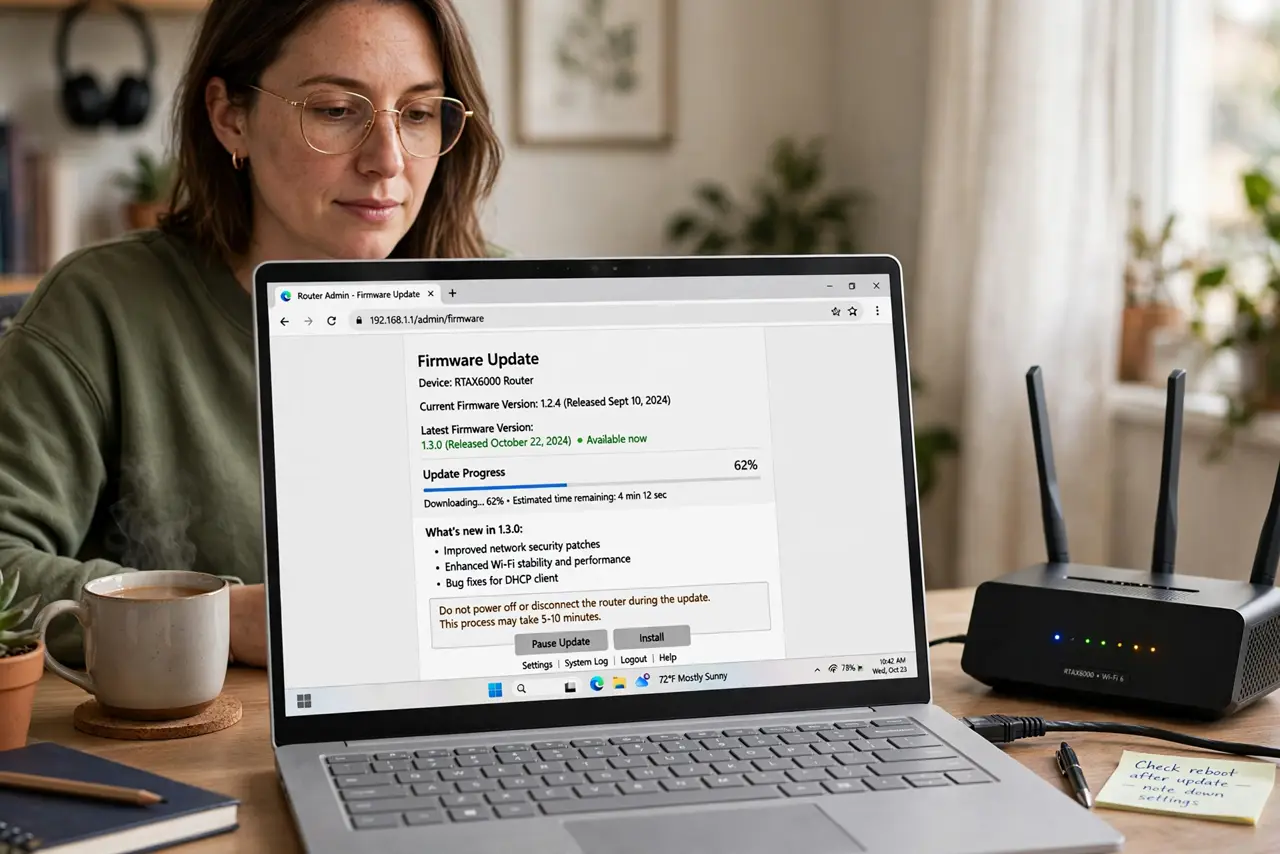
Quick fix: log in to your router's admin page, find the firmware or update section, and install any available update. Do not unplug the router during the update — interrupting it can brick the device. Check every few months, since routers rarely update themselves.
Follow these steps
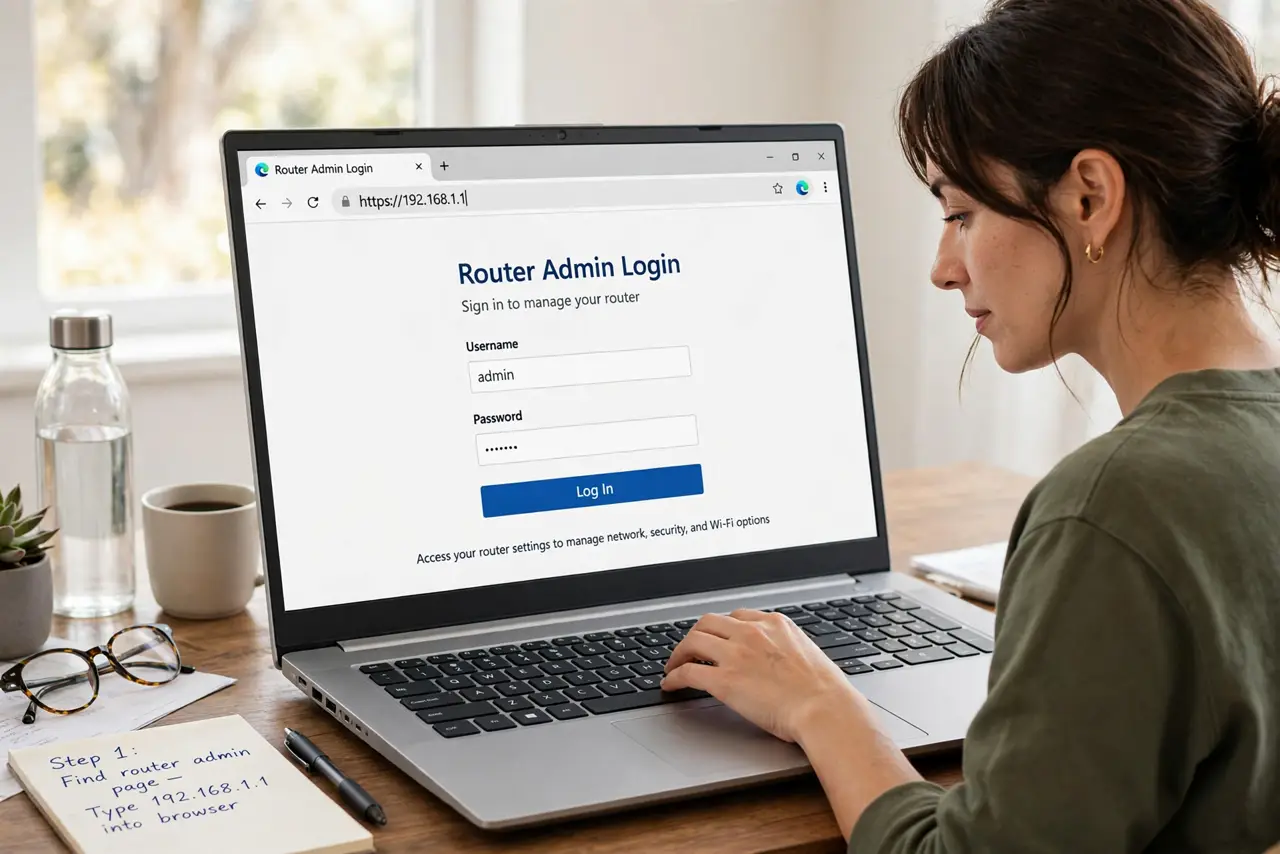
- Find your router's admin page. On a connected device, open a browser and try the address on the router's sticker — often 192.168.1.1 or 192.168.0.1. Log in with the admin credentials, which you should have changed from the defaults using the default login guide.
- Locate the firmware section. Look under Administration, Advanced, or System — every brand labels it differently, but 'firmware update' or 'router update' is always there somewhere. Note the current version before you touch anything.
- Check for updates the router's way first. Most modern routers have a 'check for update' button that downloads the right file automatically. Use it — manually downloading firmware from the maker's site is only needed when the automatic check fails.
- Do not interrupt the update. Once it starts, leave the router alone: no unplugging, no rebooting, no closing the tab. The router will restart itself when done, which takes a few minutes — impatience here is how routers get bricked.
- Confirm the new version stuck. After the restart, log back in and verify the version number changed. If the update failed silently, you will see the old version — try again or download the file manually from the maker.
- Set a reminder to check again. Routers almost never auto-update. Put a recurring note every three months to check the firmware page — five minutes of prevention beats a weekend of mysterious dropouts.
What NOT to do
- Do not update over a flaky connection. If the Wi-Fi is already dropping, plug in with an ethernet cable first — a failed download mid-update is the main bricking risk.
- Do not install firmware from random forums. Only the router maker's official file for your exact model — wrong firmware can permanently kill the device.
- Do not factory-reset before updating. A reset wipes your settings for no benefit; update first, and only reset if the update misbehaves.
- Do not ignore an update that keeps failing. Repeated failures can signal a dying router or a corrupted download — try a different browser or the manual file before giving up.
Frequently asked questions
Will a firmware update wipe my Wi-Fi settings?
No — updates preserve your network name, password, and settings. Only a factory reset wipes them, which is a separate and deliberate action.
How do I know if my router is too old for updates?
If the maker's support page lists no firmware for your model in the last two years, it is abandoned. An unpatchable router is a security liability — replace it.
The update button says I am current but the site shows newer. Why?
Some ISP-provided routers only accept updates pushed by the ISP. If yours is ISP-supplied, the automatic check is the truth — or ask the ISP to push it.