Tune Channels for Smart Homes
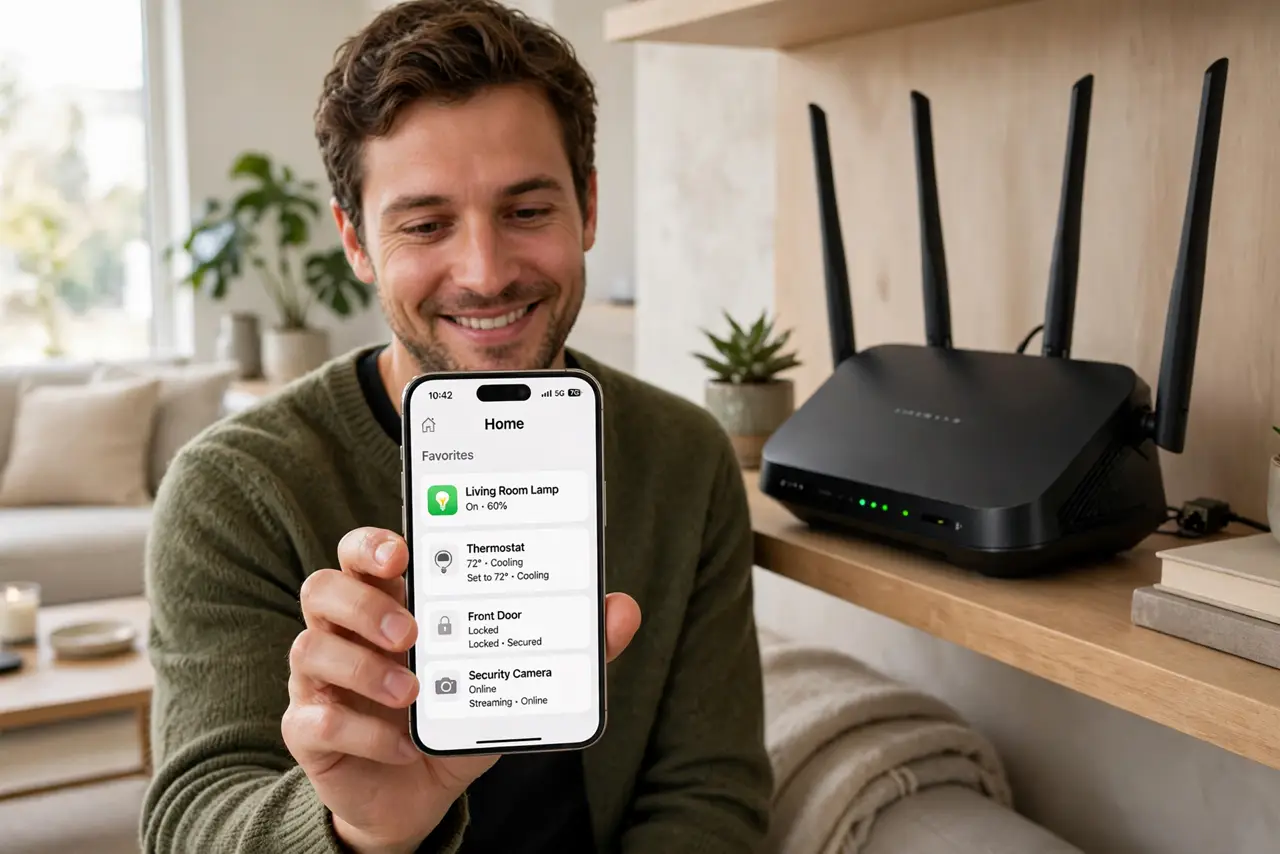
Your smart bulbs drop offline, the doorbell misses motion, and the thermostat sulks — while your laptop streams 4K happily. Smart home gadgets mostly use the crowded 2.4 GHz band, where they fight neighbors, microwaves, and each other. Tuning your Wi-Fi channels with smart-home traffic in mind fixes a whole class of mysterious dropouts. This guide picks the right channel strategy and separates gadget traffic from the rest. If your gadgets only see one band, check why they need 2.4 GHz.
TL;DR / Quick Fix
Quick fix: give your 2.4 GHz network a fixed channel — 1, 6, or 11, whichever is least crowded — instead of Auto, which routers change at the worst moments. Keep smart gadgets on 2.4 GHz and everything else on 5 GHz. Stable channels mean gadgets stop mysteriously dropping offline.
Follow these steps
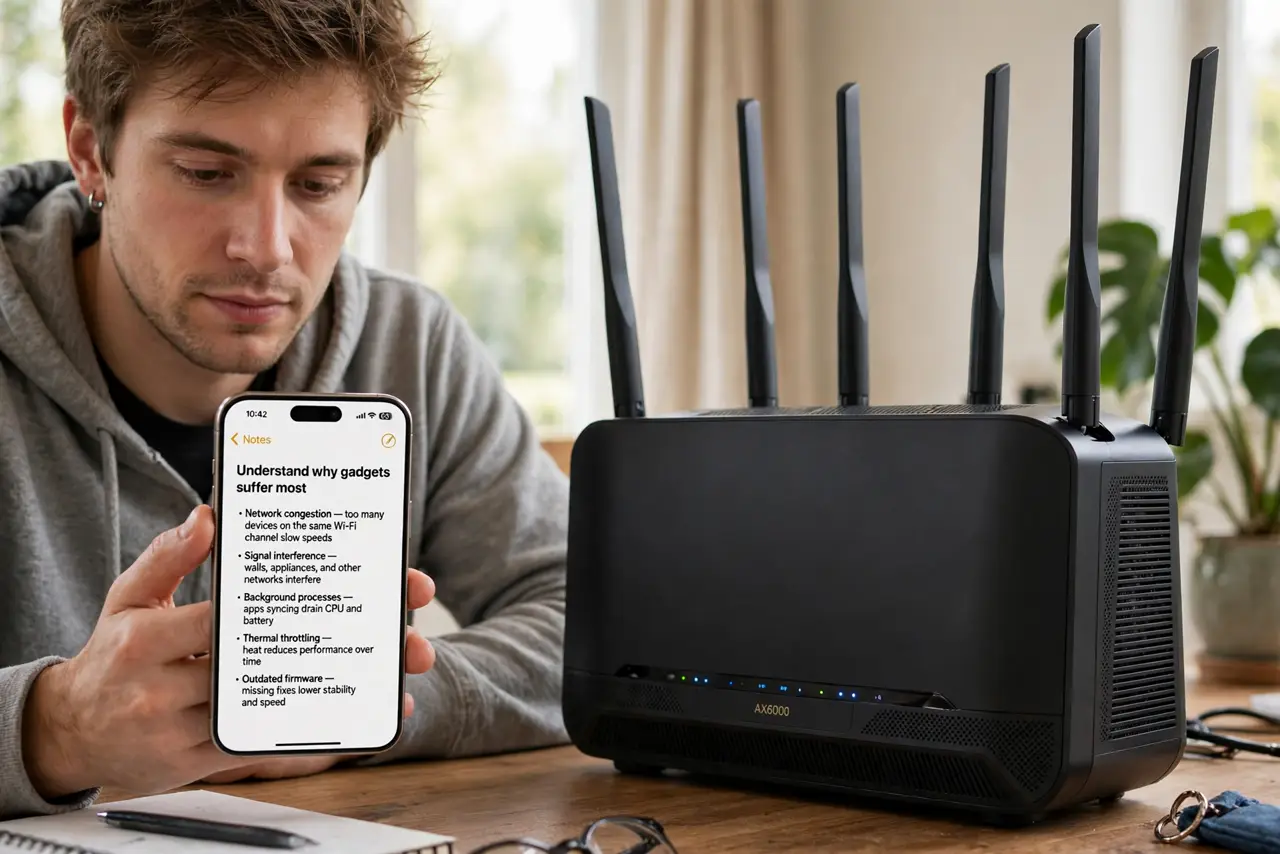
- Understand why gadgets suffer most. Smart bulbs and plugs use cheap 2.4 GHz radios with tiny antennas. They are the weakest clients on your network, so they feel congestion that your laptop never notices.
- Scan and pick a fixed 2.4 GHz channel. Use a Wi-Fi analyzer app to find the least crowded of channels 1, 6, or 11. Set it manually in the router — Auto channel hopping disconnects fragile gadgets mid-hop.
- Keep gadgets on 2.4 GHz deliberately. Give the 2.4 and 5 GHz bands separate names so gadgets join the long-range band on purpose. Band-steering algorithms routinely strand weak gadgets on the wrong band.
- Move heavy users to 5 GHz. Shift phones, laptops, and TVs to 5 GHz. Every heavy user you move off 2.4 GHz is airtime freed for the dozens of tiny gadget conversations.
- Place the router centrally. Gadgets at the edges — the garage camera, the backyard plug — need all the signal they can get. A central, elevated router beats a corner closet every time.
- Add a dedicated access point if needed. In gadget-dense homes, a second access point just for smart devices ends the contention entirely. It is the professional answer to a house full of radios.
What NOT to do
- Do not leave the channel on Auto with many gadgets. The router's well-meaning hops knock offline exactly the devices that reconnect worst.
- Do not put the router in a metal media cabinet. Gadgets already struggle; a Faraday cage of a cabinet finishes them.
- Do not expect one router to cover a big gadget-filled house. Density needs access points, not wishes.
- Do not forget the 2.4 GHz password when adding gadgets. A typo'd password is the number one 'my bulb will not connect' cause — check it first.
Frequently asked questions
Why do my gadgets not see the 5 GHz network?
Most are 2.4 GHz only — cheaper radios, better range through walls. That is normal, not a defect.
Should gadgets get their own network name?
It helps troubleshooting a lot. A separate 2.4 GHz name for smart home gear makes problems obvious and contained.
How many gadgets is too many for one router?
Consumer routers start struggling past a few dozen active clients. If you are past fifty gadgets, plan a second access point.