Traceroute? The Basics
Your connection to one site crawls while everything else flies — where exactly does it break? Traceroute maps every hop between you and the destination and times each one, turning 'the internet is slow' into 'the problem is at hop 7.' It sounds technical, but reading it takes five minutes to learn.
TL;DR / Quick Fix
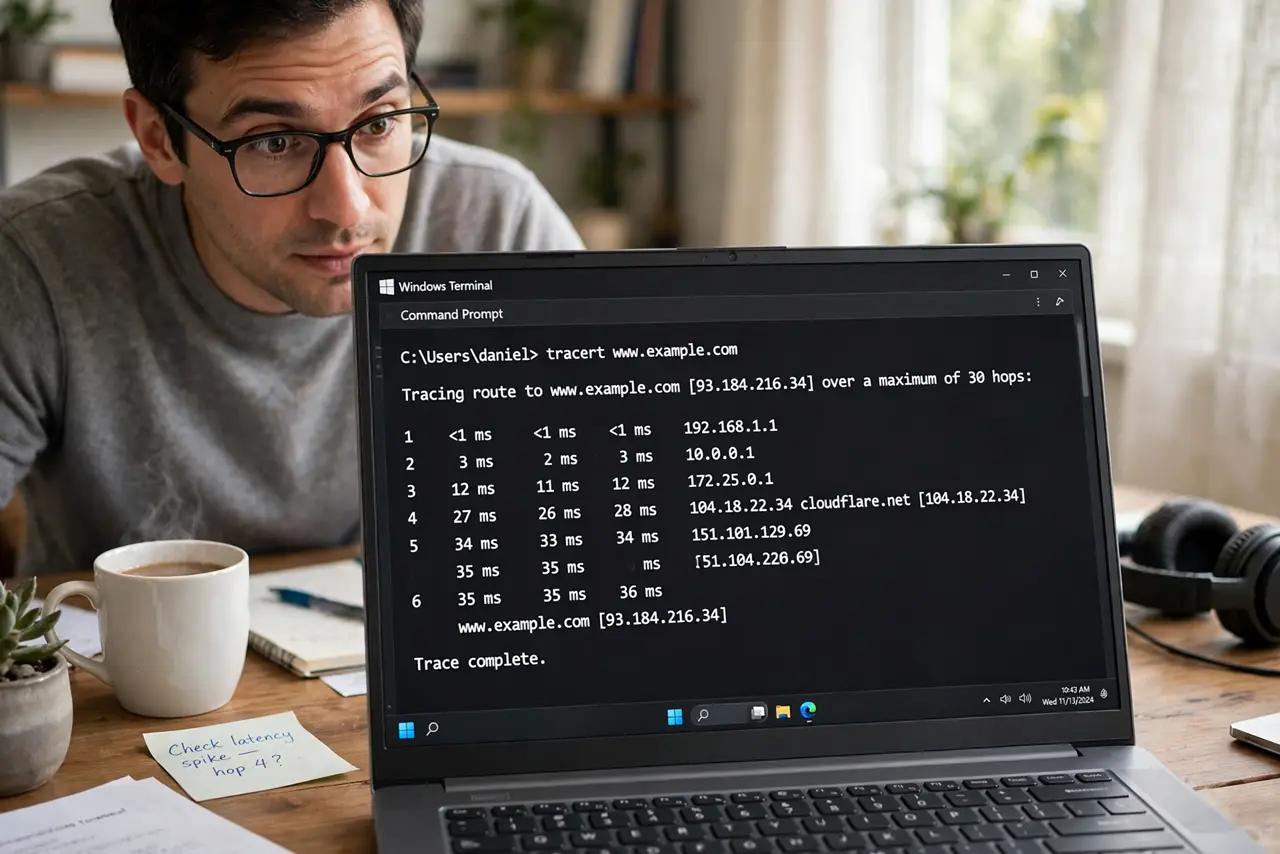
Quick fix: traceroute shows every hop between you and a website, with the delay at each — the hop where latency jumps is where the problem lives. Run 'tracert example.com' on Windows or 'traceroute' on Mac. High latency at hop 1 is your Wi-Fi; late hops are the internet's problem.
Follow these steps
- Run it on your system. Windows: open Command Prompt and type 'tracert example.com'. Mac/Linux: open Terminal and type 'traceroute example.com'. Replace example.com with the slow site — test the actual problem destination.
- Read hop 1 first. Hop 1 is your router. High latency here means your local network — Wi-Fi trouble — is the problem, and the router ping test confirms it. Everything downstream is innocent until hop 1 is clean.
- Find the jump. Scan down the latency column for the hop where times suddenly balloon — say 15ms becoming 200ms. That hop, or the link right after it, is where the delay enters. Consistent jumps at the same hop across runs are the signal.
- Ignore asterisks calmly. Rows of * * * mean a hop doesn't answer pings — many backbone routers don't. It's only a problem if latency jumps there AND stays high afterward; silent hops with clean downstream times are normal.
- Compare a working site. Traceroute a fast site and the slow site side by side. If both share the early hops cleanly and diverge later, the problem is specific to the slow site's path — not your connection at all.
- Send results to support properly. Paste the full output with the destination and time. 'Hop 6 jumps from 20ms to 300ms every evening' gives an ISP engineer something actionable; 'traceroute looks weird' does not.

What NOT to do
- Do not panic at high numbers on the last hop. Some destination servers deprioritize ping replies — a slow final hop with a fast-loading site is cosmetic.
- Do not run it once and conclude. Routes flap and blips happen — three runs showing the same jumpy hop is evidence; one is a rumor.
- Do not traceroute from Wi-Fi when diagnosing the line. Test wired so local wireless noise doesn't masquerade as an internet problem.
- Do not expect to fix backbone hops yourself. Hops past your ISP are other companies' equipment — your power is good documentation, not a wrench.
Frequently asked questions
What do the three latency columns mean?
Three probes per hop, each timed separately. They should roughly agree; wild disagreement within one hop means that hop is congested or rate-limiting pings.
Why do some hops show hostnames and others just IPs?
Reverse DNS — some routers publish names, some don't. Names help guess geography ('...dallas...'), but the latency numbers matter more than the labels.
Is traceroute the same as a speed test?
No — complementary. Speed tests measure capacity; traceroute maps the path and finds where delay enters. Use both: capacity problems versus routing problems need different fixes.