Turn On WPA3
Your Wi-Fi is probably still using WPA2 — fine in its day, but WPA3 has been the stronger standard for years, with better encryption and protection against password-guessing attacks. Many routers ship with WPA3 available but not enabled, sitting one toggle away. Here is how to turn it on without stranding your older devices.
TL;DR / Quick Fix
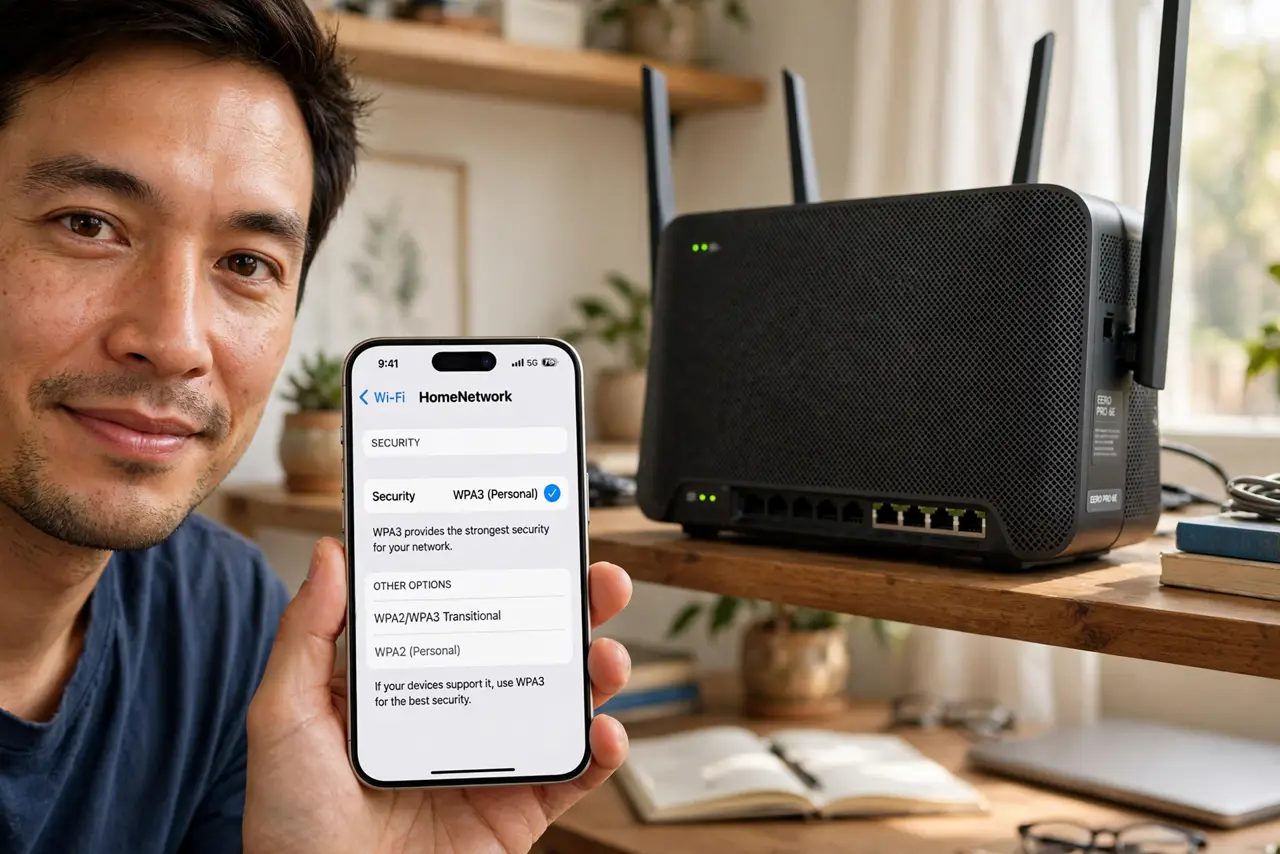
Quick fix: in your router's wireless security settings, switch from WPA2 to WPA3 or WPA2/WPA3 transitional mode. Transitional keeps older devices connected while new ones get the stronger encryption. Reconnect devices once; if an old gadget refuses, that one device reveals itself immediately.
Follow these steps
- Open the wireless security settings. Log in to your router's settings and find the wireless security section — usually under Wireless, then Security. You will see the current mode, likely WPA2-Personal.
- Check what your router offers. Look for WPA3-Personal, WPA3-SAE, or a WPA2/WPA3 transitional or mixed option. The exact label varies by brand; any mention of WPA3 is what you want.
- Choose transitional mode first. WPA2/WPA3 mixed mode gives WPA3 to capable devices while letting older ones connect with WPA2. Pure WPA3 is stronger but strands anything from before roughly 2018.
- Apply and reconnect. Save the setting — the router restarts its radios. Reconnect your devices; most rejoin automatically, a few ask for the password again. This is normal.
- Hunt down the stragglers. If one old device refuses to connect, you have found it. Either leave transitional mode on for it, or accept that a 2015 smart plug may need replacing — do not downgrade the whole network for one gadget without thinking.
- Consider pure WPA3 later. Once every device connects happily in transitional mode for a month, try pure WPA3. If all still connects, you have the strongest setup with zero compatibility cost.
What NOT to do
- Do not jump straight to pure WPA3. One incompatible old device can silently drop off — transitional mode first, always.
- Do not confuse WPA3 with a new password. The encryption upgrades; your Wi-Fi password stays the same unless you change it.
- Do not enable WPA3-Enterprise at home. Enterprise needs a login server; Personal (sometimes called SAE) is the home mode.
- Do not panic if a device asks for the password again. Rejoining after a security change is normal — enter it once and move on.
Frequently asked questions
Is WPA2 unsafe now?
Not broken for home use with a strong password, but WPA3 fixes real weaknesses — especially password guessing. Upgrading is worthwhile, not urgent.
Will WPA3 slow down my Wi-Fi?
No. Encryption happens in hardware on modern devices; there is no speed penalty you can measure.
My router has no WPA3 option. Now what?
Check for a firmware update — makers added WPA3 to many models afterward. If none exists, your next router will have it; WPA2 with a strong password remains reasonable.