Windows 11 Requirements? Basics
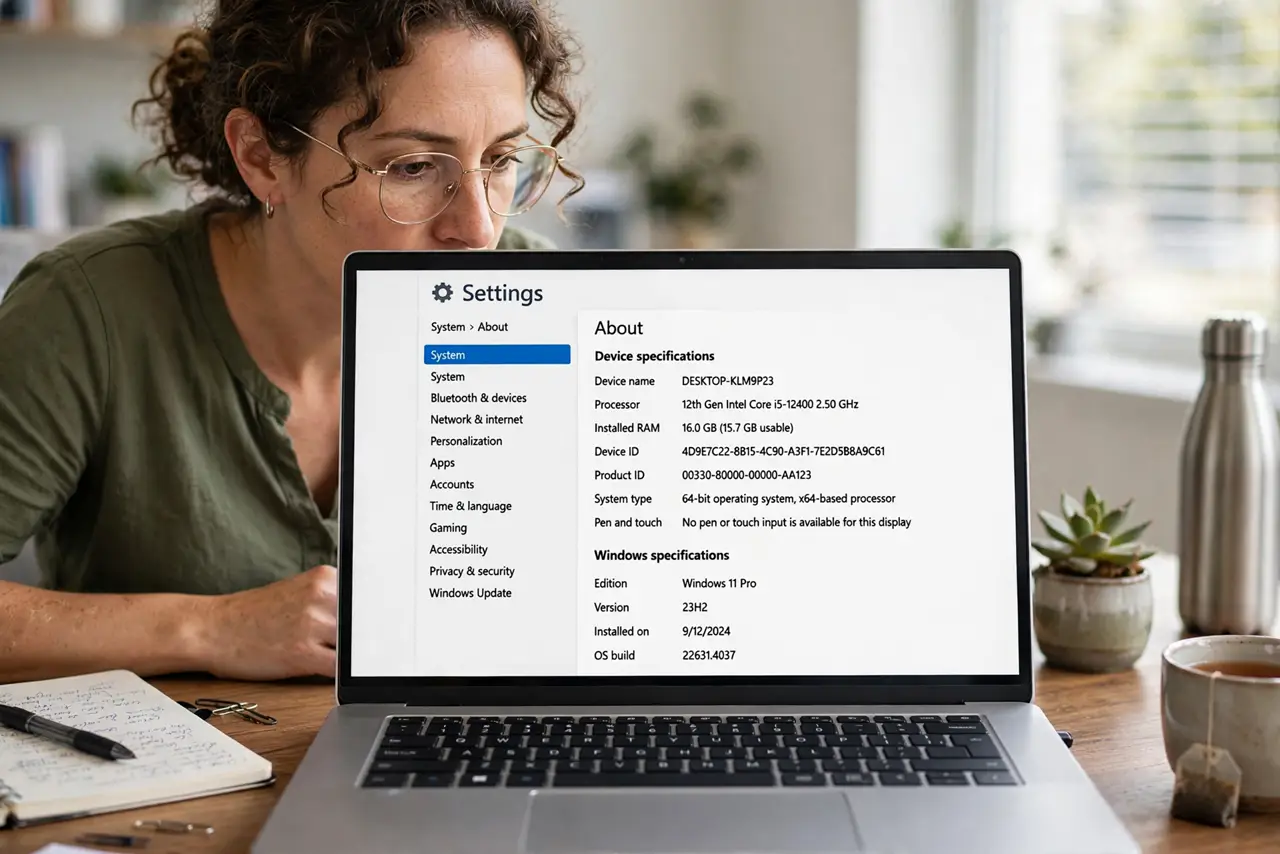
Before you get excited about Windows 11, there is a checklist to pass: Microsoft requires specific hardware — a 64-bit processor, TPM 2.0, Secure Boot, and enough RAM and storage. Plenty of perfectly good PCs fail on one technicality. Here is the plain list of requirements and how to check your PC against each one.
TL;DR / Quick Fix
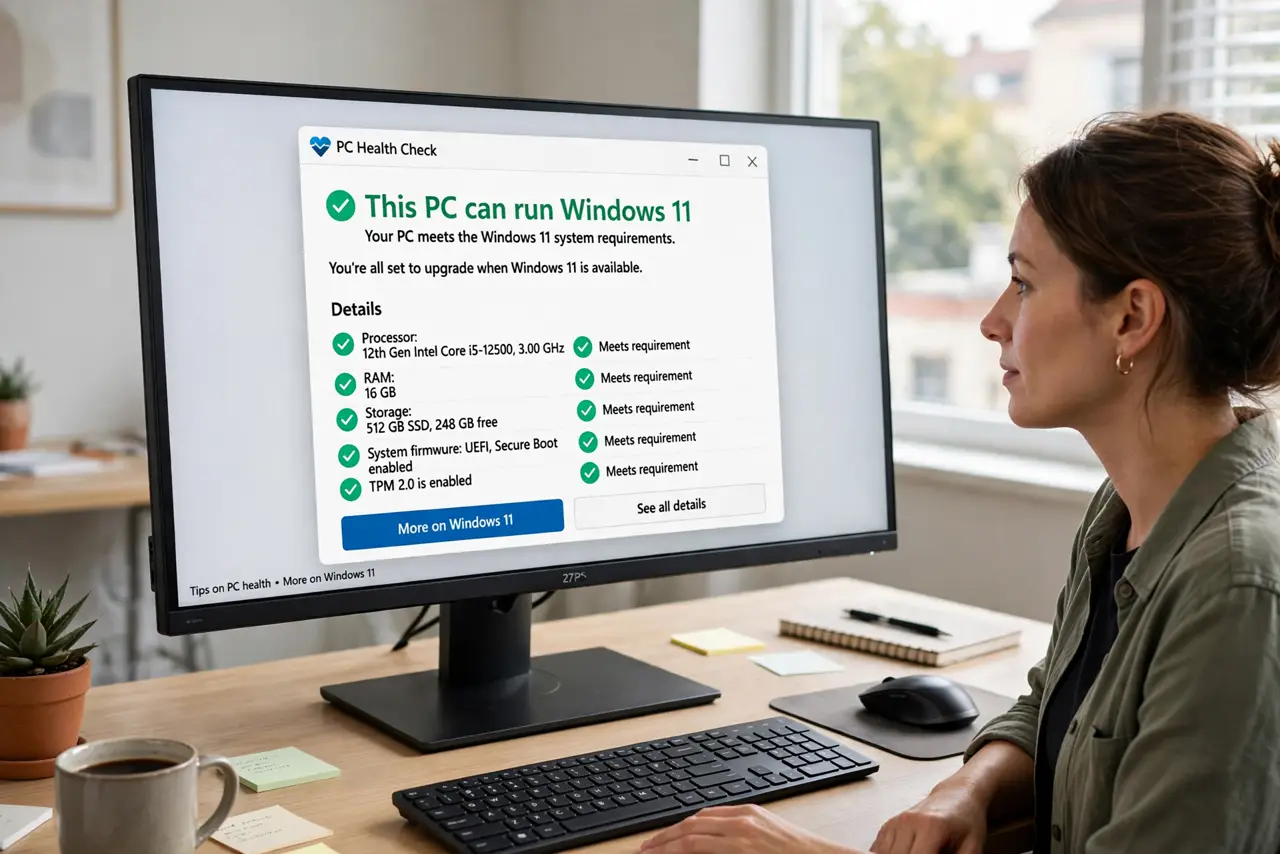
Quick fix: Windows 11 needs a 64-bit CPU, 4GB of RAM, 64GB of storage, UEFI firmware with Secure Boot, and TPM 2.0. Run Microsoft's PC Health Check app to test your machine. If it fails on TPM or Secure Boot, those can often be enabled in the BIOS.
Follow these steps
- Run the PC Health Check app. Microsoft's free PC Health Check tool tests everything in one click and tells you exactly which requirement fails. Download it from Microsoft's site — do not trust third-party 'compatibility' tools.
- Check the processor list. Windows 11 needs a 64-bit processor on Microsoft's supported list — roughly Intel 8th-gen or newer, AMD Ryzen 2000 or newer. An older but fast CPU still fails officially.
- Verify TPM 2.0. TPM is a security chip most PCs from the last decade have — it may just be disabled. Press Windows+R, type tpm.msc, and look for 'TPM 2.0 ready'. If absent, check the BIOS for a TPM or PTT/fTPM toggle.
- Confirm Secure Boot capability. Your PC needs UEFI firmware with Secure Boot available. Check System Information (msinfo32) — 'Secure Boot State' should read On or be enableable in the BIOS.
- Check RAM and storage. The minimums are 4GB of RAM and 64GB of storage, but 8GB and 128GB+ make for a genuinely usable machine. Bare-minimum specs technically install but feel sluggish.
- Decide if it is worth enabling. If only TPM or Secure Boot is off, a BIOS toggle usually fixes it in minutes. If the CPU itself is unsupported, weigh the upgrade decision honestly — new PC versus staying put.
What NOT to do
- Do not bypass the checks with registry hacks on your main PC. You get an unsupported install with no update guarantees.
- Do not enable TPM or Secure Boot blindly in the BIOS. Note the original settings first, in case something else depends on them.
- Do not trust random 'Windows 11 ready' stickers on old stock. Run the actual Health Check on the actual machine.
- Do not upgrade a PC that barely meets minimums. 4GB of RAM with Windows 11 is technically allowed and practically miserable.
Frequently asked questions
My PC fails only on the CPU — can I still upgrade?
Officially no. Unofficial bypasses exist but leave you unsupported and possibly update-blocked — not worth it on a daily driver.
Is TPM 2.0 really necessary?
For the official upgrade, yes — it is a core part of Windows 11's security model, and there is no supported way around it.
What if my PC is too old for Windows 11?
Keep it secure while you plan a replacement, or consider a lightweight alternative OS for basic tasks. Do not run an unpatched system indefinitely.