Stuck in Airplane Mode?
You toggled Airplane mode on for a flight, and now it will not turn off — Wi-Fi is dead, the toggle is grayed out or flips itself back. A stuck Airplane mode is usually a driver or a physical switch, not a broken laptop. Work through these fixes in order before assuming hardware failure.
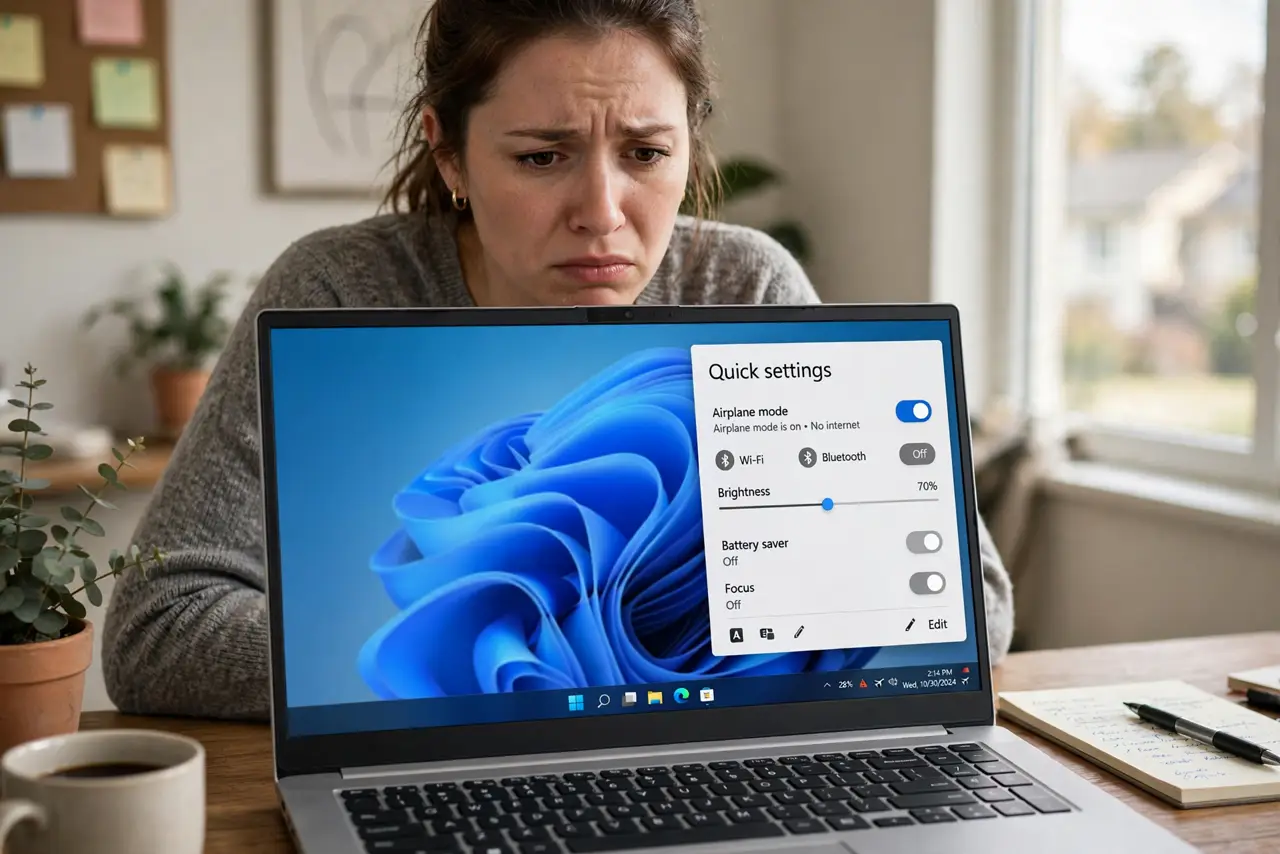
TL;DR / Quick Fix
Quick fix: open Quick Settings and toggle Airplane mode off, then on again — a stuck toggle often clears with a second flip. If Wi-Fi still will not return, restart the laptop. Check the physical Wi-Fi switch or function key too; some laptops have one that overrides software.
Follow these steps
- Toggle it twice. Open Quick Settings (Windows key + A) and flip Airplane mode off, wait ten seconds, flip it on and off again. Stuck toggles often clear on the second cycle — see the stuck airplane mode deep fixes if not.
- Restart the laptop. A full restart — not sleep, restart — clears the radio state that a stuck toggle leaves behind. This fixes the majority of remaining cases.
- Check the physical switch. Many laptops have a physical Wi-Fi switch or a function-key toggle (often Fn + F2 or similar). If it is off, no software toggle can help — flip the hardware first.
- Update the Wi-Fi driver. A corrupted wireless driver can jam the airplane state. Update from the laptop maker's support page — Windows Update sometimes misses the right one.
- Check the BIOS setting. Some BIOS setups have a wireless toggle. If the driver is fine and the switch is on, peek at the BIOS wireless setting on the next restart.
- Consider the paid-Wi-Fi angle. If this started on airplane Wi-Fi, see the paid airplane Wi-Fi notes — captive portals and airplane networks create their own special stuck states.
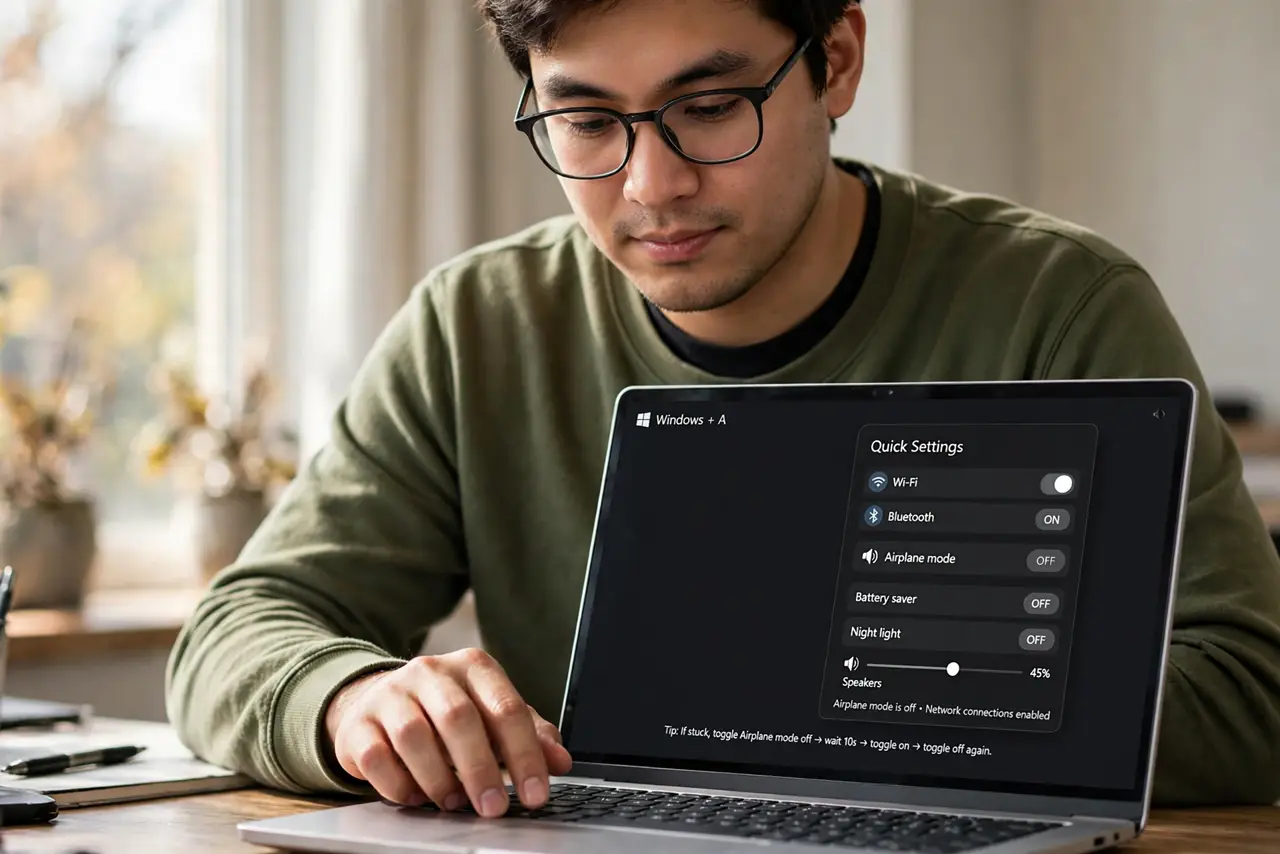
What NOT to do
- Do not reinstall Windows for this. Stuck airplane mode is drivers, switches, or settings in nearly every case — reinstalling is overkill.
- Do not ignore the physical switch. Hours of software troubleshooting lose to a tiny slider on the laptop's edge — check hardware first.
- Do not forget the iPhone comparison. If your phone has the same symptom pattern, see the iPhone airplane mode — but fix the laptop on its own terms.
- Do not force the toggle repeatedly in anger. Rapid flipping can wedge the radio state worse — toggle deliberately, waiting between flips.
Frequently asked questions
Why is the toggle grayed out?
Usually a physical switch is off or the driver failed — hardware states gray out the software toggle.
Will airplane mode hurt anything?
No — it just disables radios. The stuck part is the annoyance, not damage.
Does it affect Bluetooth too?
Yes — airplane mode kills Wi-Fi, Bluetooth, and cellular together. That is why the fix restores all three.