Forget Bad Networks
Your laptop keeps joining the wrong network — the neighbor's open Wi-Fi, the hotel from three trips ago, the dead hotspot that never connects. Windows auto-joins anything it remembers, and the fix is to make it forget. Here is how to prune the list so it joins the right network every time.
TL;DR / Quick Fix
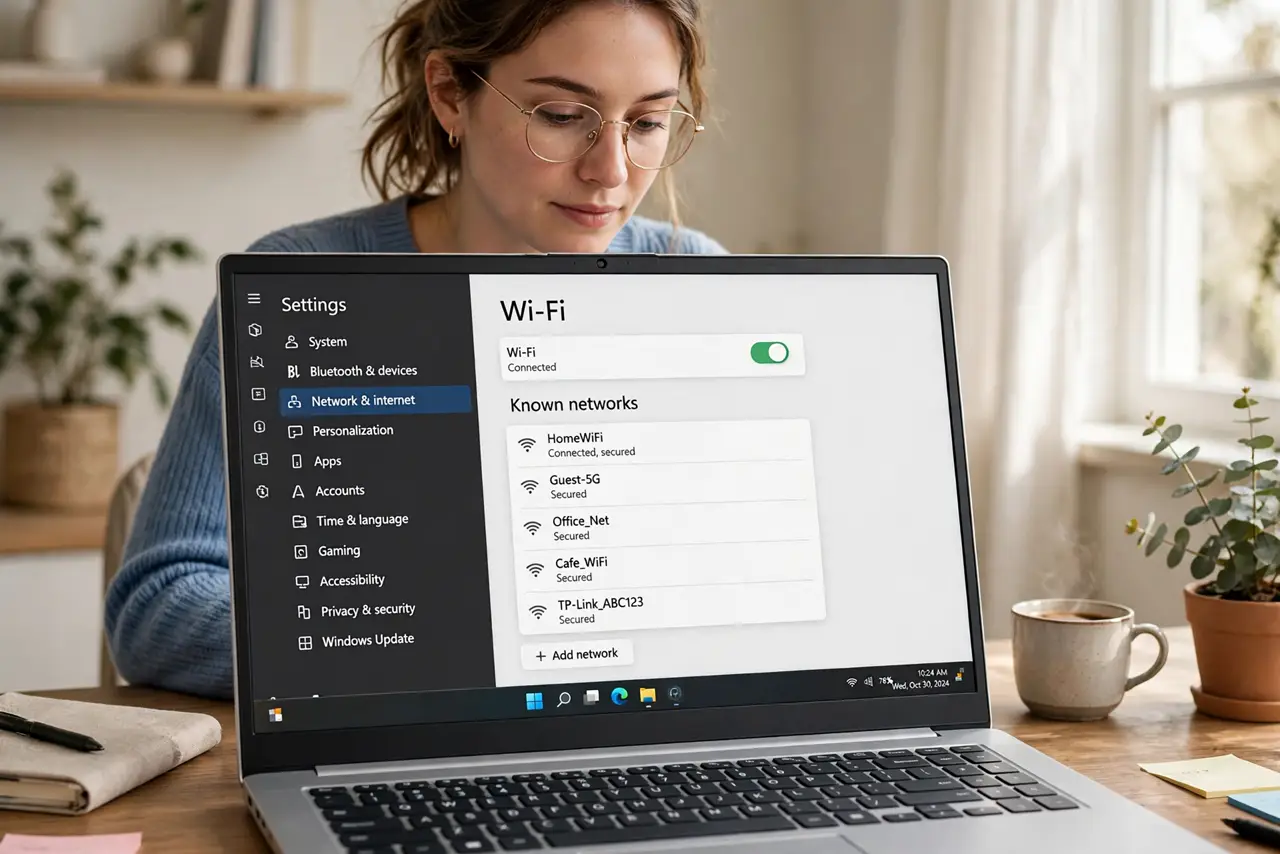
Quick fix: open Settings, Network and internet, Wi-Fi, and forget the network your laptop keeps joining by mistake — it will stop auto-connecting. Do this for old hotspots and neighbor networks first. Your saved passwords for good networks stay untouched.
Follow these steps
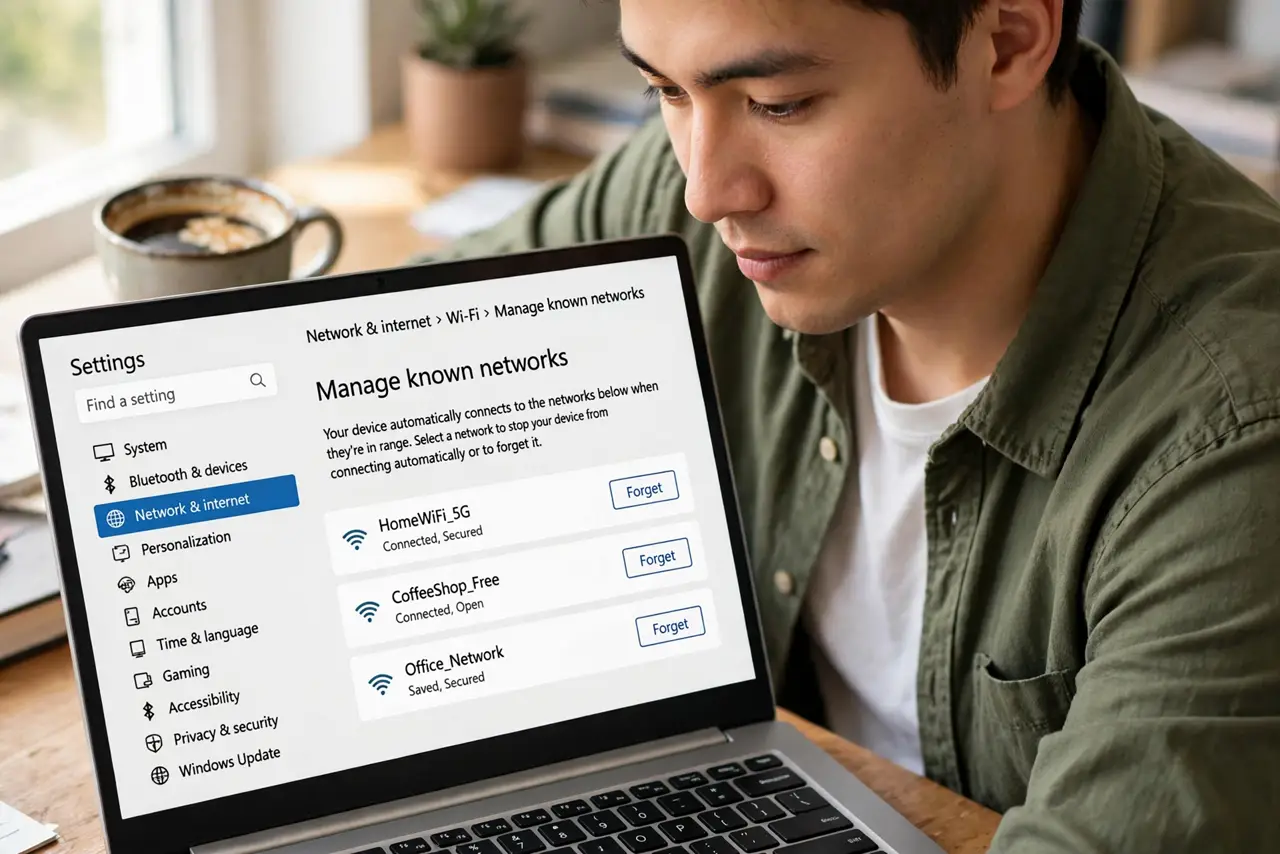
- Open the known networks list. Go to Settings, Network and internet, Wi-Fi, Manage known networks. Every network your laptop remembers is listed — see the forget network steps for the detailed walkthrough.
- Forget the offenders. Click each wrong network and choose Forget. Start with the ones it wrongly auto-joins — old hotels, dead hotspots, neighbor networks.
- Prioritize the good ones. With the bad ones gone, the laptop joins the best remaining network. Fewer remembered networks means fewer wrong guesses.
- Turn off auto-connect per network. For networks you keep but do not always want, disable Connect automatically in their properties. Kept but manual beats forgotten and retyped.
- Check the airplane-mode angle. If Wi-Fi misbehaves more broadly, see the stuck airplane mode fixes — radio weirdness and bad-network joins sometimes share a cause.
- Re-add carefully. When you rejoin a network intentionally, double-check the name. Evil-twin hotspots mimic real names — the genuine one is the one you trust.
What NOT to do
- Do not forget your home network by accident. Forgetting means retyping the password — annoying but harmless. Just be deliberate.
- Do not disable Wi-Fi entirely to avoid one network. Forgetting the offender is the targeted fix; killing Wi-Fi is a sledgehammer.
- Do not ignore the security angle. Auto-joining open networks exposes your traffic — forgetting them is a security habit, not just convenience.
- Do not forget networks you will need tomorrow. The coffee shop you visit weekly should stay — prune the one-time and the wrong, not the routine.
Frequently asked questions
Will forgetting delete the password?
Yes, for that network — which is the point. Rejoining later just asks for it again.
Why does it keep joining the wrong one?
Windows joins the strongest remembered signal. Forgetting the wrong ones leaves only right choices.
Can I stop auto-join without forgetting?
Yes — disable Connect automatically per network. The password stays saved, but it will not join uninvited.