Prioritize a Game's CPU
Your game stutters every time a background app — a browser, a sync tool, an updater — decides it needs the CPU right now. Closing everything works, but it is annoying when you want music, chat, or a stream running. Windows lets you tilt CPU priority toward the game instead: a small, safe tweak in Task Manager that tells the scheduler who matters most. Combine with taming hungry background apps for the full fix.
TL;DR / Quick Fix
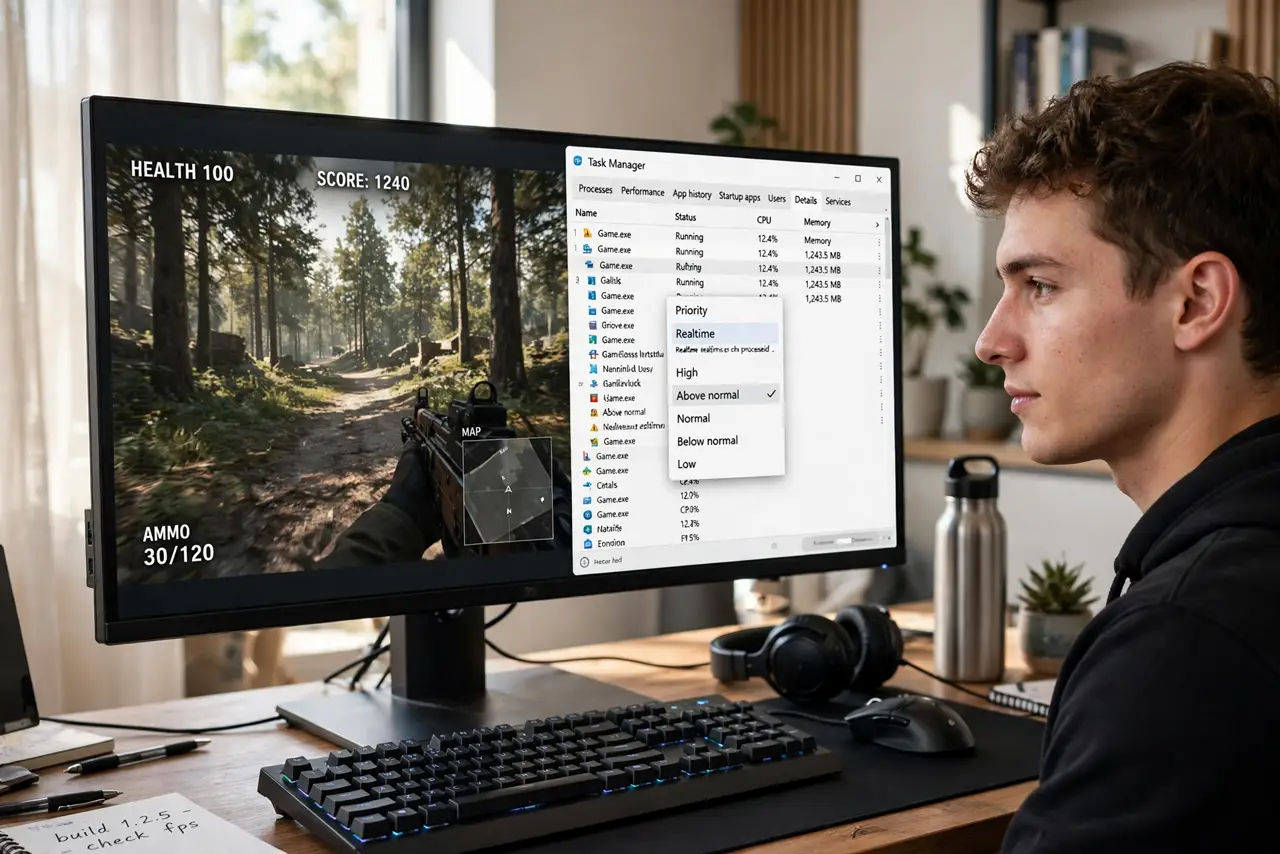
Quick fix: when a game lags because background apps hog the CPU, open Task Manager's Details tab, right-click the game, and set priority to Above Normal — never Realtime, which can freeze the system. Close or throttle the background hogs too. Closing the hog helps more than any priority tweak.
Follow these steps
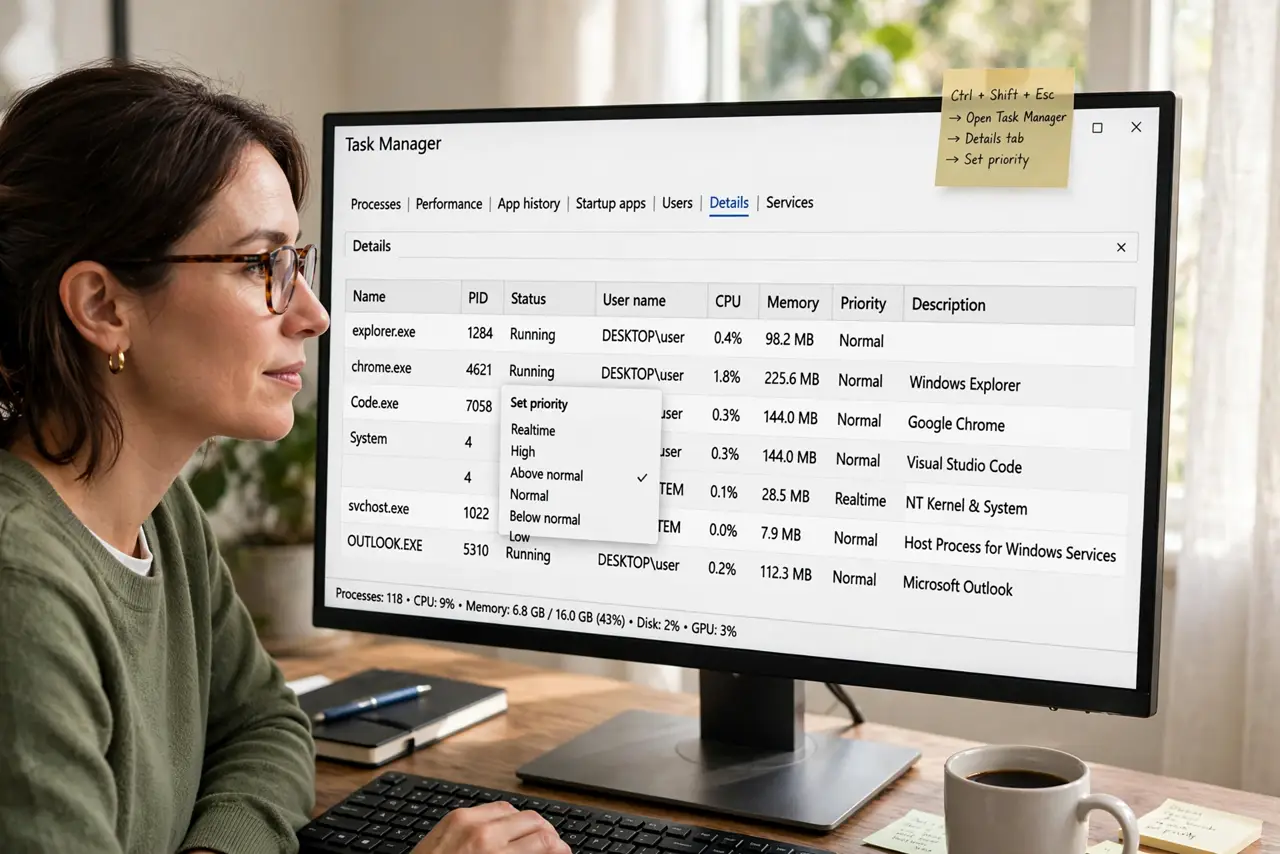
- Open Task Manager's Details tab. Press Ctrl+Shift+Esc and switch to Details — the full process list, where priority settings live.
- Find the game's process. Locate the game's executable in the list (sort by CPU to spot it fast). Right-click it and hover over 'Set priority.'
- Choose Above Normal — not Realtime. Above Normal gives the game scheduler preference safely. Realtime can starve Windows itself and freeze the system — it is never worth the risk for gaming.
- Throttle the background hogs. Find the browser, updater, or sync tool eating CPU and either close it or set it to Efficiency mode. Priority for the game plus manners for the hogs is the combo.
- Test in the actual game. Play for ten minutes in a busy scene — priority tweaks show up as fewer stutters, not higher frame rates. Judge by smoothness, not the FPS counter.
- Reset if anything acts odd. Set priority back to Normal if the system feels unstable. The change is per-session and fully reversible — nothing permanent was touched.
What NOT to do
- Do not set priority to Realtime. It can freeze Windows by starving system processes — Above Normal is the safe ceiling.
- Do not raise priority on everything. Priority is relative — boosting all apps equals boosting none.
- Do not expect miracles. Priority tweaks smooth stutters at the margins; a genuinely overloaded CPU needs fewer apps running, not cleverer scheduling.
- Do not set game priority permanently via sketchy tools. Task Manager's per-session setting is the safe path — third-party 'game boosters' add their own overhead.
Frequently asked questions
Will this increase my FPS?
Rarely — it reduces stuttering from background contention, which feels smoother. Raw frame rates come from the GPU and the game's settings.
Why does the setting reset after restart?
Task Manager priorities are per-session by design. Persistent priority needs Task Scheduler tricks most gamers should skip — re-set it when it matters.
Should I lower the background apps instead?
Yes, ideally both: close what you can, throttle the rest, prioritize the game. Priority is the finishing touch, not the foundation.