One App Looks Blurry After Display Scaling
When Windows display scaling makes one older app blurry while everything else looks sharp, that app is not handling scaling itself, so Windows stretches it. The fix is a per-app compatibility setting, not a change to your whole display. This guide fixes the one app and leaves the rest alone. If your whole screen looks wrong, start with changing screen resolution correctly.
TL;DR / Quick Fix
Quick fix: Confirm only one app is blurry. Open the app compatibility settings. Then work through the remaining steps in order, checking one change at a time, and stop for a technician if you see damage, swelling, or a burning smell.
Follow these steps
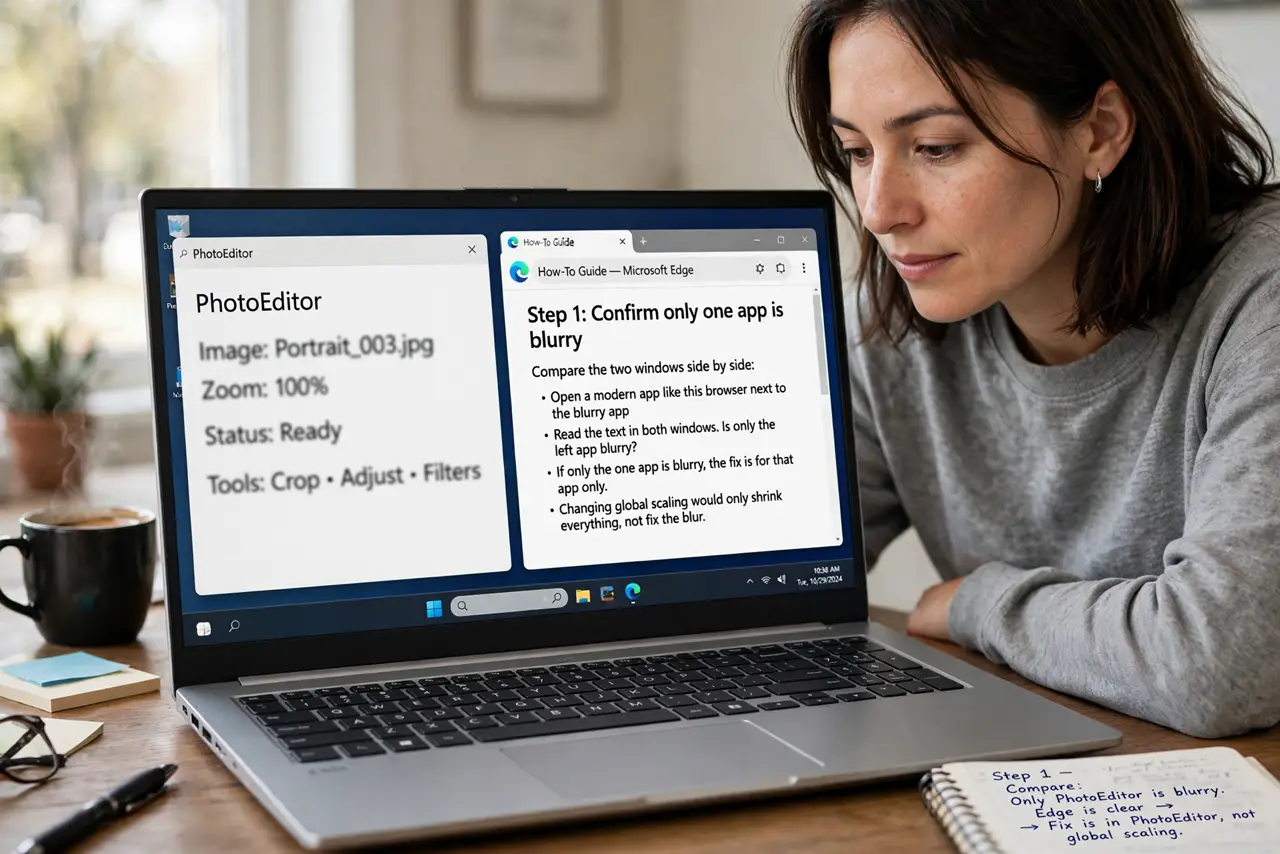
- Confirm only one app is blurry. Open a modern app, such as a browser, next to the blurry app and compare text. If only the one app is blurry, the fix belongs to that app, and changing global scaling would blur nothing else but shrink everything.
- Open the app compatibility settings. Find the app shortcut, right-click it, choose Properties, then the Compatibility tab, then Change high DPI settings. These per-app settings override how Windows scales just this program.
- Override scaling for the app. Tick Override high DPI scaling behavior and choose Application from the list. This tells the app to scale itself instead of letting Windows stretch it, which sharpens text in most older apps.
- Restart the app and compare. Close the app fully and reopen it, then look at menus and body text. If text is now sharp but tiny, try the System or System Enhanced option instead, since different apps respond to different choices.
- Check the app own display setting. Inside the app, look for its own zoom, font size, or display scaling option. Some apps scale themselves on top of Windows, so their own setting plus the override can double-scale and stay blurry.
- Keep global scaling where it was. Leave Settings, then System, then Display scaling at the value that suits your screen. Fixing one app should never mean shrinking your whole desktop for everything else.
What NOT to do
- Do not lower global scaling to fix one app. That makes every app and all text smaller, while the per-app override fixes only the blurry one.
- Do not reinstall the blurry app before trying the DPI override. Reinstalling rarely changes how an app handles scaling.
- Do not set the override to every option at once. Test one choice, restart the app, and judge the result before trying the next.
- Do not assume blurry means a bad monitor. If other apps are sharp on the same screen, the monitor is fine and the app scaling is the cause.
Frequently asked questions
Why are only old apps blurry?
Older apps were built before display scaling, so Windows stretches them. Modern apps scale themselves and stay sharp.
Does the DPI override affect performance?
No, not in any way you will notice. It only changes how Windows scales that one app window.
What if no override option fixes it?
Check for an app update from its maker, since newer versions often add proper scaling support.