Audio Keeps Switching to the Monitor Speakers
Sound that jumps to the monitor speakers every time the PC wakes or a cable reconnects is annoying, especially when you use headphones or external speakers. Windows picks the newest or default output device, and monitors with speakers often win that race. This guide sets your preferred device as the firm default. If you get no sound at all, see no sound on Windows.
TL;DR / Quick Fix
Quick fix: Set your preferred output as default. Disable the monitor speakers as output. Then work through the remaining steps in order, checking one change at a time, and stop for a technician if you see damage, swelling, or a burning smell.
Follow these steps
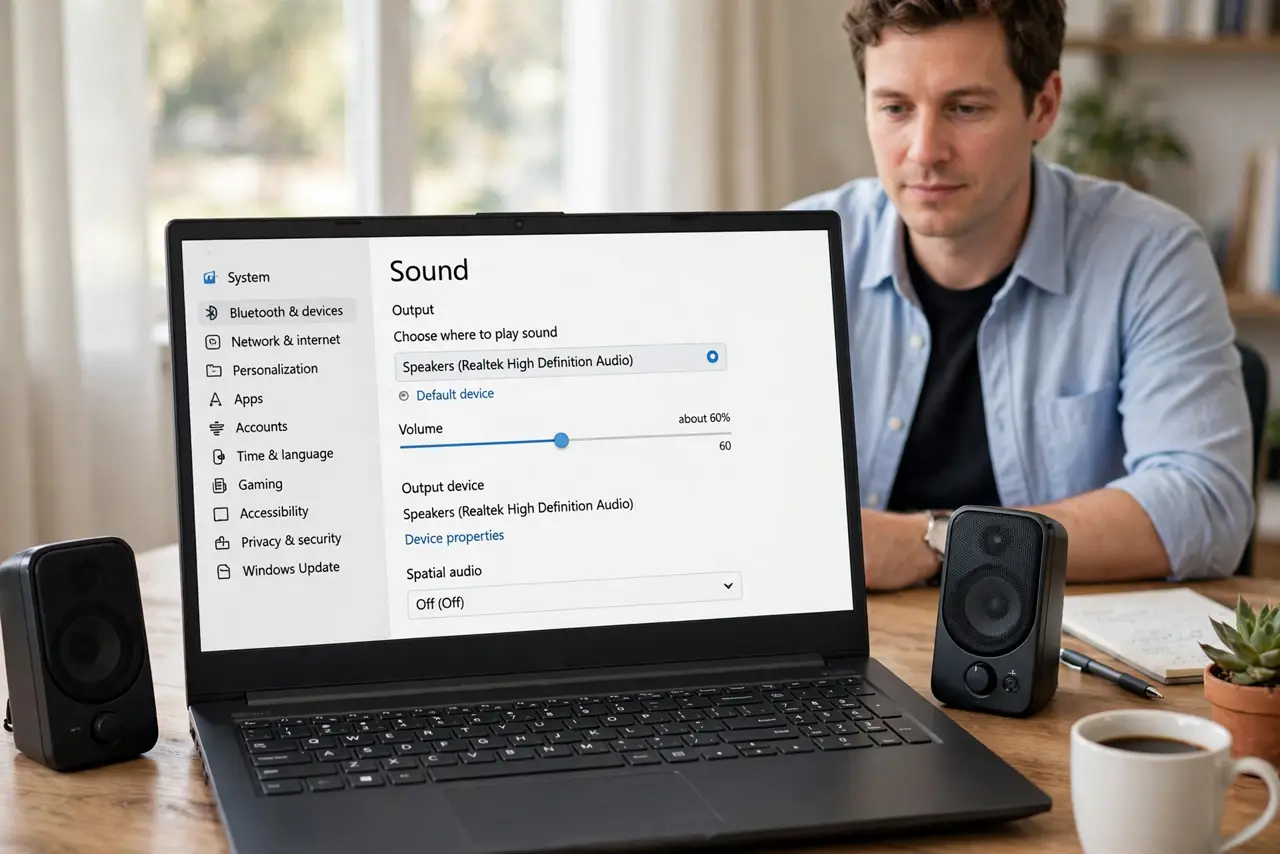
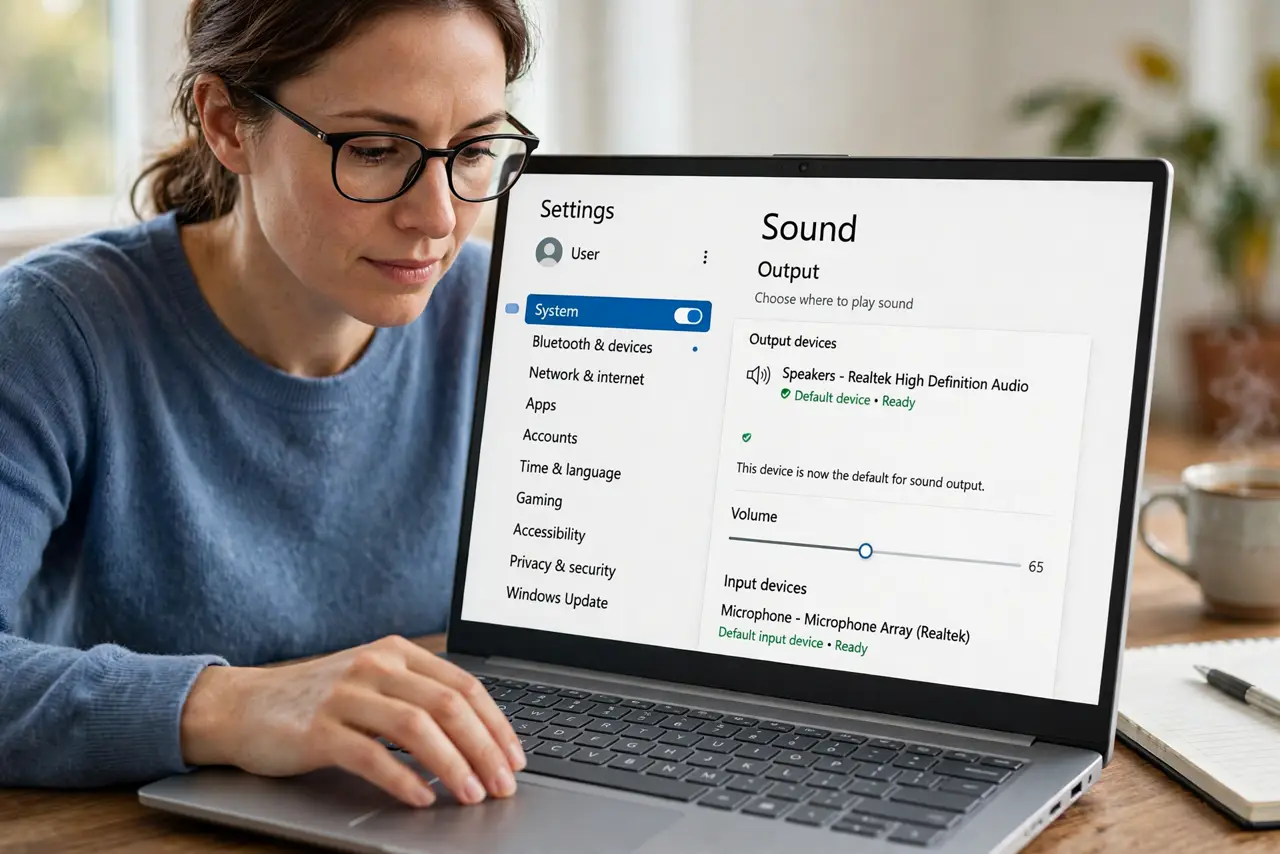
- Set your preferred output as default. Open Settings, then System, then Sound, and under Output choose the device you actually want. Click it and confirm it is set as the default output device, not just selected once.
- Disable the monitor speakers as output. In the same Sound page, under All sound devices, select the monitor speakers and choose Don't allow. Windows will no longer switch to a device you have disabled, even at wake.
- Check the monitor wake order. Wake the monitor before the PC, or keep the monitor on, and test whether audio still switches. A monitor that appears late can be treated as a new device and grab the default.
- Check app-specific output choices. In Sound settings, open Volume mixer and confirm apps you care about use the Default device or your chosen device. An app pinned to the monitor will ignore the system default.
- Test after sleep, not just after setting. Put the PC to sleep, wake it, and play a short sound. A setting that works until sleep but fails after it needs the disable step above, not just a new selection.
- Update the audio driver if switching persists. Get the newest audio driver from the PC maker site for your exact model. A faulty driver can re-pick outputs at wake even when the default is set correctly.
What NOT to do
- Do not unplug the monitor to keep sound. Disabling the monitor speakers in Sound settings solves it without losing the display.
- Do not keep reselecting the output every morning. A selection without a default, or without disabling the rival device, will not stick.
- Do not mute the monitor speakers as the fix. Muting still leaves them as the output, so sound goes nowhere useful.
- Do not install an audio switcher app before trying the disable step. Windows already lets you block an output device entirely.
Frequently asked questions
Why does sound switch only after sleep?
Sleep re-detects devices on wake, and a monitor that wakes late can be treated as new and grab the default output.
Can I keep monitor speakers for video calls only?
Yes, by choosing the monitor in the call app audio settings, while the system default stays on your preferred device.
Does disabling monitor speakers affect the display?
No. Disabling affects only sound output, so the monitor picture keeps working normally.