Set Auto-Lock Timing
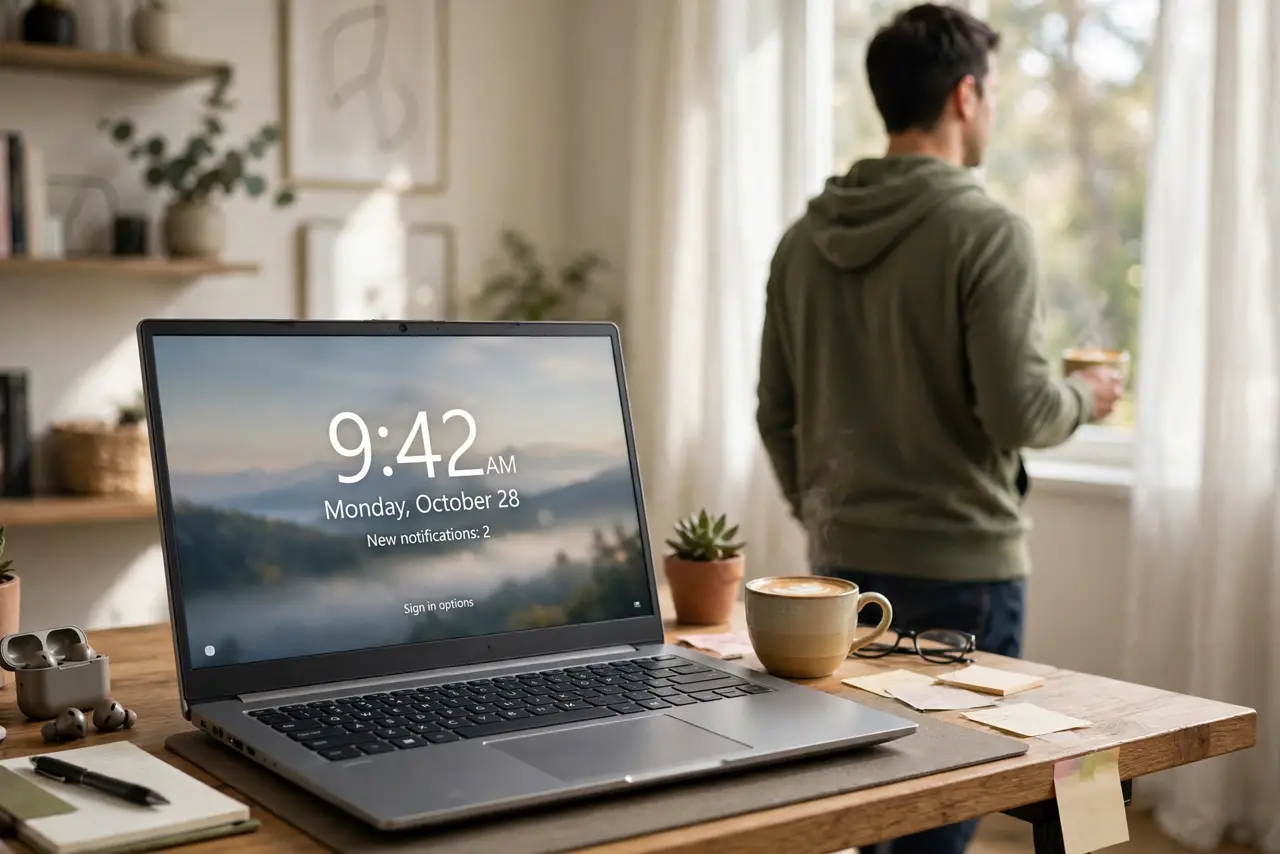
You walk away for coffee and your PC sits there unlocked — email, files, everything open for anyone passing by. Windows can lock itself after a few idle minutes, and the setting is buried but simple. Here is where it lives, what timeout to pick, and how to make unlocking painless.
TL;DR / Quick Fix
Quick fix: open Settings, Accounts, Sign-in options, and set If you have been away to 2 or 5 minutes — Windows locks itself when you walk away. Pair it with a Hello PIN for fast unlock. Shorter timeouts protect shared spaces; longer ones suit a private home office.
Follow these steps
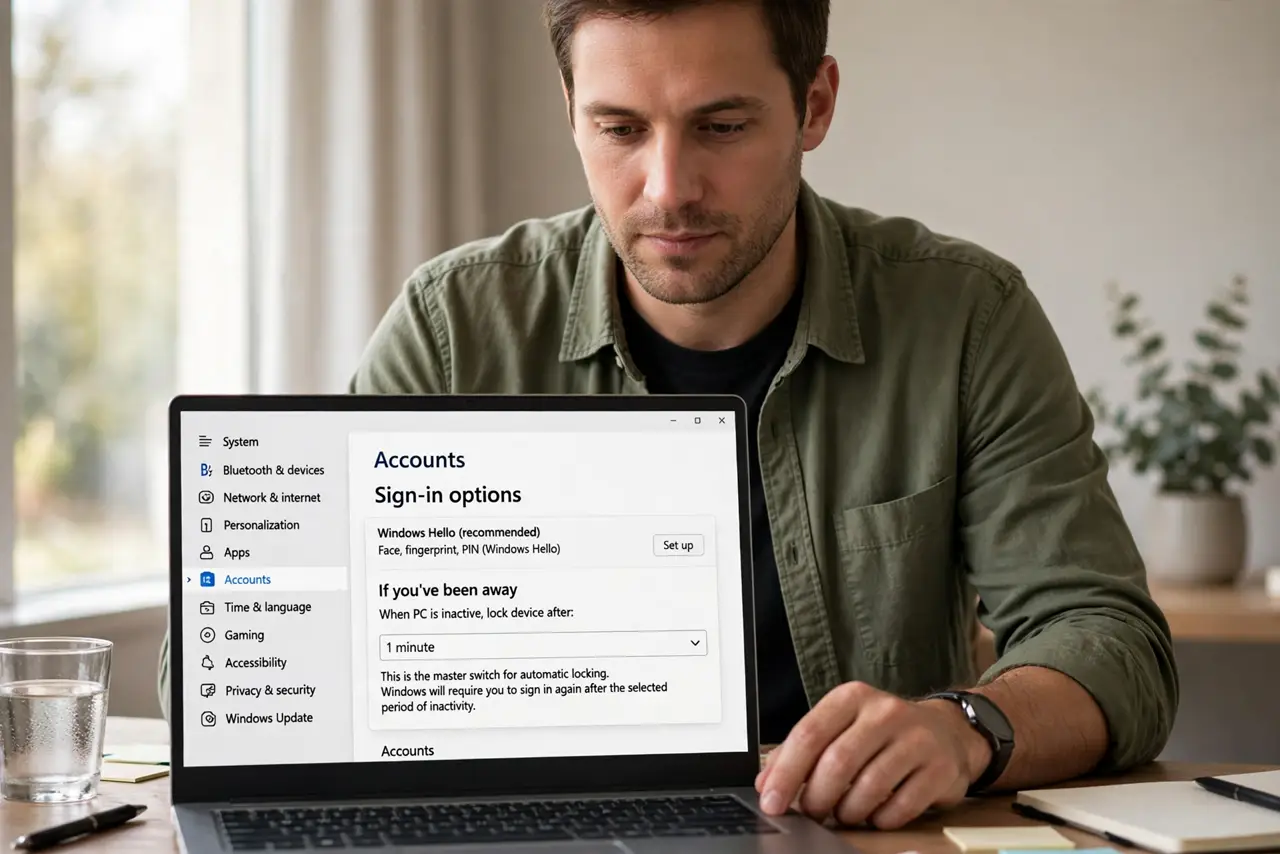
- Open Sign-in options. Go to Settings, Accounts, Sign-in options, and find If you have been away. This dropdown is the master switch for automatic locking.
- Pick your timeout. Two to five minutes suits offices and shared spaces; fifteen is fine for a private home office. Shorter is safer — you can always lock manually with Windows key + L.
- Understand the screen timeout too. The display turning off and the PC locking are related but separate — see the screen timeout settings to tune both together, and the lock screen timeout background details.
- Add a fast unlock method. Auto-lock only works if unlocking is painless — set up a Hello PIN so the lock screen costs you two seconds, not a typed password.
- Test it. Set the timeout, wait without touching anything, and confirm the lock screen appears. If it never locks, a media app or presentation mode may be keeping it awake.
- Lock manually as a habit. Auto-lock is the safety net, not the plan. Windows key + L every time you stand up — the timer covers the times you forget.
What NOT to do
- Do not set the timeout to Never in a shared space. An unlocked PC is an open door — convenience is not worth it where others pass by.
- Do not confuse sleep with lock. Sleep saves power; lock protects data — you want both, and they are separate settings.
- Do not disable the lock screen to avoid typing passwords. Set up a PIN instead — fast unlock beats no lock every time.
- Do not assume it locked. Glance back the first few times until you trust the timer — the habit matters more than the setting.
Frequently asked questions
What is a good auto-lock time?
Two to five minutes for shared or office spaces, up to fifteen at home alone. When in doubt, go shorter.
Why won't my PC auto-lock?
Video players, presentation software, and some apps block idle detection. Close them or check their settings.
Does auto-lock work when I'm watching a movie?
Usually the player suppresses it — which is what you want. It locks when truly idle, not mid-movie.