Set Up a Hello PIN
Typing your full password every time you unlock your laptop is slow, and on a shared screen it is a shoulder-surfing risk. A Windows Hello PIN is shorter, faster, and — counterintuitively — safer: it only works on that one device and never travels the network. Here is how to set one up in two minutes.
TL;DR / Quick Fix
Quick fix: open Settings, Accounts, Sign-in options, and add a PIN — faster than typing your password daily and it works offline. A PIN is tied to the device, so it cannot be phished like a password. Keep the password as backup; the PIN becomes your daily key.
Follow these steps
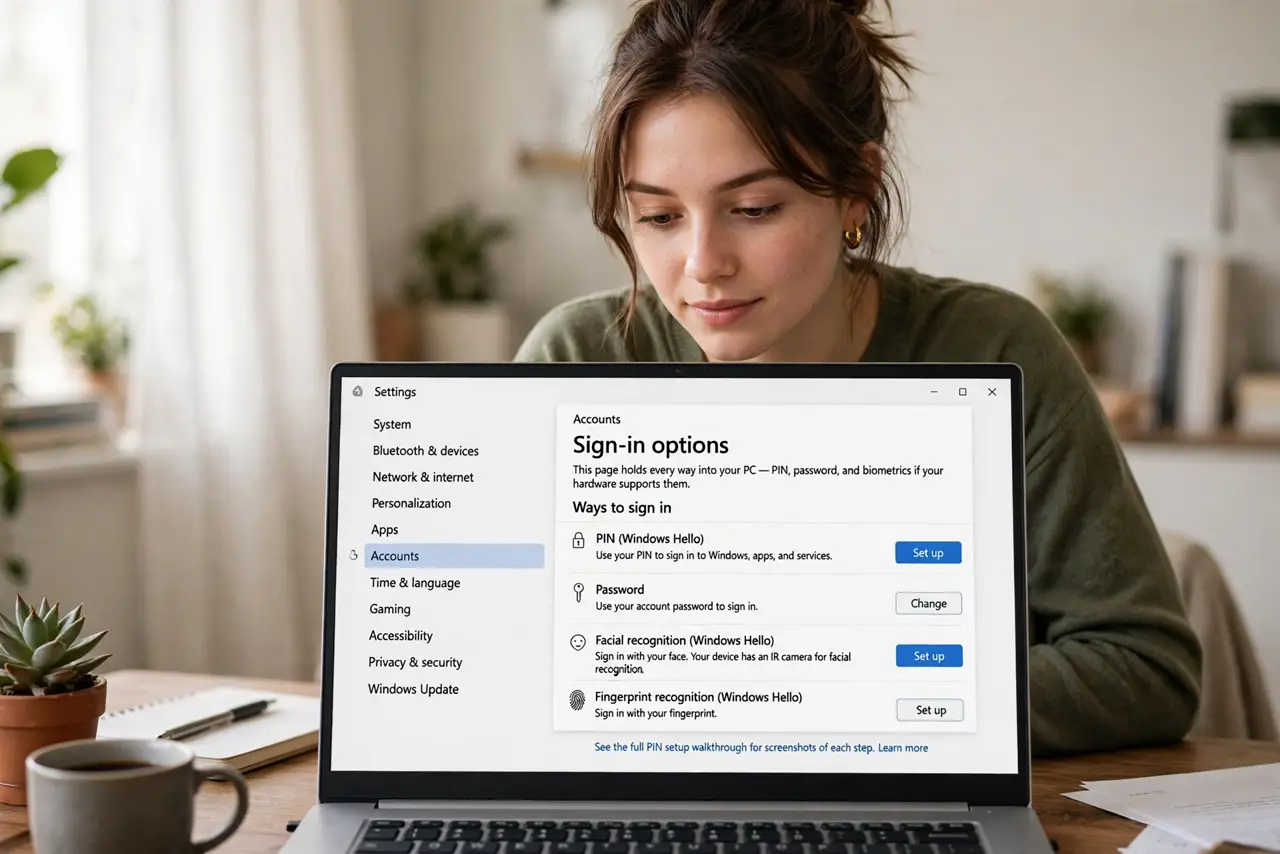
- Open Sign-in options. Go to Settings, Accounts, Sign-in options. This page holds every way into your PC — PIN, password, and biometrics if your hardware supports them. See the full PIN setup walkthrough for screenshots of each step.
- Add the PIN. Choose PIN (Windows Hello) and click Add or Set up. You will confirm your password once — that proves it is really you making the change.
- Pick a strong PIN. Six digits minimum; longer is better. Avoid birthdays and 123456 — a PIN is short by design, so make the digits count.
- Understand why it is safe. The PIN never leaves the device — it unlocks a key stored in the PC's security chip. Stealing your PIN from afar is useless without the physical laptop, unlike a password.
- Consider face or fingerprint next. If your laptop has the hardware, Windows Hello face or fingerprint is even faster than the PIN. The PIN stays as the fallback either way.
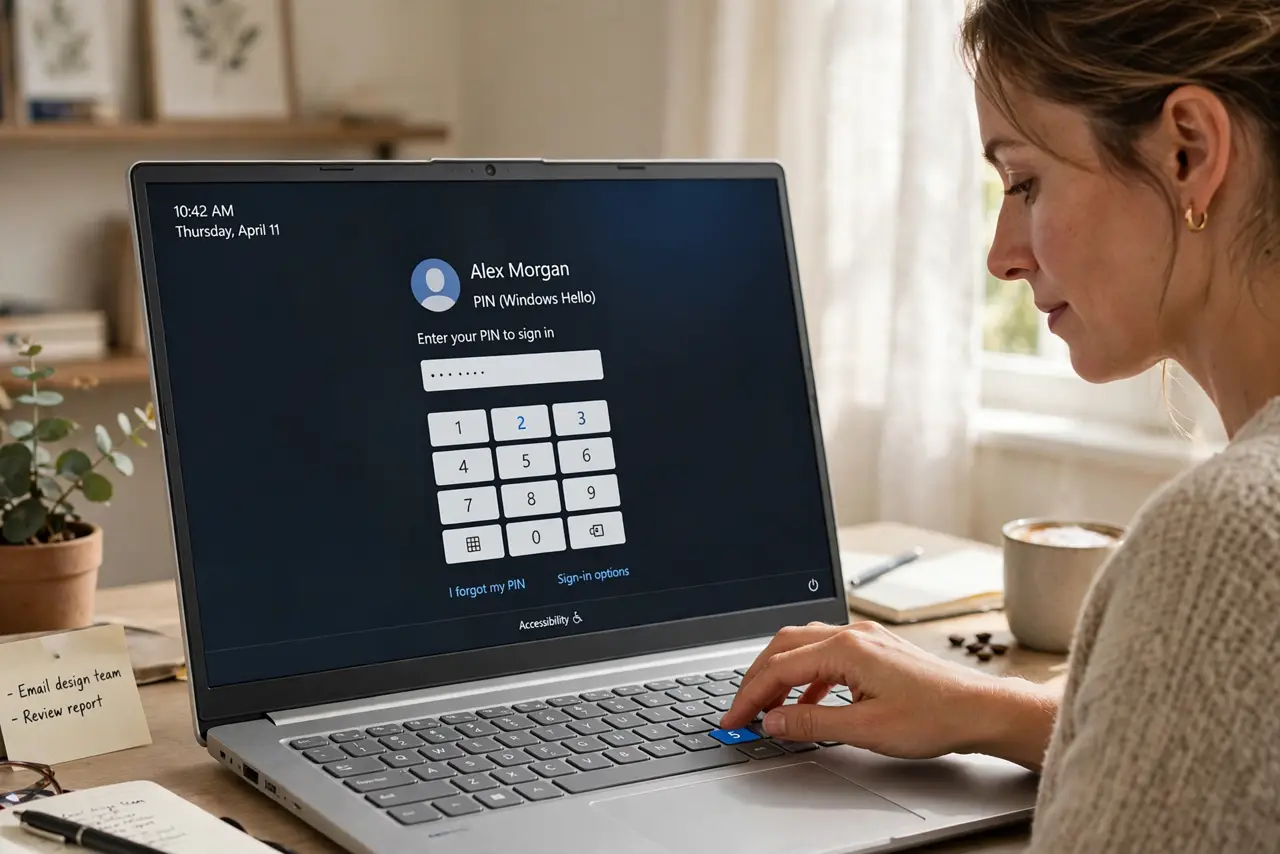
- Know the recovery path. If you forget the PIN, the I forgot my PIN link on the login screen resets it with your Microsoft account. You are never locked out permanently.
What NOT to do
- Do not use 1234 or your birth year. Short PINs need strong digits — predictable numbers defeat the purpose.
- Do not think a PIN is weaker than a password. Device-bound beats network-sent: a phished password works from anywhere, a stolen PIN needs your laptop.
- Do not skip the Microsoft account recovery setup. Without it, a forgotten PIN on an encrypted drive is a much bigger headache.
- Do not share your PIN with family 'just in case.' Create separate accounts instead — shared PINs mean shared everything.
Frequently asked questions
Is a PIN really safer than a password?
For daily unlock, yes — it never travels the network so it cannot be phished, and it only works on that device.
What if someone watches me type it?
Same risk as a password — shield the keyboard. The PIN's advantage is everything after the typing.
Can I still use my password?
Yes, anytime. The PIN is an addition, not a replacement — your password remains the master key.