Battery Drains Overnight in Sleep Mode
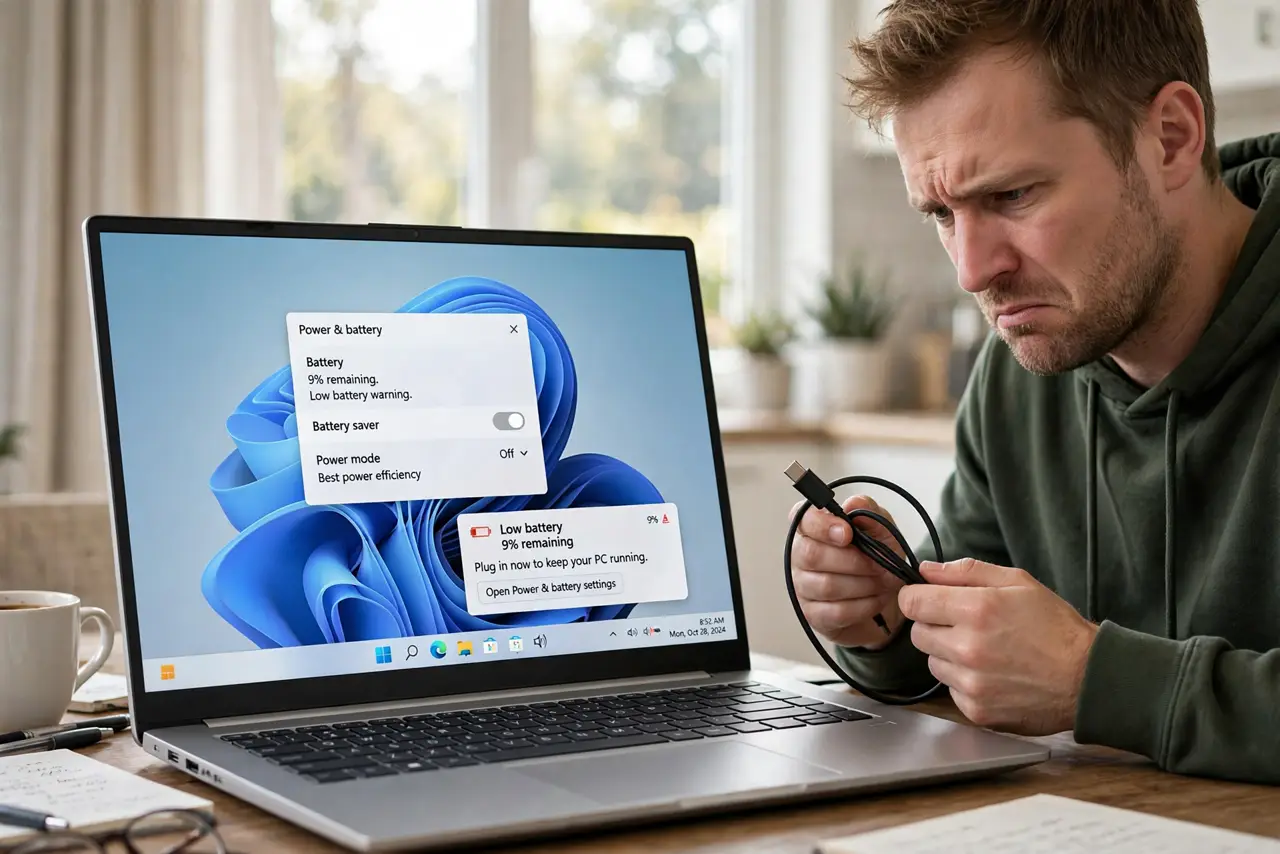
You close the laptop at 80% and wake up to 40% — the battery bled out while the PC was supposedly asleep. Modern standby lets apps and wake timers sip power all night, and a device that never truly sleeps drains like it is on. This guide shows how to plug the overnight leak.
TL;DR / Quick Fix
Quick fix: disable wake timers and stop power-hungry apps from running during standby. Run powercfg /batteryreport to find the overnight drainer and check battery health. If the drain persists every night, switch to Hibernate, which uses effectively zero battery overnight, guaranteed.
Follow these steps
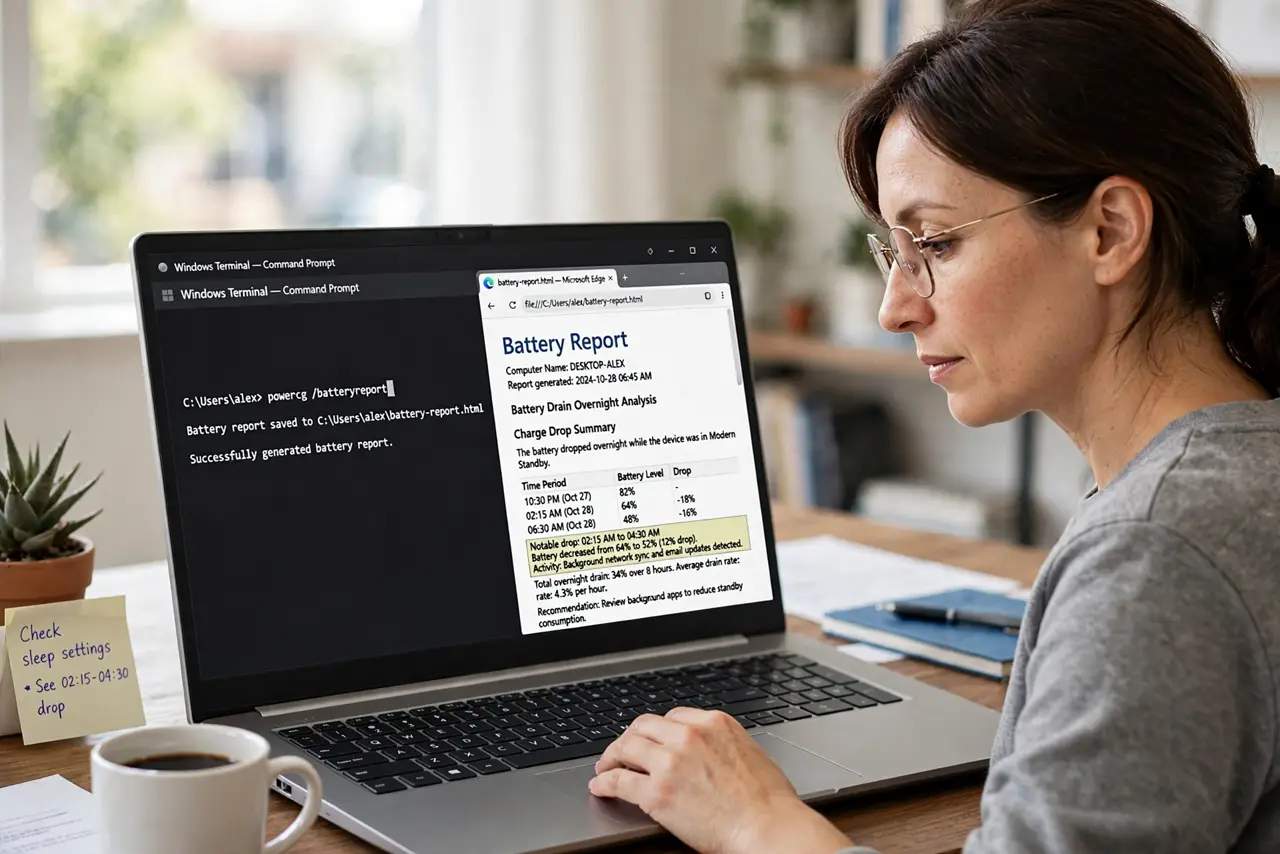
- Generate a battery report. Open a terminal and run powercfg /batteryreport, then open the HTML report. It shows exactly when the charge dropped overnight, proving the drain is real and when it happens.
- Disable wake timers. In advanced power settings, set Sleep > Allow wake timers to Disable. Timers that wake the PC for updates or tasks are the top overnight drainers.
- Trim background app activity. Go to Settings > System > Power & battery > Battery usage and see which apps used power while you slept. Restrict background activity for the worst offenders.
- Disconnect power-hungry peripherals. Unplug USB drives, docks, and dongles before sleep. An attached device can keep the USB controller — and the PC — from reaching deep sleep.
- Switch to Hibernate overnight. Change the power button or lid action to Hibernate for the night. Hibernate uses zero battery, so an overnight drain becomes impossible by design.
- Check battery health in the report. The same battery report shows design capacity versus full charge capacity. A battery at 60% of its design capacity drains fast for a hardware reason no setting can fix.
What NOT to do
- Do not leave the laptop plugged in at 100% every night to dodge the issue. Constant full charge ages the battery faster than the overnight drain does.
- Do not disable Sleep hoping the drain stops. The drain comes from wake activity, which follows the PC into any low-power state.
- Do not install a 'battery saver' app from a random site. Windows has the real tools built in, and third-party savers add their own drain.
- Do not ignore a swelling battery. If the trackpad or case bulges, stop using the laptop and get the battery replaced — that is a safety issue, not a settings issue.
Frequently asked questions
How much overnight drain is normal?
A few percent with modern standby. Losing 20% or more overnight means something is waking or working while you sleep.
Does Hibernate really use zero battery?
Effectively yes — the PC powers fully off after saving memory to disk. It is the only sleep state with no drain.
Will a new battery fix overnight drain?
Only if the battery is worn. Check the battery report first — if capacity is healthy, the drain is software.