Battery Saver? Basics
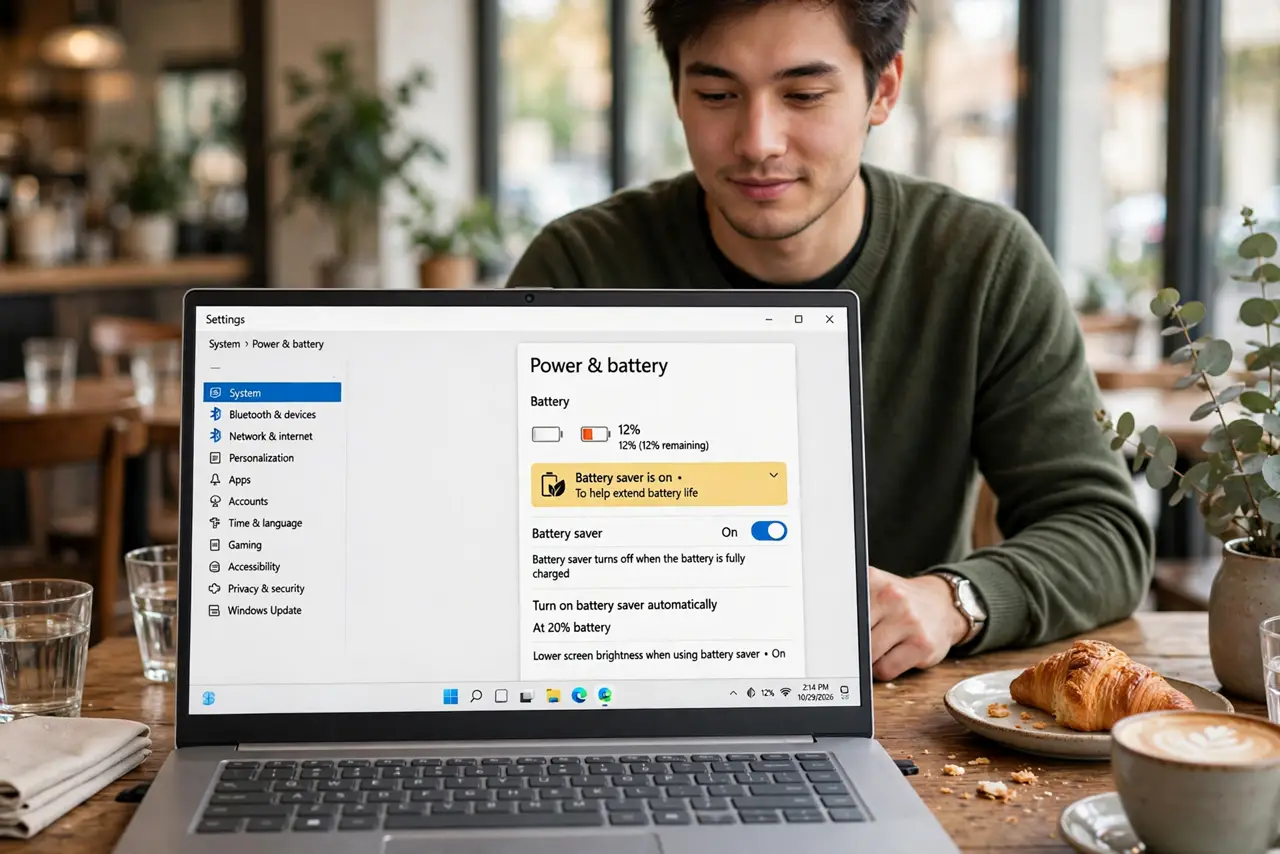
Battery Saver is Windows' emergency mode: when charge runs low, it dims the screen, throttles background activity, and squeezes out extra minutes. It usually kicks in automatically at 20%, but you can control when it starts, what it does, and when to override it. Understanding it beats being surprised by a dimming screen mid-meeting.
TL;DR / Quick Fix
Quick fix: Battery Saver stretches low battery by dimming the screen and limiting background activity -- it auto-starts at 20% by default. Adjust the threshold in Settings, then System, then Power and battery. Turn it on manually from the Quick Settings battery icon whenever you need charge to last.
Follow these steps
- Know what Battery Saver changes. It lowers screen brightness, restricts background apps and sync, and throttles performance slightly. Notifications still arrive; nothing breaks -- the laptop just gets frugal.
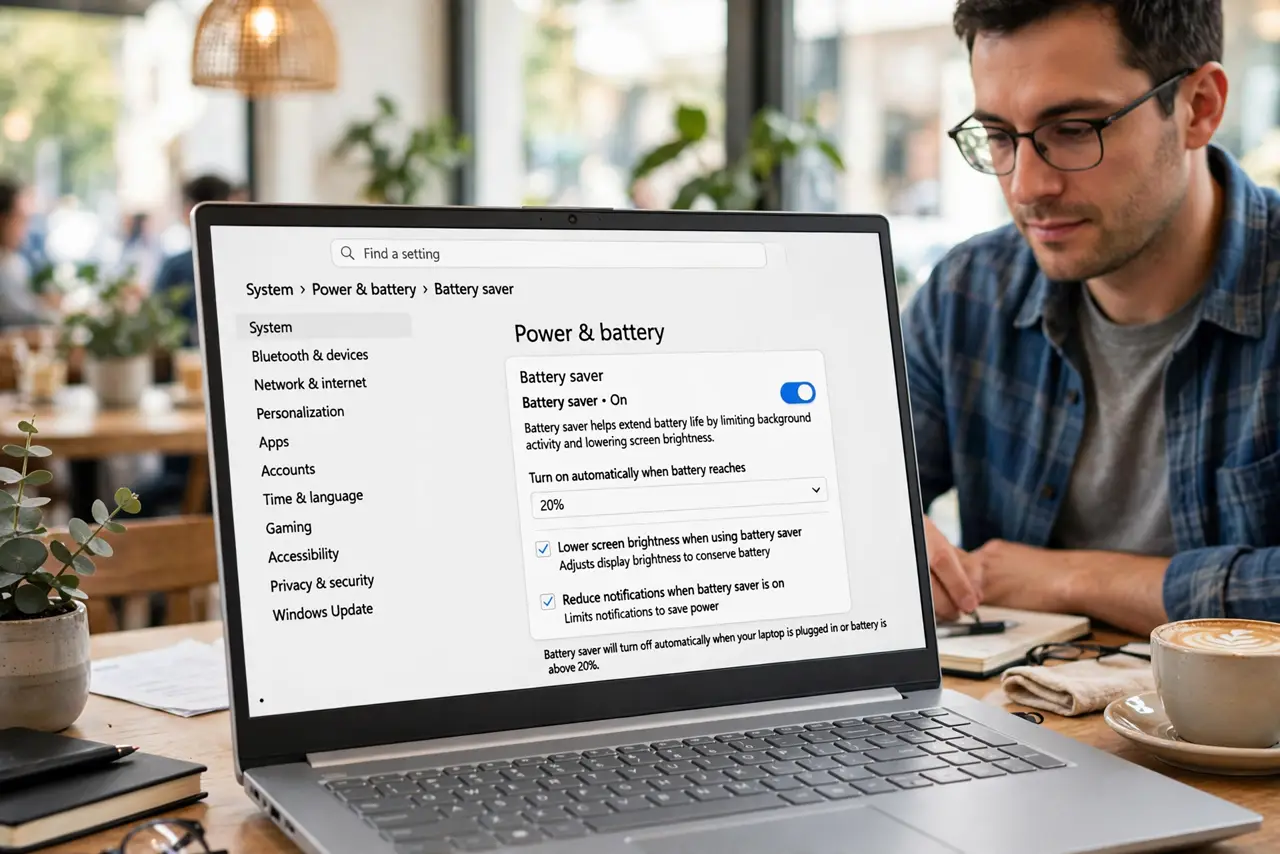
- Adjust the auto-start threshold. Settings, then System, then Power and battery, then Battery saver -- set it to kick in at 20%, 30%, or whatever matches your anxiety level. Higher thresholds save you earlier.
- Turn it on manually when needed. The battery icon in Quick Settings toggles it anytime. Long meeting with 35% left? Turn it on now instead of waiting for the automatic trigger.
- Understand the screen dimming. The most visible change is a dimmer screen -- that is also the biggest power saving. If the dimming bothers you mid-task, raise brightness manually; Saver permits it.
- Check which apps it restricts. Background-restricted apps pause syncing and updates. If an app misbehaves only on low battery, Battery Saver's background limits are the likely cause -- check per-app battery settings.
- Pair it with the right power mode. Battery Saver plus Best power efficiency is maximum endurance mode -- see the power mode guide for the full pairing. For the longest runtime, combine both and dim the screen.
What NOT to do
- Do not panic when the screen dims at 20%. That is Battery Saver doing its job, not a malfunction -- adjust the threshold if it annoys you.
- Do not expect it to double battery life. It adds meaningful minutes, sometimes an hour -- it does not perform miracles on a dying battery.
- Do not leave it on permanently while plugged in. It throttles performance for no benefit when the charger is connected.
- Do not ignore a battery that always needs Saver. If you live in Battery Saver, the battery itself is likely worn -- check its health.
Frequently asked questions
Why did my screen suddenly go dim?
Battery Saver kicked in at the threshold -- usually 20%. Raise screen brightness manually or adjust the threshold in Power settings.
Does Battery Saver harm the battery?
No -- it reduces drain, which is gentle on the battery. It is one of the kindest things you can do for a low charge.
Can I customize what Battery Saver does?
Partially -- the threshold and some background behaviors are adjustable. The core frugality (dimming, throttling) is fixed by design.