Power Mode? Basics
Windows 11 replaced the old power plans with a simple slider: Best power efficiency, Balanced, or Best performance. It sounds trivial, but this one setting governs how aggressively your laptop chases battery life versus speed — and the wrong choice is why a laptop either crawls or dies by lunch. Here is what each mode actually changes.
TL;DR / Quick Fix
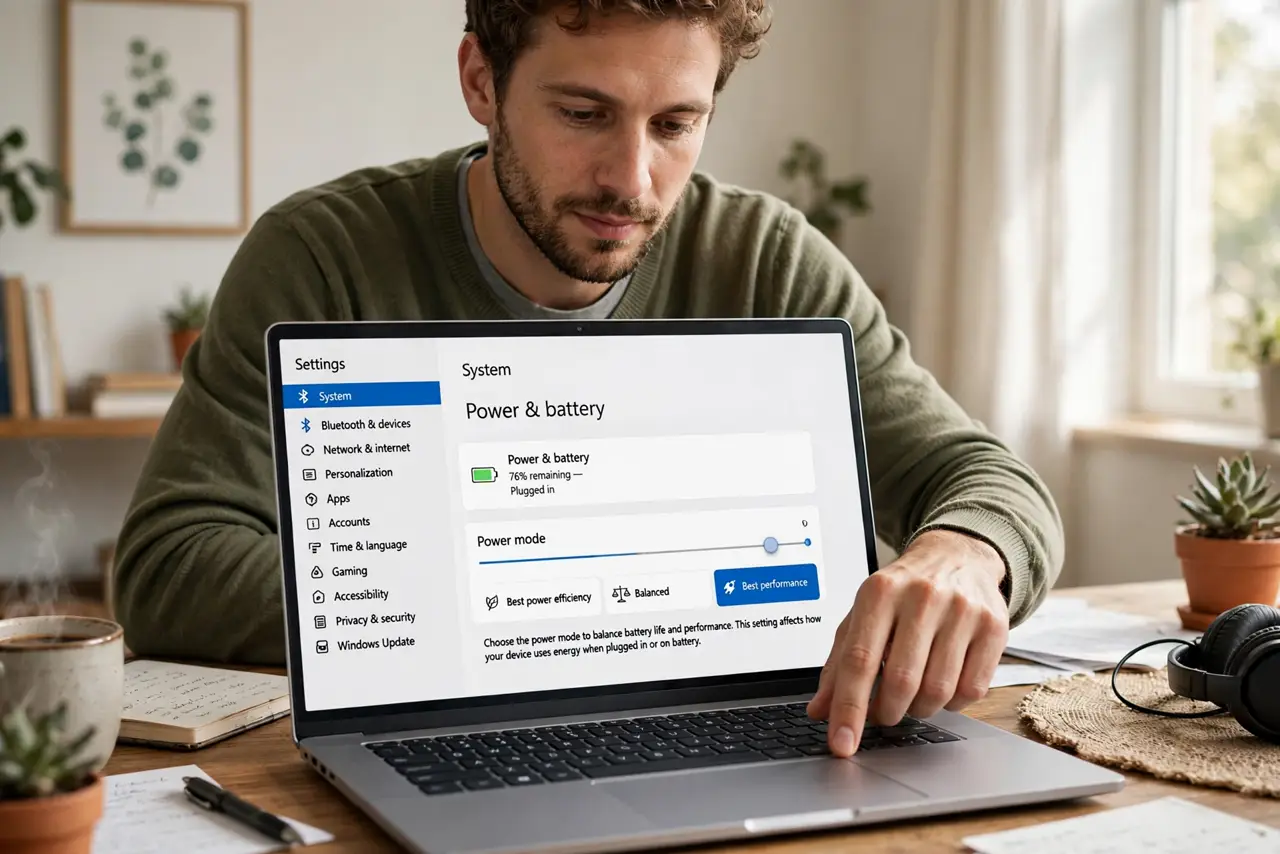
Quick fix: Windows 11's power mode slider trades battery life for speed — efficiency for long days unplugged, performance when plugged in and pushing the machine, Balanced for everything else. Find it in Settings, then System, then Power and battery.
Follow these steps
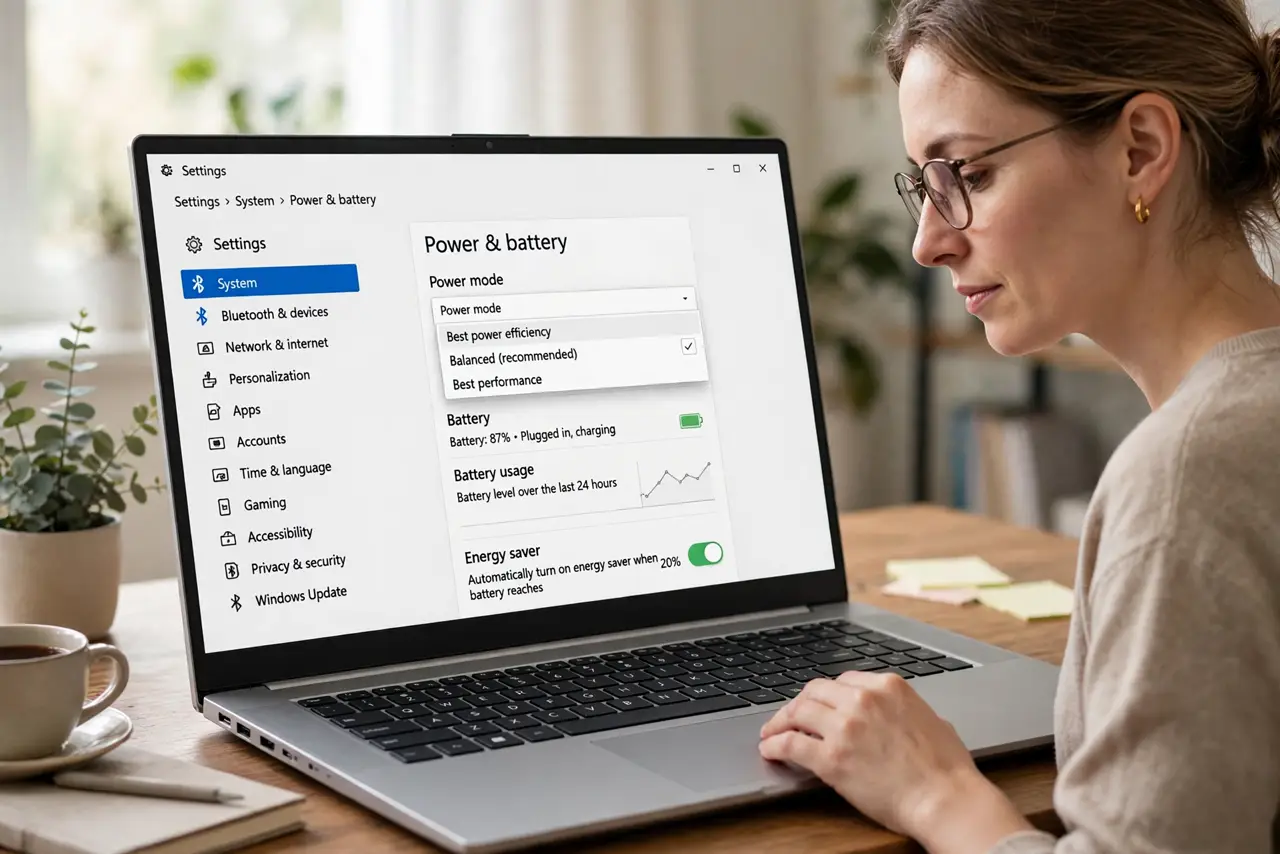
- Find the power mode slider. Settings, then System, then Power and battery — the Power mode dropdown sits near the top. This is the modern replacement for the old Control Panel power plans.
- Use Best power efficiency on battery. This mode caps background activity and favors efficiency cores, stretching battery life noticeably. Web browsing and office work feel identical; heavy tasks slow modestly.
- Use Best performance when plugged in. Charging removes the battery constraint, so let the machine run free for gaming, video editing, or compiling. There is no reason to throttle a plugged-in laptop.
- Leave Balanced as the default. Balanced adapts sensibly and suits most people most of the time. Switch modes for specific situations rather than living at an extreme.
- Check the maker's app if the slider is missing. Some laptops hide Windows' slider and substitute their own power utility. If the setting is absent, look for the manufacturer's control app — the feature moved, it did not vanish.
- Pair with Battery Saver for low battery. Power mode is the strategy; Battery Saver is the emergency brake that kicks in at low charge. Understanding both keeps you in control instead of surprised.
What NOT to do
- Do not run Best performance on battery all day. It burns through charge for speed you rarely need unplugged — then the laptop dies mid-afternoon.
- Do not expect miracles from efficiency mode. It stretches battery maybe 10-20%, it does not double it — screen brightness matters more.
- Do not confuse power mode with the old power plans. High performance plans from Windows 10 are gone; the slider is the current control.
- Do not ignore heat. Best performance on a lap in summer means fans and warmth — a desk or stand helps more than settings.
Frequently asked questions
Which power mode is best for gaming?
Best performance, plugged in. Gaming on battery throttles hard regardless — plug in for real frame rates.
Why is my power mode slider missing?
Your laptop maker replaced it with their own utility. Check the preinstalled control app for the equivalent setting.
Does power mode affect charging speed?
Not directly, but Best performance while plugged in can slow net charging since the machine consumes more. Efficiency mode charges marginally faster.