BitLocker Asks for a Key on Every Boot
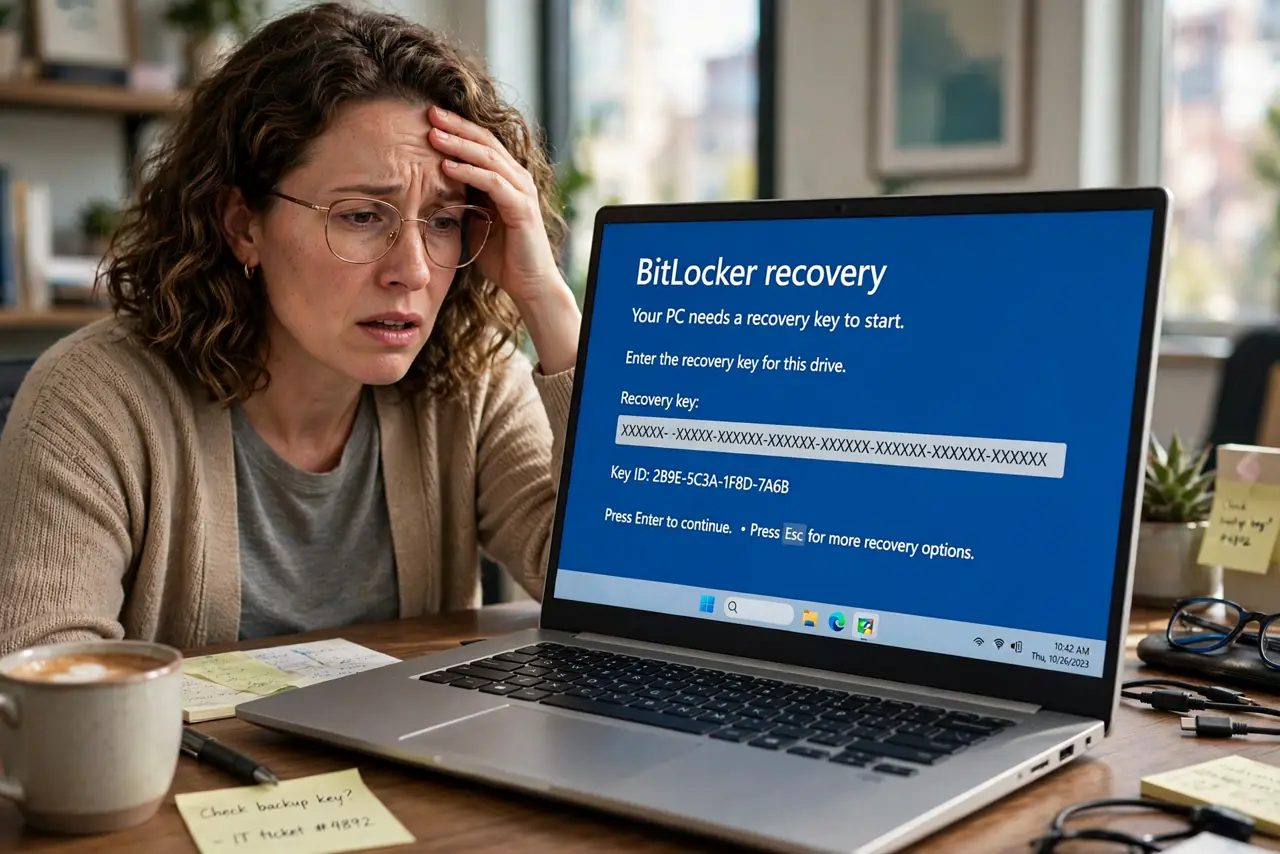
Every single boot lands on the BitLocker recovery screen asking for the 48-digit key — not once after an update, but every time. Something changed permanently in the boot measurements: a BIOS setting, Secure Boot state, or a hardware change. The fix is finding what changed and re-sealing BitLocker to the new normal, the chronic version of the key prompt after an update.
TL;DR / Quick Fix
Quick fix: enter the recovery key to boot, then identify what changed — a BIOS update, Secure Boot toggle, new drive, or dock. Revert accidental changes. Then suspend BitLocker and re-enable it to re-seal to the current hardware state; prompts stop once measurements match again.
Follow these steps
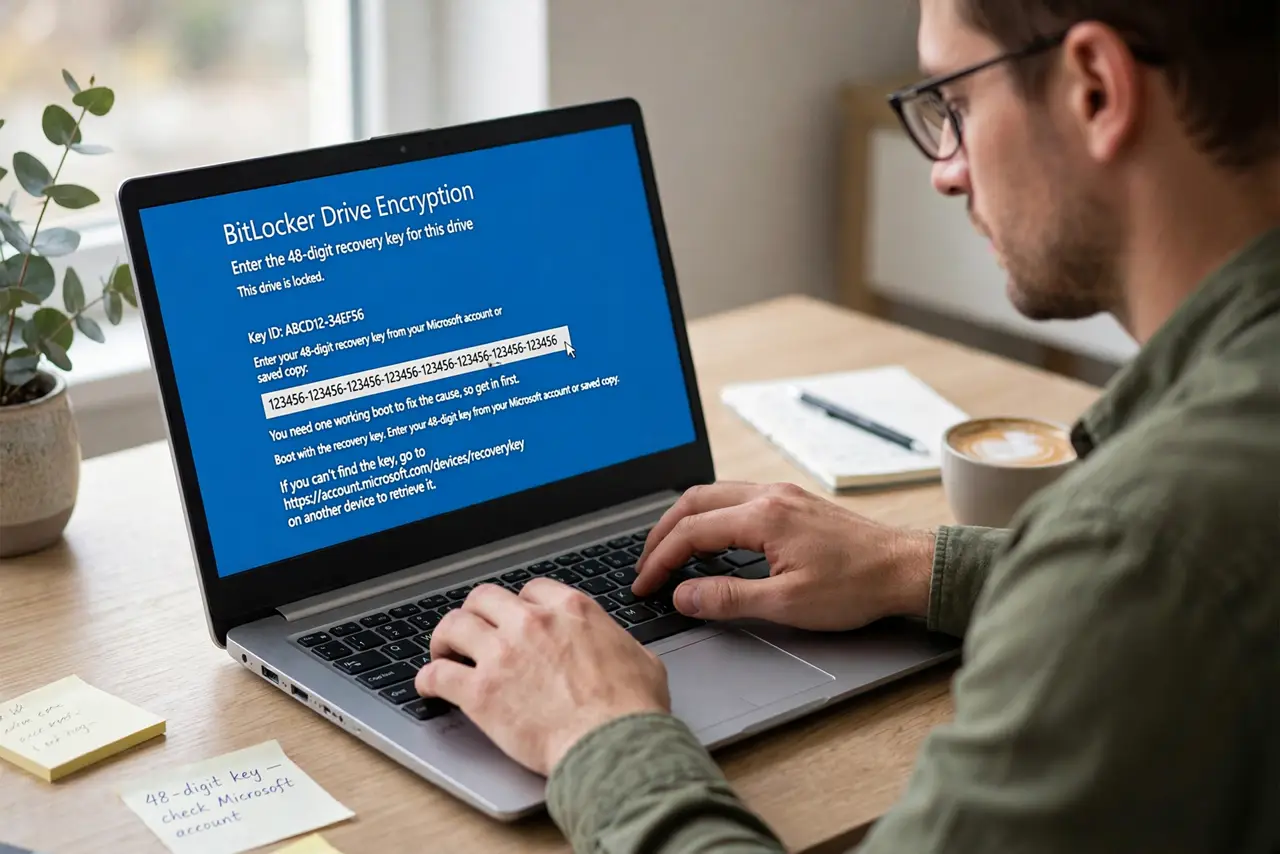
- Boot with the recovery key. Enter your 48-digit key from your Microsoft account or saved copy. You need one working boot to fix the cause, so get in first.
- Identify what changed. Think back: a BIOS or firmware update, Secure Boot toggled, TPM cleared, a new SSD, or a docking station change. The prompt repeats because the change is permanent, unlike a one-off update.
- Revert accidental BIOS changes. If you toggled Secure Boot or TPM settings while exploring, set them back. Reverting the change restores the measurements BitLocker expects.
- Suspend BitLocker protection. In the BitLocker settings, choose Suspend protection. Suspending temporarily stops the checks while you stabilize the configuration.
- Turn protection back on to re-seal. Resume BitLocker protection. Re-enabling makes BitLocker measure the current hardware and firmware state as the new trusted baseline.
- Reboot twice to confirm. Restart, confirm no prompt appears, then restart once more. Two clean boots prove the new seal holds.
What NOT to do
- Do not look for a way around the key prompt. There is none by design; the fix is re-sealing to the new hardware state, not defeating the lock.
- Do not clear the TPM as a first step. Clearing the TPM wipes the sealed keys and guarantees prompts until BitLocker is fully reconfigured.
- Do not ignore the pattern. A prompt on every boot always has a concrete cause — find it instead of typing the key daily forever.
- Do not turn BitLocker off permanently. Re-sealing keeps the encryption; disabling it throws away the protection that caught a real change.
Frequently asked questions
Why does BitLocker ask on every boot now?
Because a permanent change — BIOS setting, firmware update, or hardware swap — altered the measurements sealed at encryption time.
Will suspending BitLocker decrypt my drive?
No. Suspend only pauses the boot checks; the data stays encrypted. It is the safe maintenance mode for exactly this situation.
What if I cannot find what changed?
Suspend and re-enable BitLocker anyway. Re-sealing to the current state fixes the symptom even when the original change is a mystery.