Unlock BitLocker with USB
BitLocker wants a TPM security chip, and your PC does not have one — so Windows says encryption is unavailable. It is not: BitLocker can use a USB flash drive as the startup key instead. The drive must be plugged in at every boot, which is slightly less convenient and exactly as secure. Here is how to set it up.
TL;DR / Quick Fix
Quick fix: PCs without a TPM chip can still use BitLocker by unlocking with a USB startup key. Enable the 'require additional authentication at startup' policy, choose the USB key option during BitLocker setup, and store the key safely — losing it means losing access to the encrypted drive.
Follow these steps
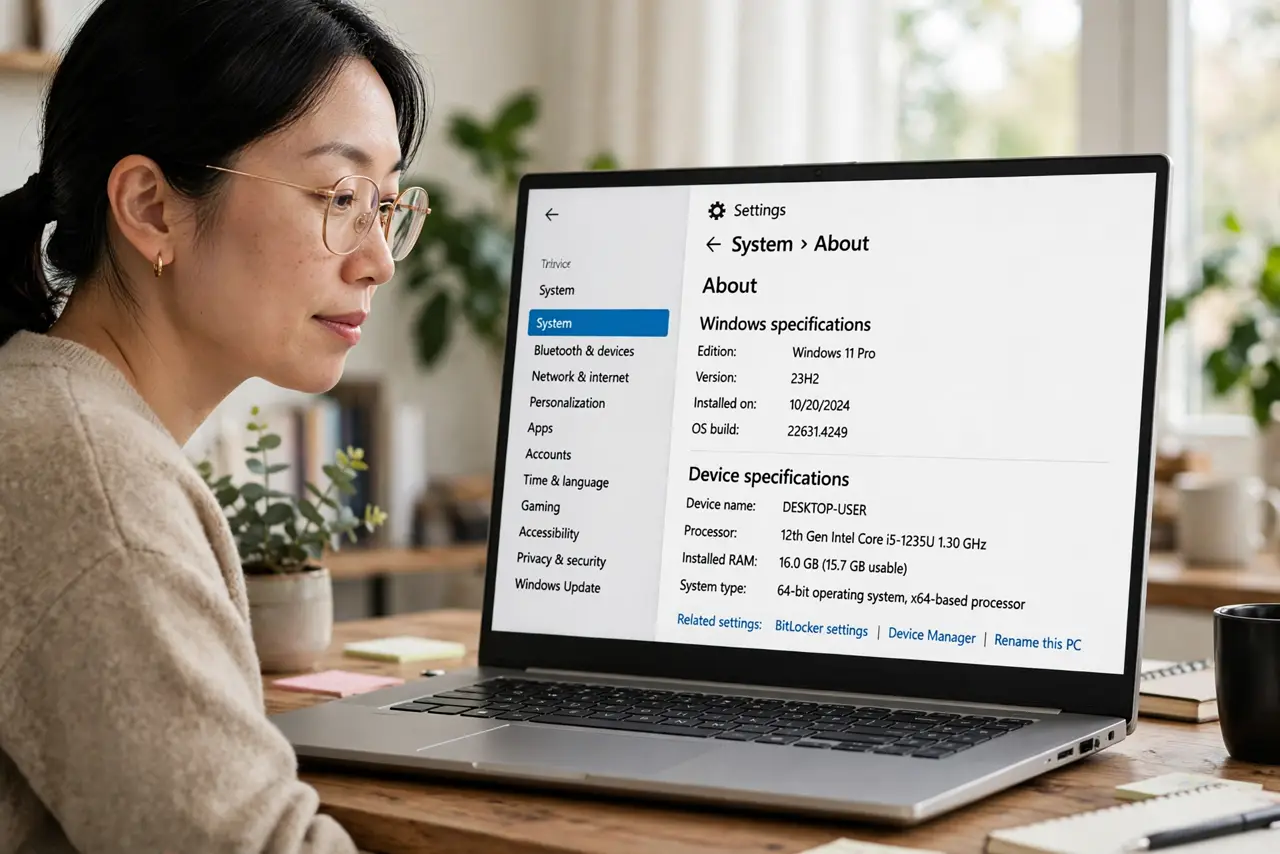
- Check your Windows edition. BitLocker needs Windows Pro, Enterprise, or Education — Home edition does not include it. Confirm your edition in Settings > System > About before going further; no policy tweak conjures BitLocker on Home.
- Enable the startup-authentication policy. Open the Group Policy Editor (gpedit.msc), go to Computer Configuration > Administrative Templates > Windows Components > BitLocker Drive Encryption > Operating System Drives, and enable 'Require additional authentication at startup.' Check 'Allow BitLocker without a compatible TPM.'
- Prepare a dedicated USB drive. Use a small USB flash drive you can dedicate — it becomes the key to your entire system drive. Do not use the drive you also carry your files on; the startup key deserves its own drive.
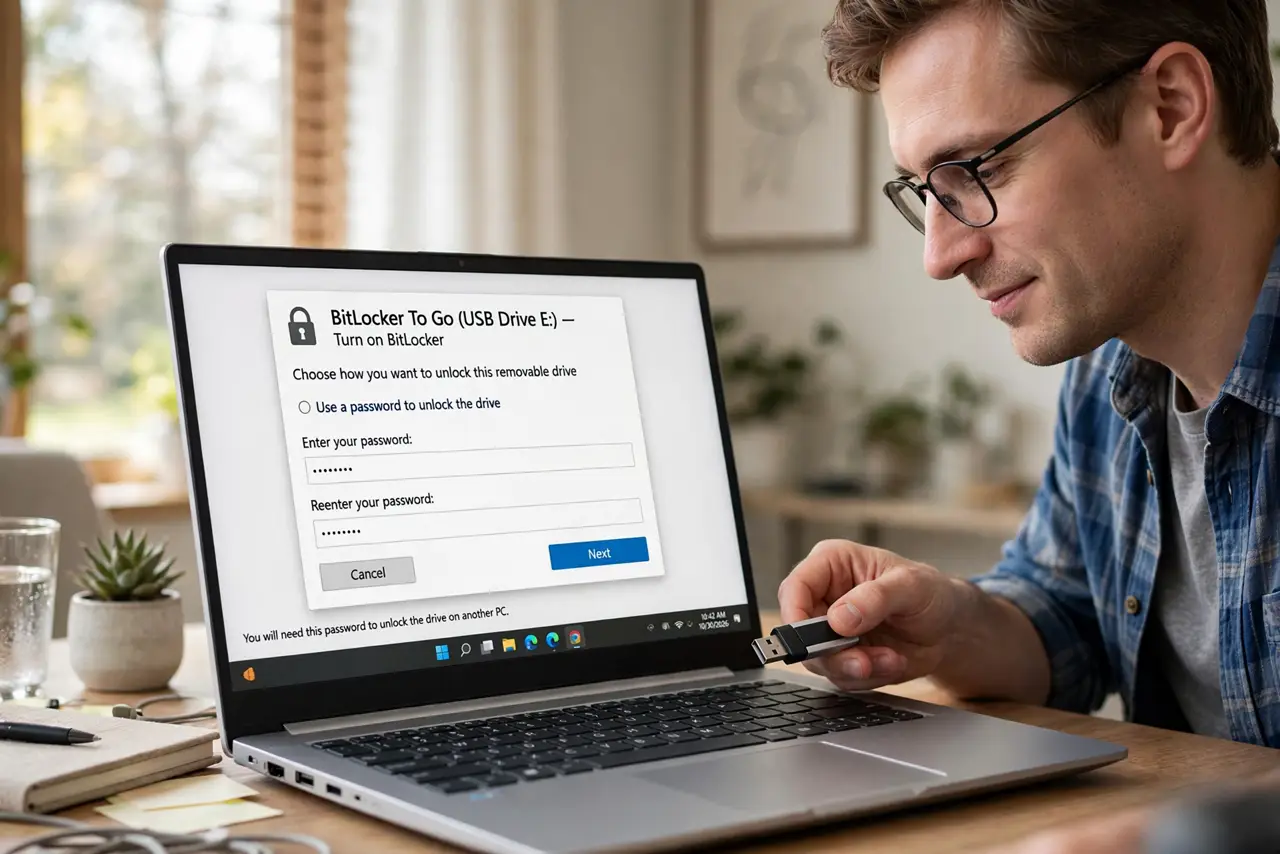
- Turn on BitLocker and choose the USB key. In Control Panel > BitLocker Drive Encryption, turn on BitLocker for the system drive and select the USB startup key option when offered. Windows writes the key to the drive — learn the BitLocker basics if any step surprises you.
- Save the recovery key separately. Windows offers to save a 48-digit recovery key — print it or save it somewhere that is not the encrypted drive. This is your spare: USB lost plus no recovery key equals a very expensive paperweight.
- Test a reboot before relying on it. Restart with the USB plugged in and confirm Windows boots. Then test without it to confirm it correctly refuses. Two reboots now prevent one disaster later.
What NOT to do
- Do not lose the USB key. Without it — and without the recovery key — your encrypted drive is cryptographically unopenable. That is the point of encryption.
- Do not store the recovery key on the encrypted drive. That is locking the spare key inside the safe — keep it printed or in a second location.
- Do not use a flaky old USB drive. The key drive must work every boot — a dying drive means random lockouts. Dedicate a reliable one.
- Do not skip the test reboots. Discovering a misconfiguration during a real emergency is the worst possible timing.
Frequently asked questions
Is USB unlock less secure than TPM?
Slightly less convenient, comparably secure — the encryption is identical. The difference is where the key lives: a chip on the board vs a drive you carry.
Can I switch to TPM later?
Yes — if you upgrade to a TPM-equipped machine, BitLocker can re-seal to the TPM. The USB method is a bridge, not a trap.
What if the USB drive dies?
The recovery key saves you — that is exactly what it is for. Replace the drive, re-run setup, save a new recovery key.