BitLocker? Plain Basics
If your laptop is stolen, is your data stolen too? Without encryption, anyone can pull the drive and read everything — passwords, documents, photos. BitLocker is Windows' built-in full-disk encryption: it scrambles the entire drive so it's unreadable without your key. It's free, built in, and simpler than it sounds.
TL;DR / Quick Fix
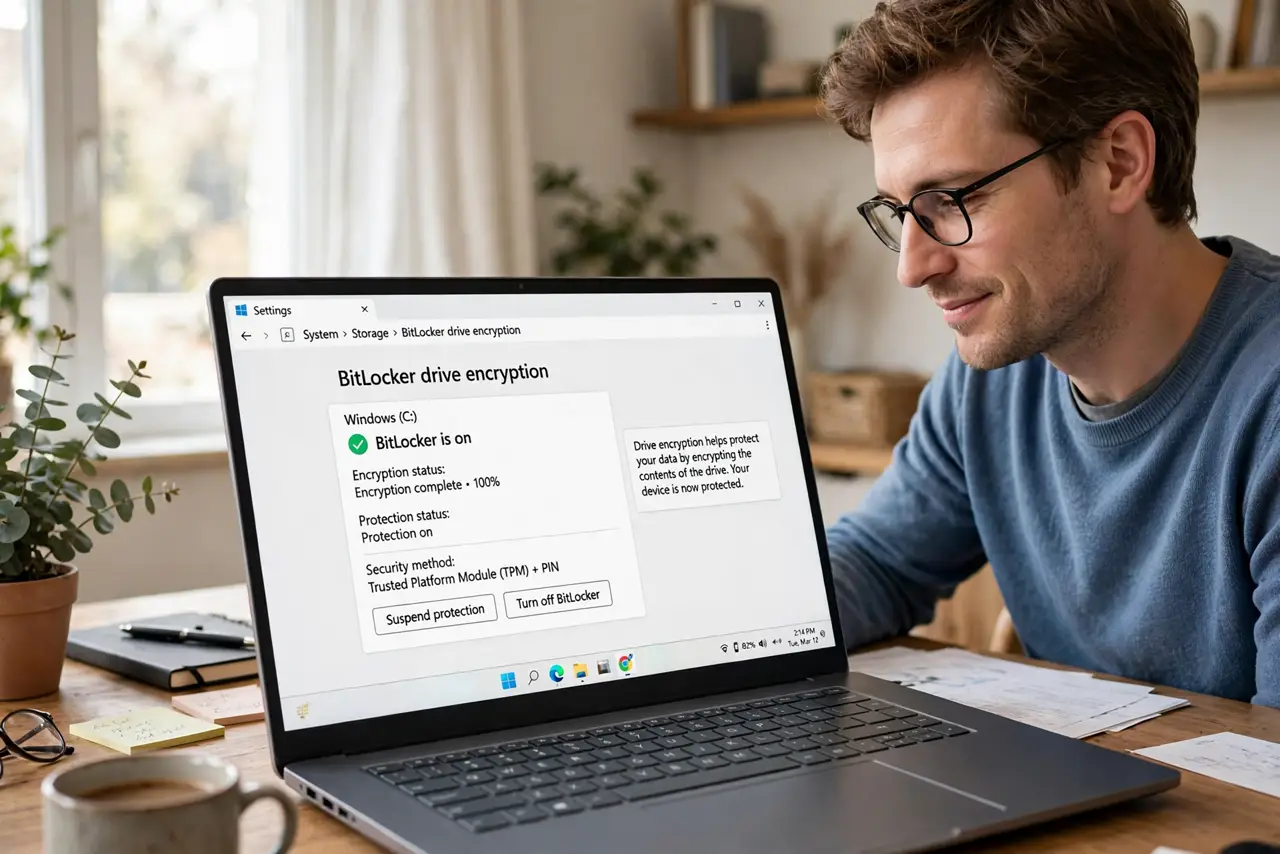
Quick fix: open Settings, Privacy & security, Device encryption (or search BitLocker), and turn it on — Windows encrypts the drive in the background. Save the recovery key to your Microsoft account and print it too. Without that key, not even you can unlock the drive.
Follow these steps
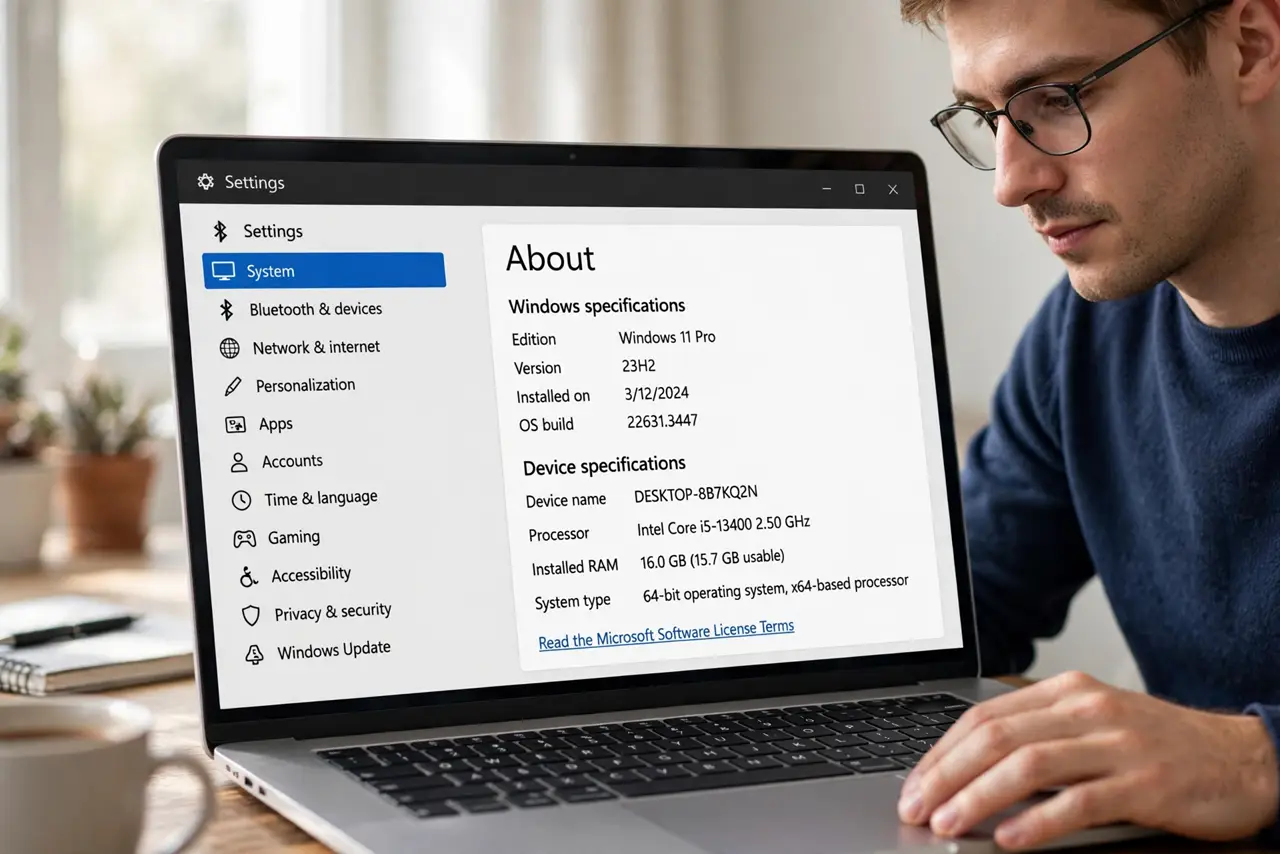
- Check your Windows edition. BitLocker needs Windows Pro, Enterprise, or Education — Home has the simpler Device encryption instead. Check Settings, System, About to see your edition.
- Back up the recovery key first. This is the non-negotiable step: save the 48-digit recovery key to your Microsoft account, a USB drive, and paper. See recovery key essentials — losing this key means losing the drive.
- Turn encryption on. Search BitLocker in Settings, choose Turn on BitLocker for the drive, and follow the prompts. Encryption runs in the background while you keep working.
- Choose how you unlock. Most people use the TPM chip — the drive unlocks automatically at boot on your hardware, and stays locked anywhere else. A PIN adds protection against physical tampering.
- Encrypt external drives too. BitLocker To Go encrypts USB drives with a password. If you carry sensitive files on a stick, this is the difference between a lost drive and a data breach.
- Know when it asks for the key. Hardware changes, BIOS updates, or boot problems can trigger a recovery-key prompt — that's normal protection, not an attack. See unexpected key prompts so it doesn't panic you.
What NOT to do
- Do not enable BitLocker without saving the recovery key. This is the number one way people lock themselves out of their own data — key first, encryption second.
- Do not store the only key copy on the encrypted drive. That's like locking your keys in the car — keep copies in your Microsoft account and on paper elsewhere.
- Do not assume encryption slows your PC noticeably. On modern hardware with AES acceleration, the performance hit is negligible for everyday use.
- Do not encrypt a failing drive. If the disk is already throwing errors, back up first — encryption on dying hardware complicates recovery.
Frequently asked questions
Can I turn BitLocker off later?
Yes — the Turn off BitLocker option decrypts the drive, which takes a while but is straightforward. Keep the recovery key until decryption fully completes.
Does BitLocker protect against hackers online?
No — it protects data at rest against physical theft. Online attacks, phishing, and malware are unaffected; BitLocker is about the stolen-laptop scenario.
What's the difference from Device encryption?
Device encryption is the simplified Home-edition version with fewer options. BitLocker Pro adds PINs, network unlock, and management features — same core protection.
What to read next
- BitLocker Recovery Key?
- Turn BitLocker On or Off?