Bluetooth Pairing Code Never Matches? Fix It
When a Bluetooth pairing code never matches, the two devices are not agreeing on the same pairing session. Often one device is still holding an old pairing, or a code was typed on one side only. Clearing the old pairing and starting fresh usually fixes it.
TL;DR / Quick Fix
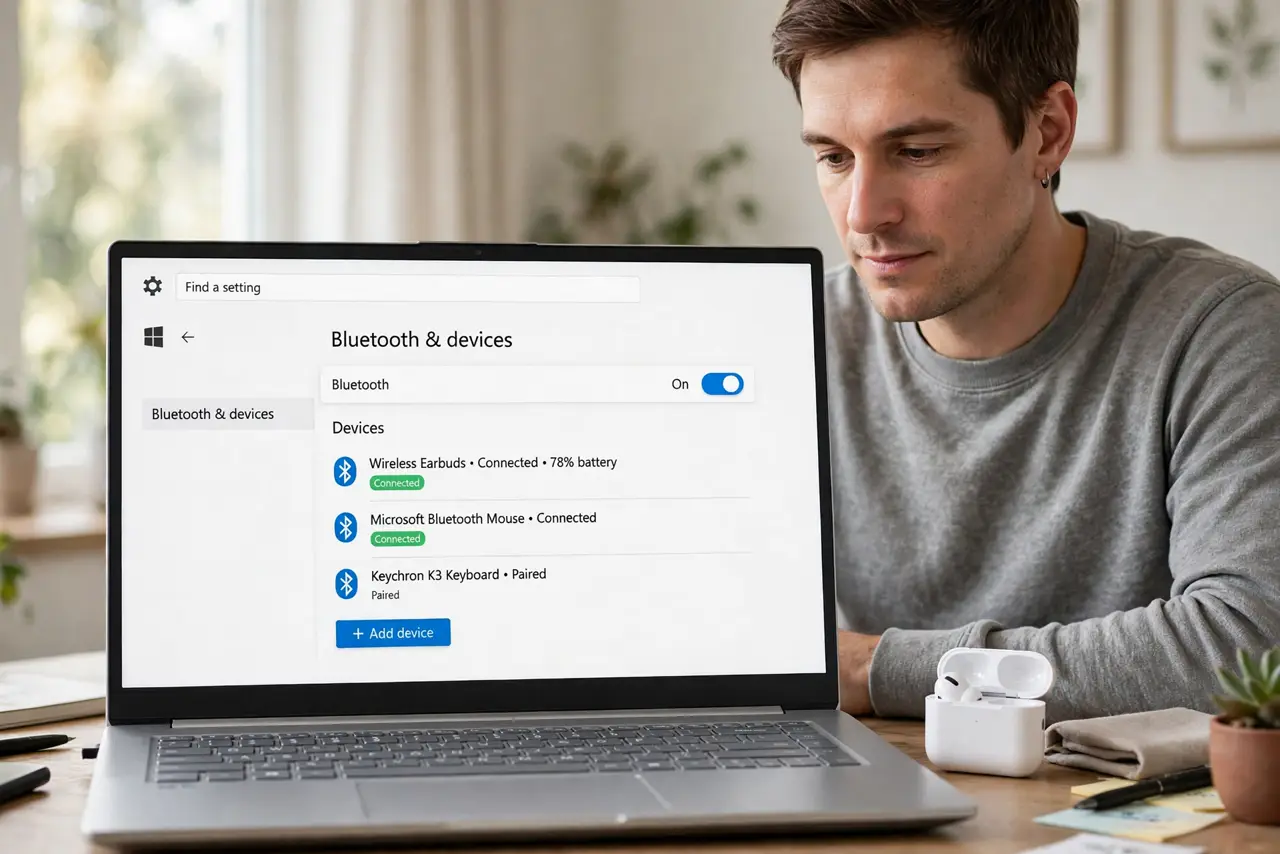
Quick fix: on Windows, forget the device in Bluetooth settings, restart Bluetooth on both devices, and pair again from scratch. When a code appears, confirm the same code on both screens instead of typing a code you made up by hand.
Follow these steps
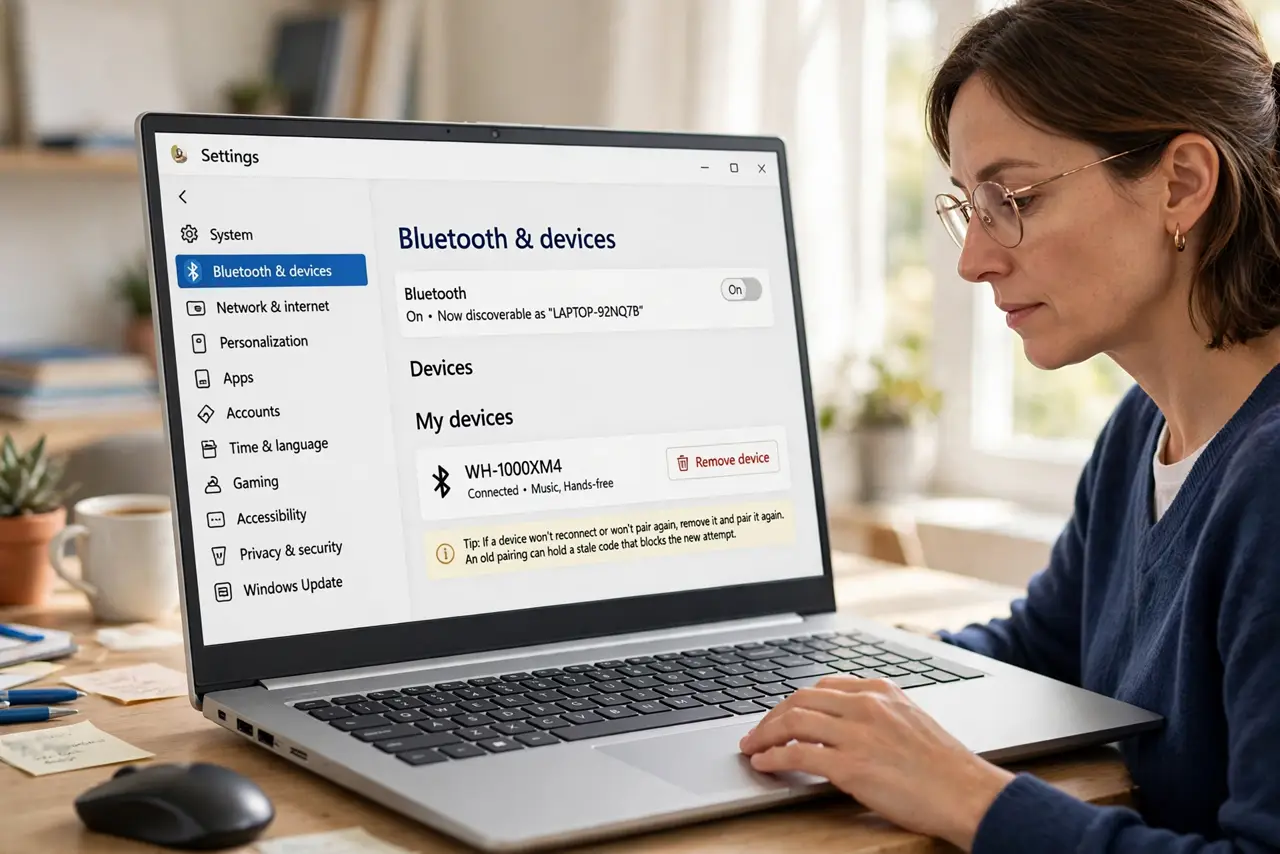
- Forget the device on Windows. Open Settings, then Bluetooth and devices, find the device, and choose Remove device. An old pairing can hold a stale code that blocks the new attempt.
- Forget the device on the other side too. On the earbuds, speaker, or phone, remove the Windows computer from its paired list if that option exists. Both sides must forget, or the old session can return.
- Restart Bluetooth on both devices. Turn Bluetooth off and back on, on Windows and on the other device. This clears a half-finished pairing session that neither side finished.
- Start pairing from Windows. In Bluetooth settings, choose Add device, then Bluetooth, and put the other device into pairing mode. Let Windows discover it, instead of starting from the other device.
- Compare the codes, do not invent one. When a code appears, read it on both screens and confirm they match. If they differ, cancel and start again, because confirming mismatched codes will fail.
- Test with a short connection. Once paired, play a short sound or send a small file. If it works, the pairing held. If it drops at once, forget both sides again and repeat the steps once.
What NOT to do
- Do not type a code you guessed into one device. Pairing codes must match on both sides, and a guessed code will always fail.
- Do not keep pressing pair on a device that is already paired elsewhere. A device paired to a phone or tablet may refuse Windows until you disconnect it there first.
- Do not install a Bluetooth driver tool from an ad to fix pairing. Pairing codes are a session problem, not a driver download problem.
- Do not accept a pairing request from a device you do not recognize. A stranger device asking to pair is not your earbuds, and accepting it can expose your computer.
Frequently asked questions
Why do the codes differ between devices?
Usually one device is still holding an old pairing session. Forgetting the device on both sides forces a fresh session with a fresh code.
What if no code appears at all?
Some devices pair without a code, using a button press instead. Follow the device own pairing instructions, and confirm on Windows when asked.
Should I pair from the device or from Windows?
Start from Windows when you can. Windows then manages the discovery, and the code prompt appears in a consistent place.