Rename Many Files at Once
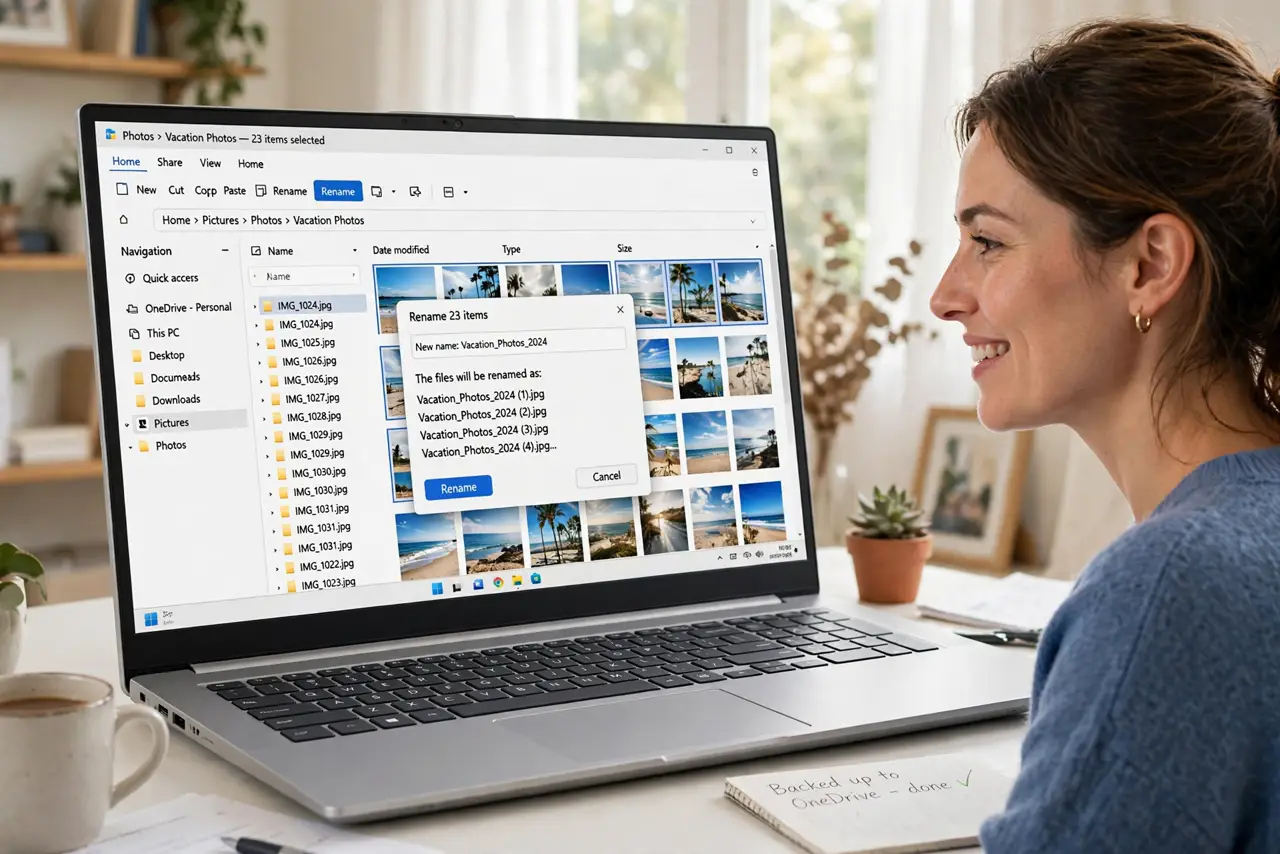
You came home with 300 photos named IMG_0001 through IMG_0300, and renaming them one by one is a special kind of misery. Windows can rename them all in one move — select, rename once, and every file takes the new name with a number. For fancier patterns, PowerToys adds the pro tools. Either way, the afternoon of clicking is over.
TL;DR / Quick Fix
Quick fix: select all the files, press F2, type the new base name, and press Enter — Windows names them Name (1), Name (2), and so on. For custom patterns like dates, install PowerToys and use PowerRename. Rename copies of important files first, in case the pattern surprises you.
Follow these steps
- Select all the files. Open the folder, press Ctrl+A to select everything, or Ctrl-click just the files to rename. The rename applies to exactly your selection — check it before proceeding.
- Press F2 and type the base name. With the files selected, press F2, type the new name like Beach Trip, and press Enter. Windows renames them Beach Trip (1), Beach Trip (2), and so on — numbered automatically.
- Check the results. Scroll through and confirm the numbering looks right. Undo with Ctrl+Z immediately if something is off — the undo window for a rename is generous but not infinite.
- Use PowerRename for patterns. Install PowerToys, select the files, right-click, and choose PowerRename. Now you can add dates, find-and-replace text, or number with leading zeros — the pro version of the same job.
- Preview before applying. PowerRename shows a live preview of every new name. Read through it — a bad pattern applied to 300 files is a bad afternoon. The preview is your safety net.
- Work on copies for irreplaceable files. For photos you cannot reshoot, duplicate the folder first and rename the copies. Storage is cheap; regret is expensive.
What NOT to do
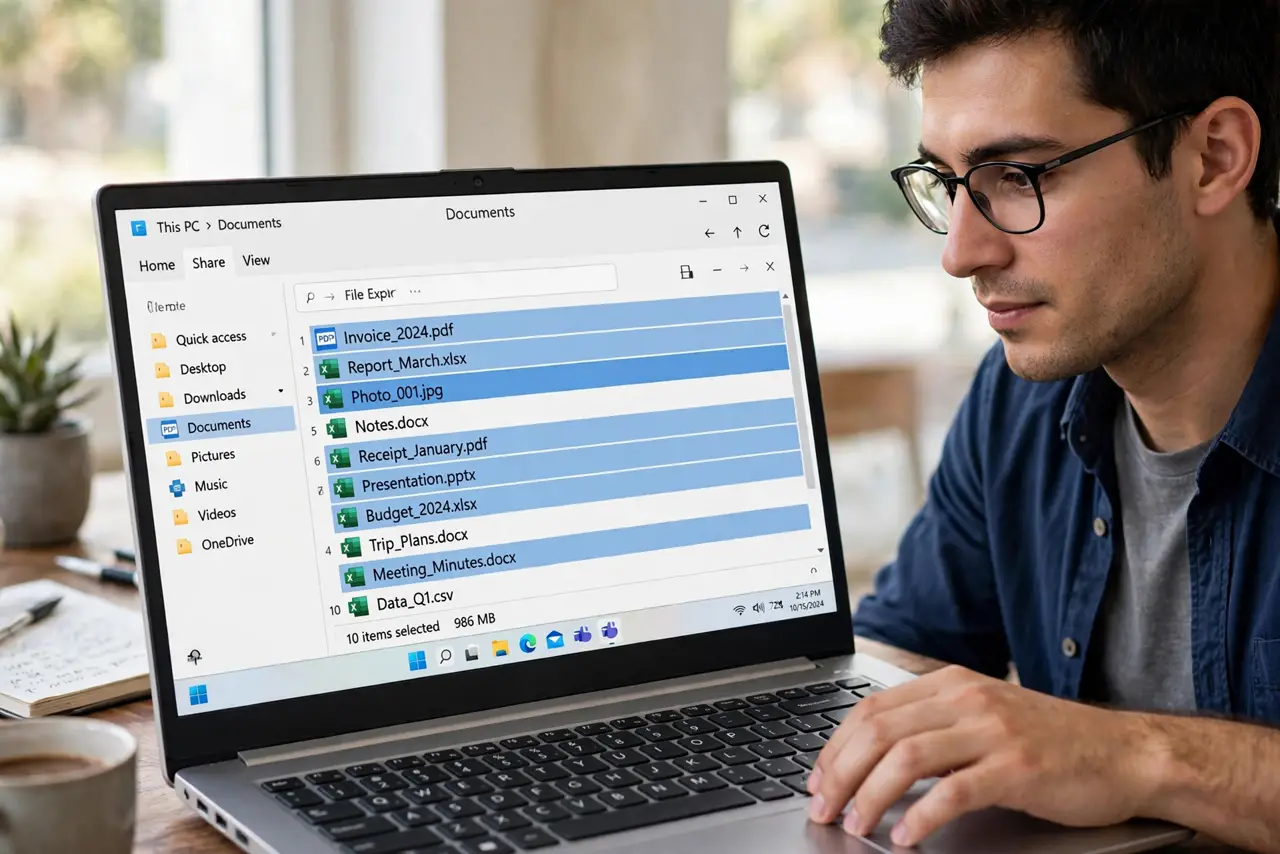
- Do not rename without checking the selection. A stray selected file gets renamed too — Ctrl+A in the wrong folder is the classic accident.
- Do not use special characters in bulk names. Slashes, colons, and quotes are illegal in Windows filenames and will error out mid-batch.
- Do not skip the preview in PowerRename. The preview exists because patterns surprise people — read it every time.
- Do not rename system or program files in bulk. Renaming your photos is safe; renaming Windows' own files breaks things.
Frequently asked questions
Can I undo a bulk rename?
Yes — press Ctrl+Z right after, and Explorer undoes the whole batch at once. It works as one action, not 300 separate ones.
How do I add dates to filenames?
PowerRename can insert the date with its patterns, or sort by date taken and number them in order — the numbered sequence then reflects chronology.
Why do the numbers have parentheses?
That is Windows' built-in format: Name (1), Name (2). PowerRename lets you customize it to Name_001 style if you prefer.