See Hidden Files
You are following a guide that says 'open the AppData folder,' and it is nowhere to be found. Windows hides system and app-data folders by default to protect you from yourself — reasonable, until you legitimately need one. Showing hidden files is a two-click toggle, and knowing when to turn it back off is the other half of the skill.
TL;DR / Quick Fix
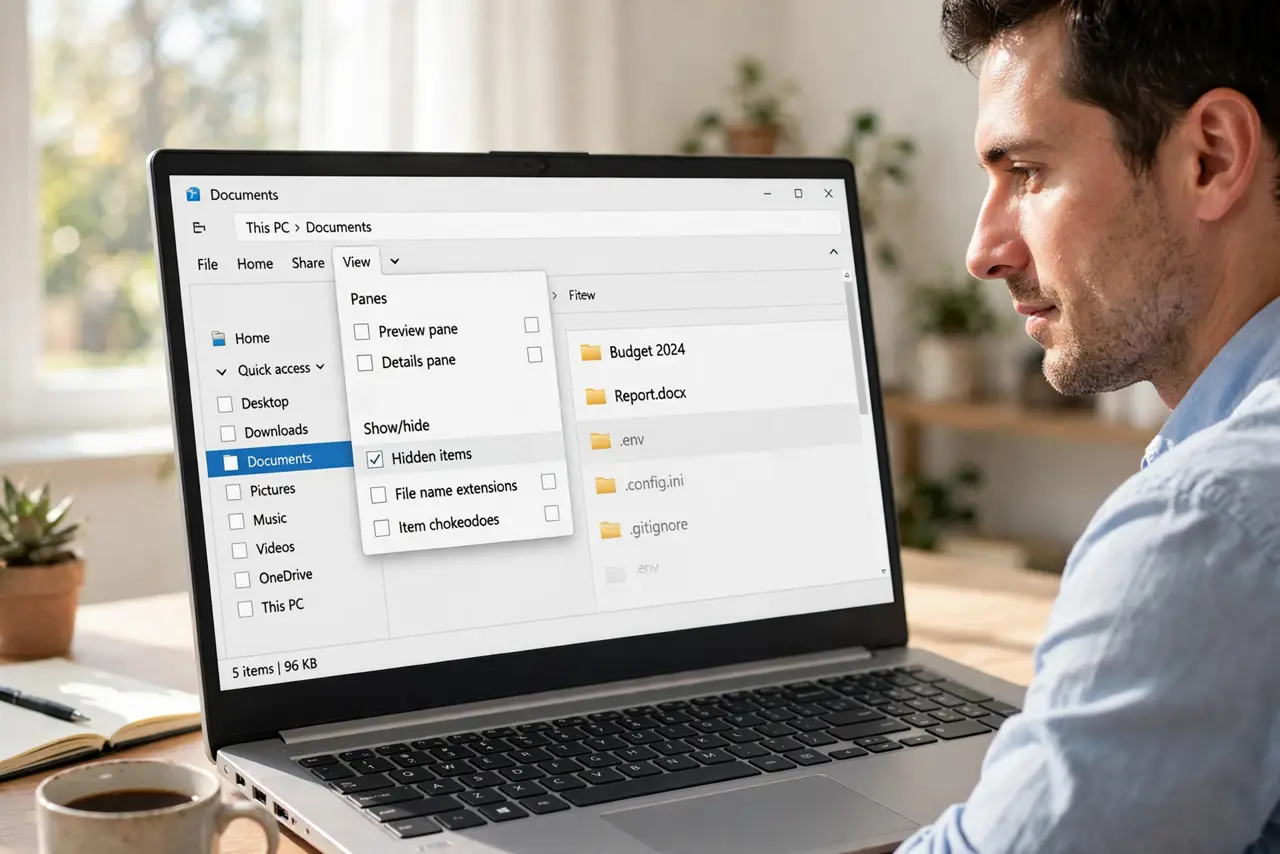
Quick fix: in File Explorer, open the View menu and check Hidden items. Faded-looking files and folders appear immediately. Turn it back off when you are done poking around system folders. Never delete anything in AppData or ProgramData unless a trusted guide tells you exactly what is safe.
Follow these steps
- Open File Explorer. Press Windows+E or click the folder icon on the taskbar. You need any Explorer window open — the toggle lives in the View menu, not in Settings.
- Check Hidden items. Click View in the top menu, hover over Show, and check Hidden items. Hidden files and folders instantly appear, shown slightly faded so you can tell them apart from normal ones.
- Find what you came for. Navigate to the folder you need — AppData under your user folder is the classic case. Do your task: copy a config file, check a save game, or follow the guide that sent you here.
- Treat faded files with respect. Faded means Windows hid it for a reason. Look and copy freely, but do not rename, move, or delete system files on a hunch — that is how working PCs become broken PCs.
- Turn it back off when done. Uncheck Hidden items when you finish. Leaving them visible clutters every folder and makes accidental damage more likely, especially on a shared computer.
- Use the search box wisely. With hidden items shown, Explorer search also finds hidden files. Handy for locating a config file by name — just remember to hide them again after.
What NOT to do
- Do not delete files in AppData or ProgramData casually. These folders hold app settings and saves; deleting blindly breaks programs.
- Do not leave hidden items visible permanently. The clutter hides real files and invites accidents, especially for other users of the PC.
- Do not unhide protected operating system files. That is a separate, deeper toggle — leave it off unless you truly know why you need it.
- Do not follow guides that tell you to delete 'everything hidden.' That advice is vandalism with extra steps.
Frequently asked questions
Why are some files faded?
Faded means hidden — Windows is showing them because you asked, while marking them as normally invisible. The fading is the warning label.
Can I hide a file of my own?
Yes — right-click it, choose Properties, and check Hidden. It is obscurity, not security; anyone can toggle Hidden items back on.
Where is the AppData folder?
At C:\Users\YourName\AppData. It is hidden by default, which is exactly why this toggle exists — show hidden items and it appears.