Rename Many Files at Once?
Two hundred vacation photos named IMG_0001 through IMG_0200, and you want them all to say 'beach-trip-' instead — renaming one by one would take forever. Windows has bulk rename built in: select them all, rename one, and Windows numbers the rest. For fancier patterns, the free PowerToys add-on handles it. Here is both methods, safely.
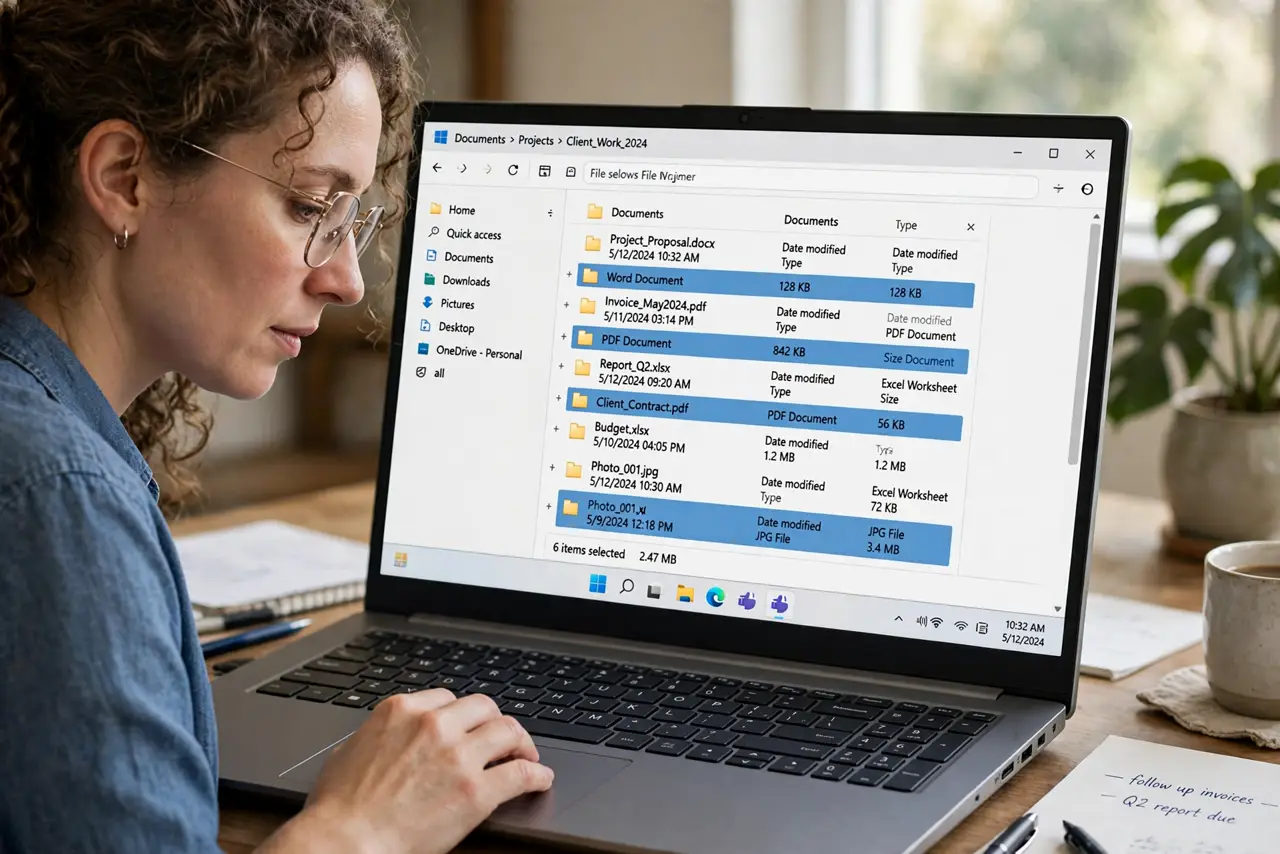
TL;DR / Quick Fix
Quick fix: in File Explorer select all the files, right-click the first one, choose Rename, type the new base name, and press Enter — Windows numbers them all automatically. For patterns like dates, install Microsoft PowerToys and use PowerRename. Work on copies first.
Follow these steps
- Use the built-in bulk rename. Open the folder, press Ctrl+A to select all, right-click the first file, choose Rename, type the new name, and press Enter. Windows renames every selected file to that name plus (1), (2), (3) and so on. It is instant and safe.
- Rename a subset. Hold Ctrl and click individual files to select just some, or drag a box around them. Only the selected files get renamed — the rest of the folder is untouched. This is how you rename the beach photos but not the videos.
- Install PowerToys for real power. For patterns — adding dates, changing case, numbering with leading zeros — install Microsoft PowerToys from Microsoft's site and enable PowerRename. Right-click files, choose PowerRename, and preview every change before applying.
- Preview before applying. PowerRename shows exactly what each filename will become before you commit. Read the preview list — a bad pattern applied to 500 files is a mess. When in doubt, test on copies in a temp folder first.
- Undo mistakes immediately. Bulk rename is undoable with Ctrl+Z right after, in File Explorer and in PowerRename. If you spot an error, undo first and ask questions later — the window for easy undo is short.
- Mind file extensions. Keep 'show file extensions' on so you can see them. Renaming photo.jpg to photo without the extension confuses Windows — the extension tells the system what the file is. Mac users have a batch rename too.
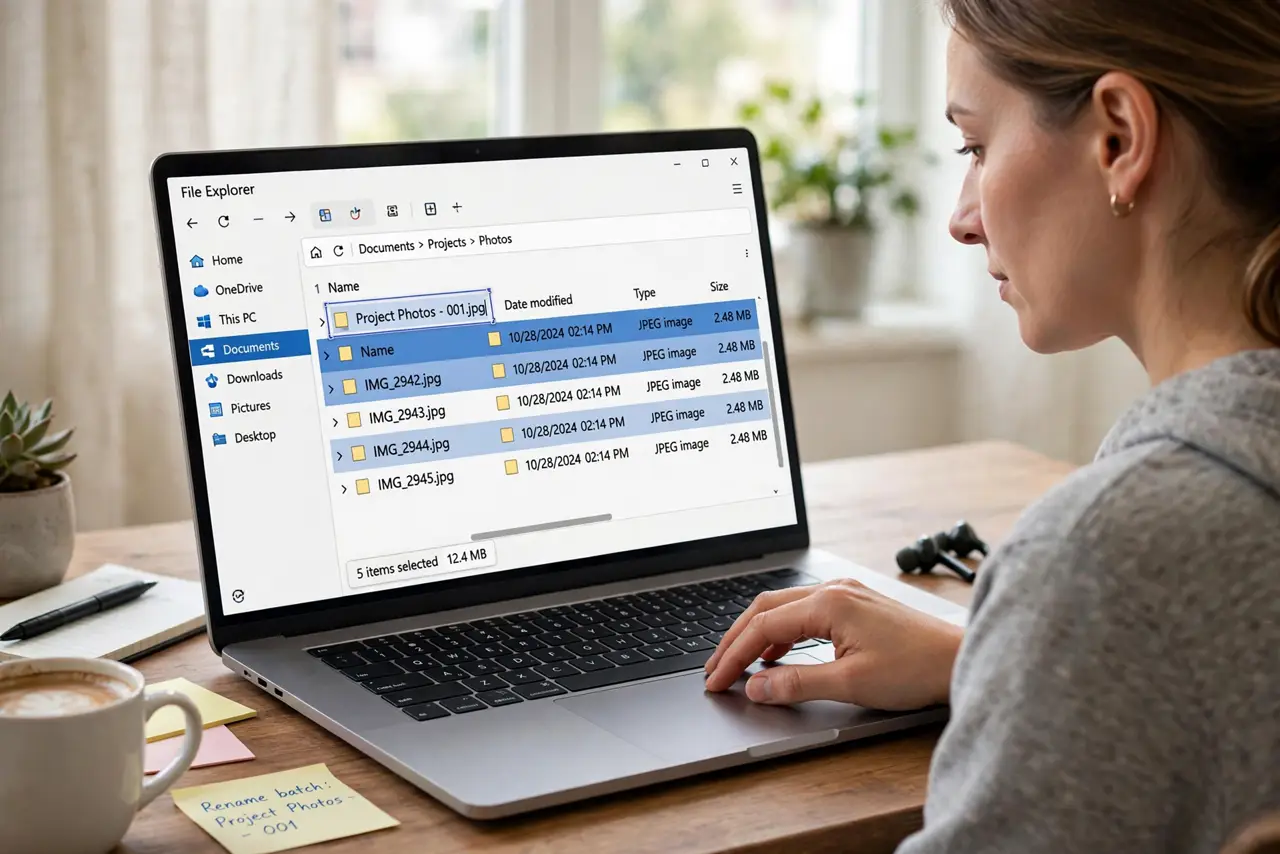
What NOT to do
- Do not bulk rename without a preview. One wrong pattern hits every selected file at once — preview in PowerRename first.
- Do not rename files a program is using. Open files may refuse to rename or break the program's file links — close apps first.
- Do not strip file extensions. The .jpg or .docx tells Windows what the file is; losing it breaks the association.
- Do not rename system folders in bulk. Stick to your own documents and photos — Windows system files are off-limits.
Frequently asked questions
Can I undo a bulk rename?
Yes, immediately with Ctrl+Z. But the undo window is short — if you closed the window or did more actions, recovery gets hard. Preview first.
Why did Windows add numbers in parentheses?
That is the built-in behavior: one base name plus (1), (2), (3) to keep names unique. PowerRename gives you cleaner numbering control.
Is PowerToys safe to install?
Yes — it is made by Microsoft, free, and open source. Download it from Microsoft's official site, not random mirrors.