Compress a Folder? Basics
Zipping a folder shrinks it for emailing, backs it up in one file, and keeps the folder structure intact — and Windows does it built in, no extra software needed. Right-click, Send to, Compressed folder, and you are done. It will not compress everything equally well, and giant files still will not fit email limits. Here is the plain how-to plus the limits.
TL;DR / Quick Fix
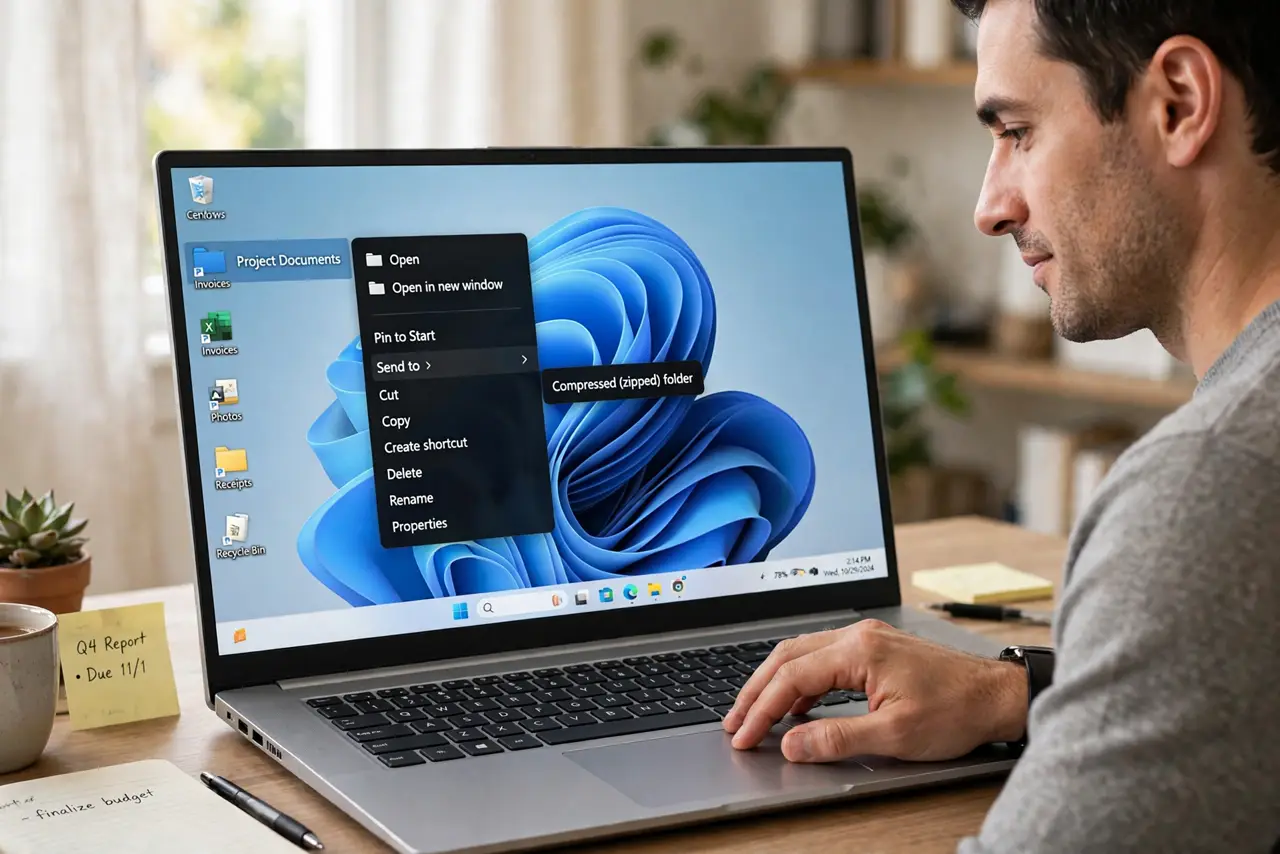
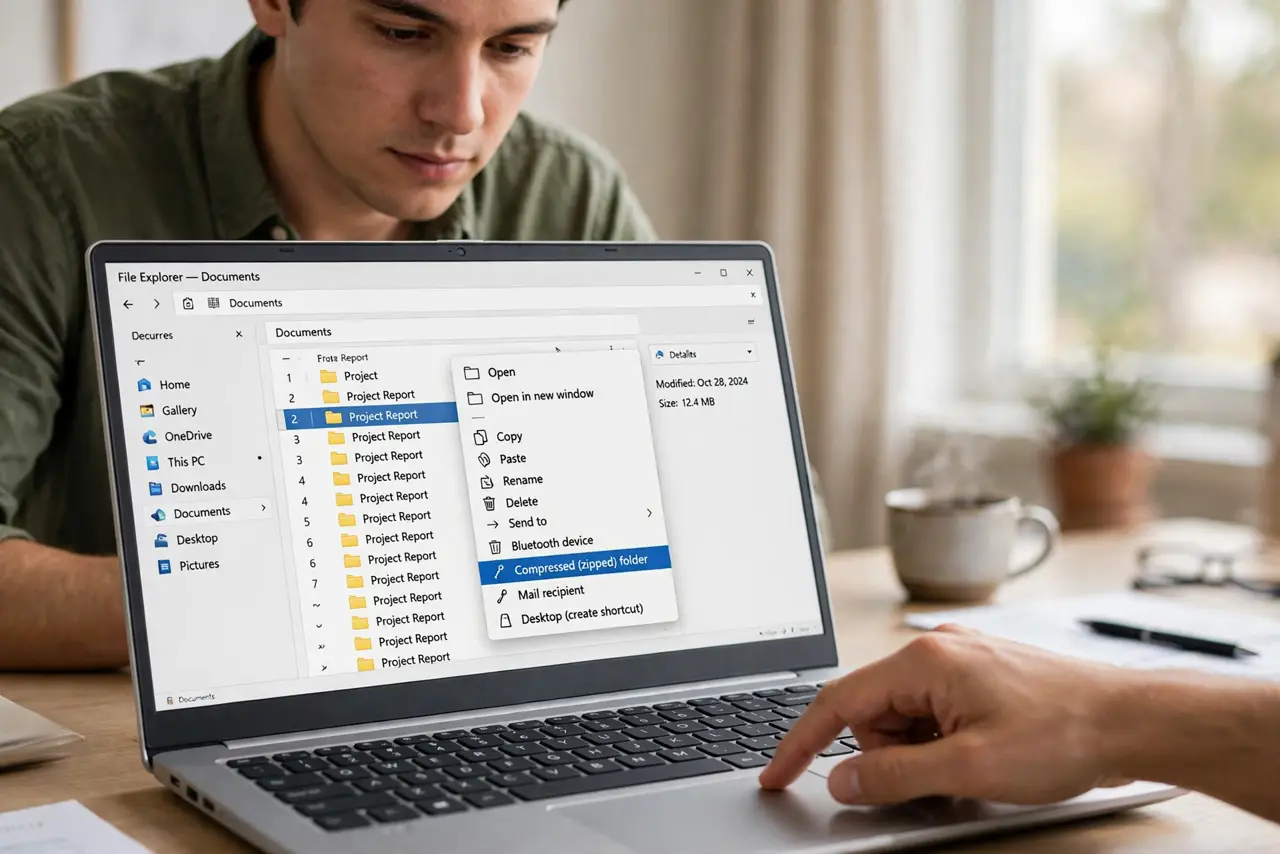
Quick fix: right-click the folder, choose Send to, then Compressed (zipped) folder. Windows creates a zip next to the original. To unzip, right-click the zip and choose Extract All. Already-compressed files like videos and photos shrink very little. For email, keep zips under your provider's attachment limit.
Follow these steps
- Zip a folder in two clicks. Right-click the folder, hover Send to, and click Compressed (zipped) folder. Windows creates a .zip file in the same location with the same name. The original folder stays untouched.
- Unzip with Extract All. Right-click the zip file and choose Extract All, pick a destination, and click Extract. Your files appear in a normal folder again. If the extract option is missing, a Windows feature may need re-enabling.
- Know what compresses well. Documents, spreadsheets, and text shrink dramatically — often 70 to 90 percent. Photos, videos, and music are already compressed and may shrink only a few percent. Zipping a movie folder barely changes its size.
- Mind email attachment limits. Most email providers cap attachments around 20 to 25 MB. A zip over that bounces — use a cloud link instead. Compressing does not magically make a 2 GB video emailable.
- Password-protect sensitive zips. Windows' built-in zip has no password option. For sensitive files, use 7-Zip or similar to create an encrypted archive — and handle a password prompt calmly rather than guessing.
- Do not delete originals immediately. After zipping, open the zip and spot-check that files inside open correctly before deleting the originals. A corrupted zip discovered after deletion is unrecoverable.
What NOT to do
- Do not expect videos to shrink. Already-compressed media barely compresses — zipping a 1 GB video gives you roughly a 1 GB zip.
- Do not email giant zips. Attachment limits bounce them; use a cloud share link for anything over 25 MB.
- Do not zip files you are actively editing. Work on the originals, zip for sending or archiving — editing inside a zip is asking for lost work.
- Do not trust a zip you have not tested. Open it and check contents before deleting originals or sending it as the only copy.
Frequently asked questions
Why is my zip file almost the same size?
The files inside are already compressed — photos, videos, and music cannot shrink much further. Zipping still bundles them into one file, which is useful on its own.
Can Windows open zip files without extra software?
Yes. Windows opens, creates, and extracts basic zips natively. You only need extra tools for passwords, RAR files, or stronger compression.
Is it safe to delete the original after zipping?
Only after you open the zip and verify the contents work. Until then the original is your backup.