Calibrate a Game Controller
Your character drifts left when your thumbs are off the sticks, or the aim pulls slightly in one direction no matter how carefully you hold still. That is stick drift — worn or dirty sensors reporting movement that is not happening. Before you buy a new controller, Windows has a built-in calibration tool that can often tame it.
TL;DR / Quick Fix
Quick fix: stick drift — phantom movement from worn stick sensors — can often be reduced with Windows' built-in controller calibration, which recenters the stick's neutral point. Open the USB game controller settings, run the calibration wizard, and test in-game. Persistent drift means worn hardware needing cleaning or replacement.
Follow these steps
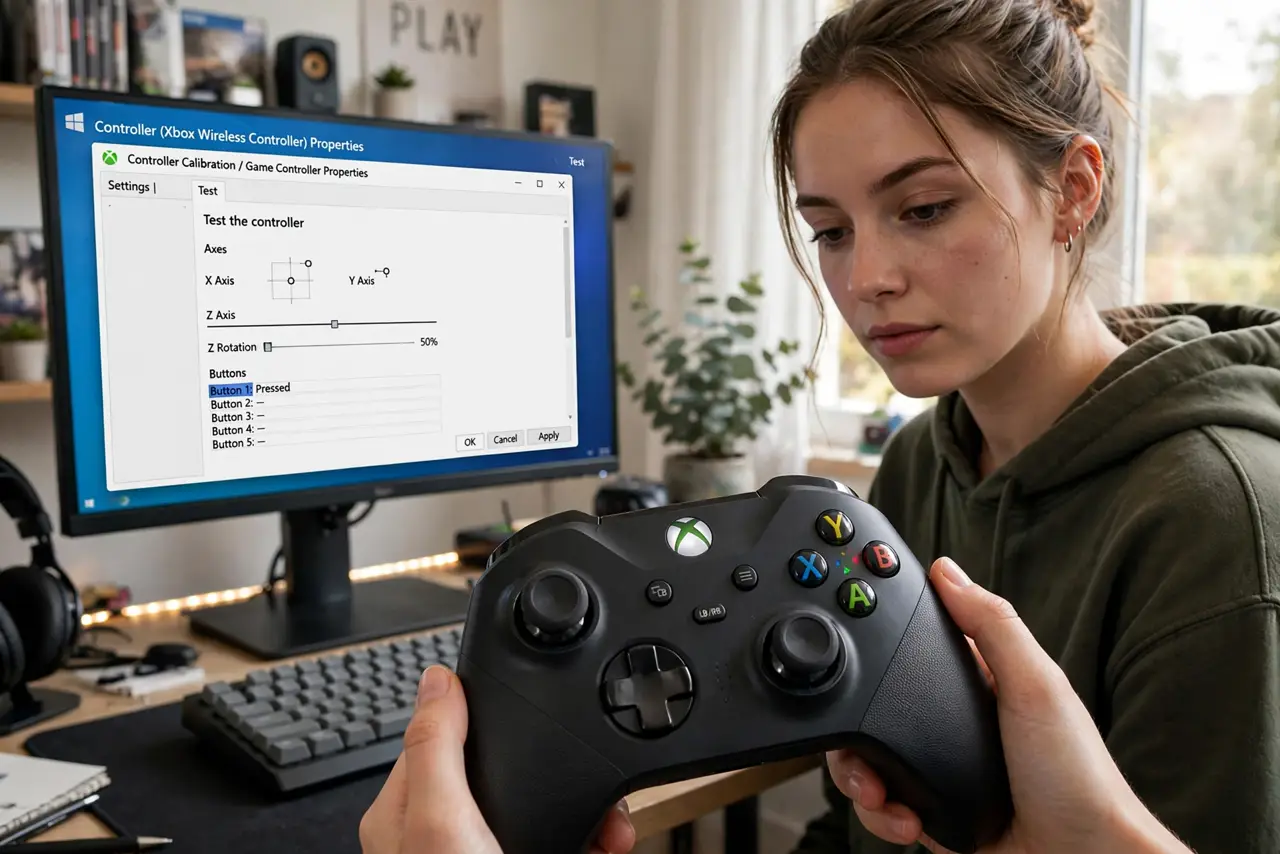
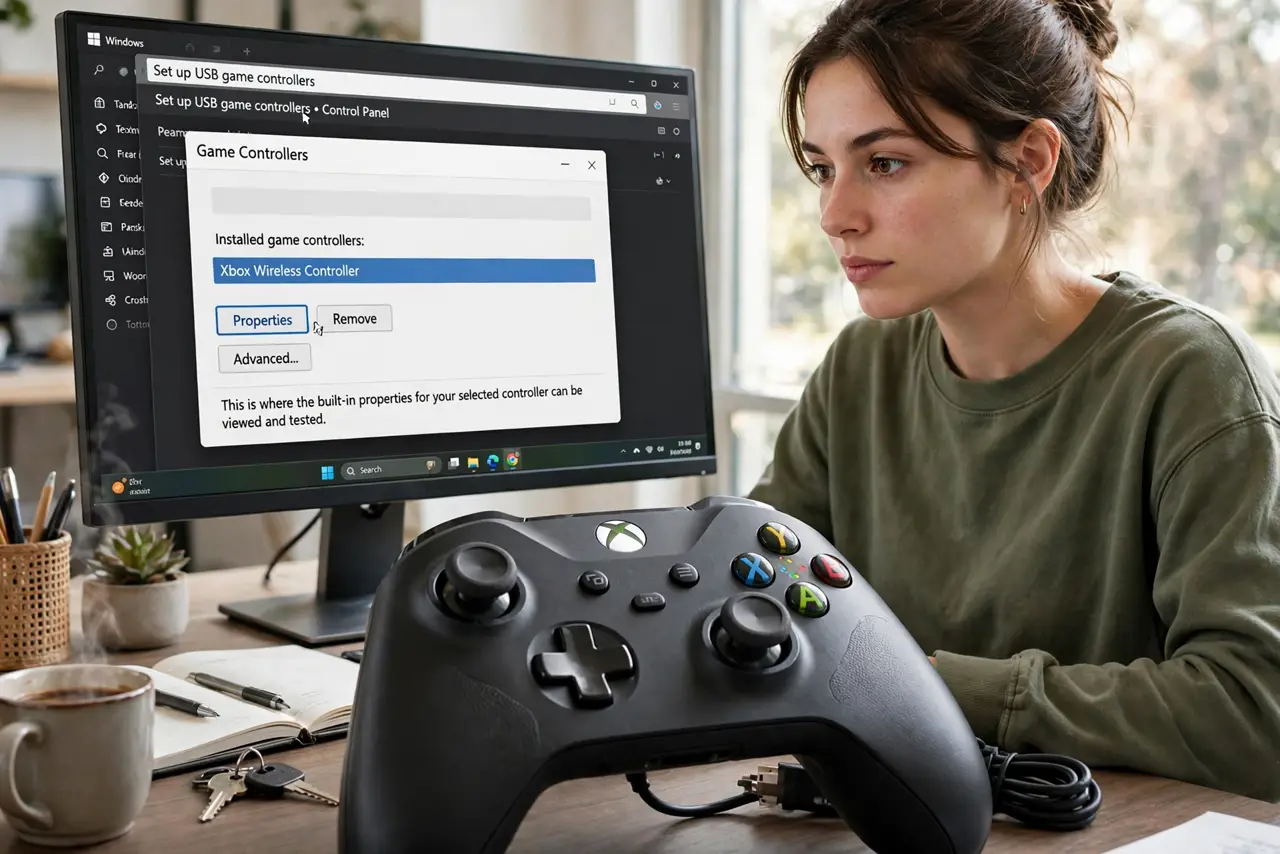
- Open the controller settings. Search for 'Set up USB game controllers' in Windows and open it. Select your controller and click Properties — this is where the built-in calibration lives.
- Check the raw input first. In the Properties test tab, watch the axes with your thumbs off the sticks. If the crosshair sits off-center at rest, that is drift you can see — note which direction.
- Run the calibration wizard. Click Settings, then Calibrate, and follow the wizard: it asks you to move each stick through its full range, then reads the center. This teaches Windows where neutral actually is.
- Increase the in-game deadzone. Most games have a deadzone setting — the ignore-zone around center. Raising it slightly masks residual drift without you feeling it. This is the fix for mild cases the wizard cannot fully erase.
- Try the drift-specific fixes. Compressed air around the stick base, gentle circular rotations, and contact-cleaner techniques help when dust is the cause — see the drift fix guide for the full routine.
- Know when it is hardware. Drift that returns within days, or sticks that stick physically, mean worn potentiometers. Calibration manages symptoms; it cannot regrow worn parts — budget for a replacement.
What NOT to do
- Do not throw the controller away before calibrating. A five-minute wizard fixes a surprising share of drift complaints.
- Do not set a huge deadzone to hide bad drift. Massive deadzones make aiming feel muddy — fix the cause instead of masking it.
- Do not open the controller while under warranty. Internal fixes void it; use the warranty first, the screwdriver second.
- Do not assume drift means you broke it. Stick wear is normal with heavy use — it is a consumable part, not a personal failure.
Frequently asked questions
What causes stick drift?
Worn or dirty sensors under the stick misreport position. Dust, wear, and spring fatigue all contribute — heavy use accelerates all three.
Does calibration permanently fix drift?
It compensates for it by redefining neutral. Mild drift can be managed for months; severe wear will outpace calibration eventually.
Why does drift come back after calibration?
The sensors keep wearing. Each calibration buys time, but progressive hardware wear eventually needs cleaning or replacement.