Is Game Mode Worth It?
Windows promises that Game Mode 'optimizes your PC for play' — which sounds great until you wonder what it actually does and whether it ever hurt anyone. The honest answer: it helps a little on weak hardware, does nothing on strong hardware, and occasionally causes the exact stutters it claims to fix. Here is the evidence-based verdict.
TL;DR / Quick Fix
Quick fix: Game Mode prioritizes your game for CPU and GPU resources and quiets background tasks — worth leaving on for modest hardware, where it can smooth out stutters. On strong PCs the difference is negligible, and a few games run worse with it. Toggle it per game and test.
Follow these steps
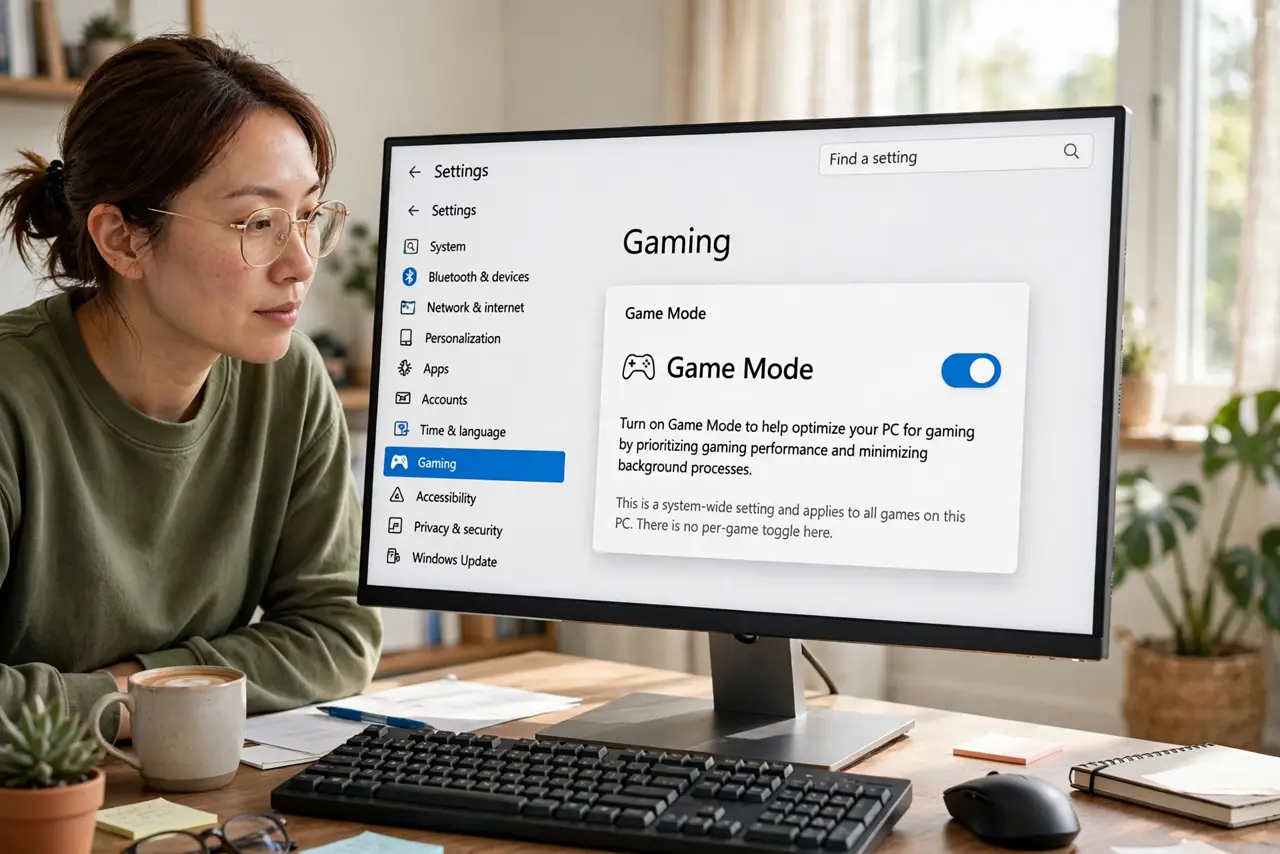
- Find the Game Mode toggle. Open Settings, then Gaming, then Game Mode. One switch, system-wide — there is no per-game toggle here, though you can flip it before launching a specific title.
- Understand what it actually does. It tells Windows to prioritize the game's processes, throttle background updates, and stabilize frame pacing. On a weak CPU fighting background apps, that reprioritization is real help.
- Know when it matters. Modest hardware — older CPUs, integrated graphics, laptops — sees the most benefit. A strong desktop with cores to spare will not notice it either way.
- Watch for the games it hurts. A handful of titles stutter more with Game Mode on, thanks to its meddling with scheduling. If a game got worse after a Windows update, this toggle is a prime suspect — see the performance complaints pattern.
- Test with the overlay. Use the Game Bar performance widget to watch FPS with Game Mode on and off. Five minutes of testing beats a hundred forum opinions.
- Leave it on by default, toggle per problem. The sane policy: on unless a specific game misbehaves. It is a set-and-forget setting, not a religion.
What NOT to do
- Do not expect miracles. Game Mode recovers a few percent on weak hardware — it does not turn a potato into a gaming rig.
- Do not leave it on blindly for every game. The titles it hurts are rare but real; test the ones you play most.
- Do not confuse Game Mode with a game booster app. Third-party 'boosters' mostly duplicate what Game Mode already does, with extra ads.
- Do not toggle it mid-match and judge. Give each setting a clean test session — background conditions change between runs.
Frequently asked questions
Does Game Mode increase FPS?
Slightly, on modest hardware — mostly it smooths frame pacing rather than raising the ceiling. Expect consistency more than raw speed.
Why do some people turn it off?
A few games conflict with its scheduling and stutter worse. Those players tested and found off better — for their specific titles.
Is Game Mode the same as Hardware-Accelerated GPU Scheduling?
No — that is a separate toggle in graphics settings. They address different bottlenecks and can be combined.