Capture the Last 30 Seconds
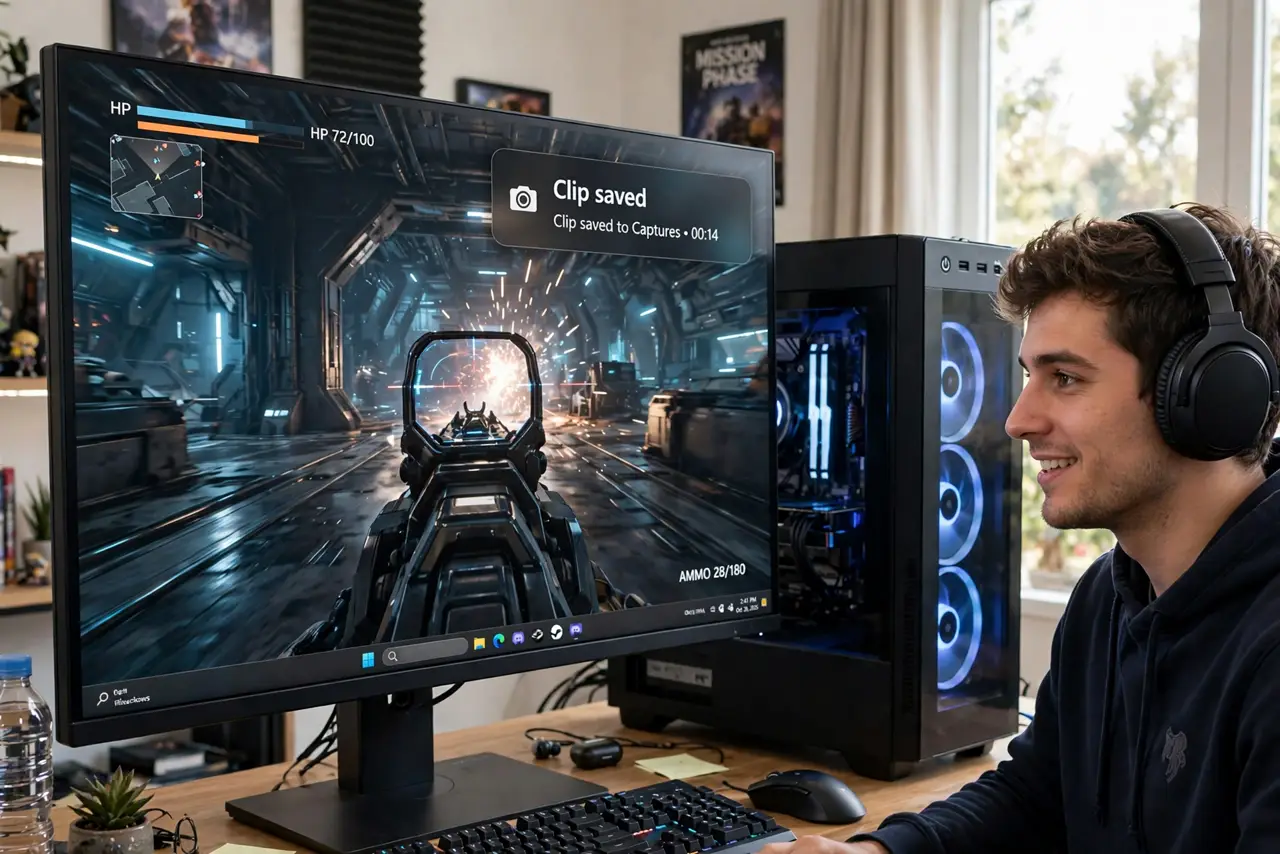
You just pulled off the most incredible play of your life — and you were not recording. Again. Windows can keep a rolling buffer of your gameplay, so Win+Alt+G saves the last 30 seconds (or minutes) retroactively, even though you never pressed record. Set it up once and never lose a moment again.
TL;DR / Quick Fix
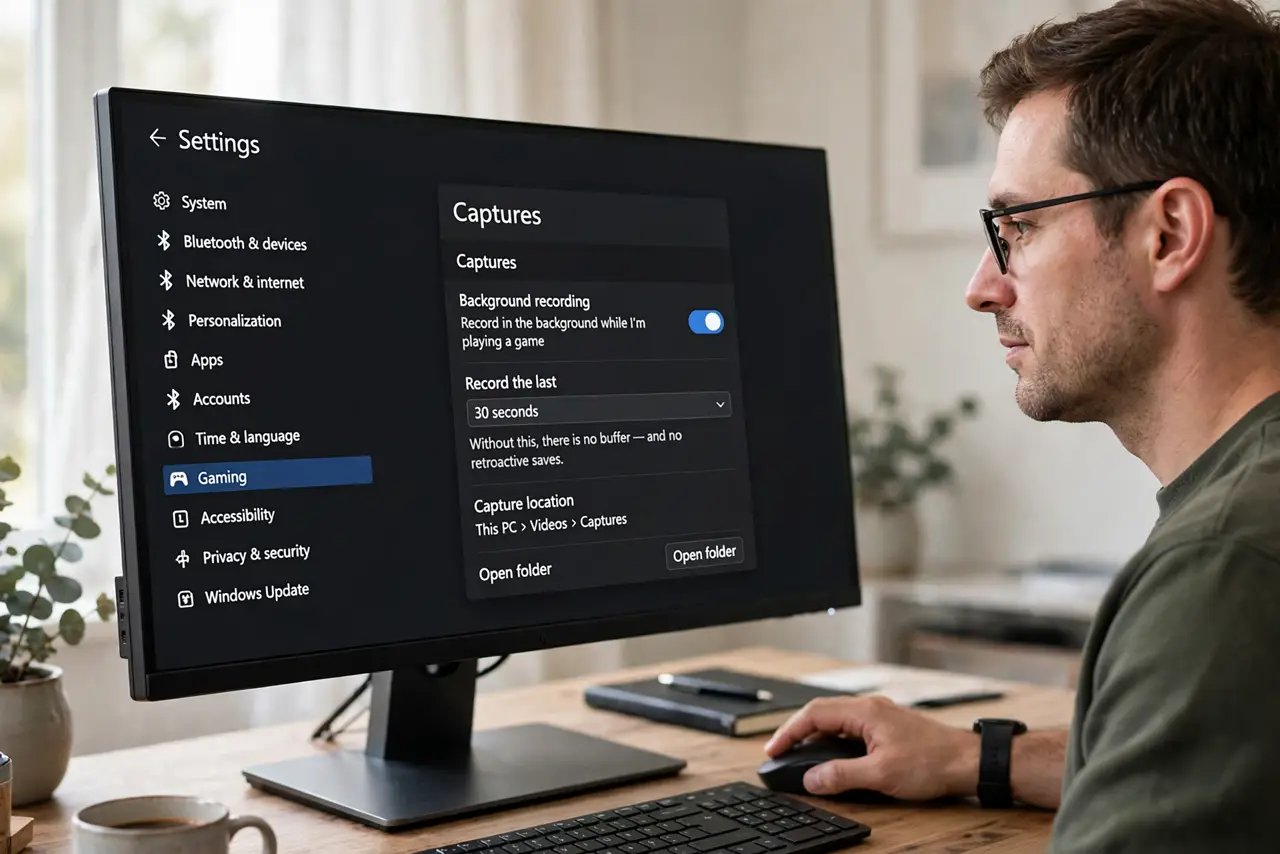
Quick fix: enable background recording in Settings, Gaming, Captures, and Windows keeps a rolling buffer of your gameplay — press Win+Alt+G any time to save the last 30 seconds retroactively, no prior recording needed. Set the buffer length to taste and keep an eye on disk space.
Follow these steps
- Enable background recording. Go to Settings, then Gaming, then Captures, and turn on background recording. Without this, there is no buffer — and no retroactive saves.
- Set the buffer length. Choose how far back the buffer reaches — 30 seconds, a few minutes, whatever fits your games. Longer buffers eat more disk and resources; 30 seconds to 2 minutes suits most players.
- Learn the hotkey. Win+Alt+G saves the buffer instantly. Practice it once in a calm moment — fumbling for keys during the actual epic play defeats the purpose.
- Check it worked. Press the hotkey, then open the Captures folder or the Game Bar gallery. Confirm the clip is there and looks right before trusting it with a real moment.
- Mind the disk usage. Background recording writes constantly while you play. SSDs handle it fine, but watch free space — a full drive stops the buffer silently.
- Trim and share. Open the clip in the Photos app or Clipchamp to trim the exact moment. A 15-second highlight beats a 2-minute buffer dump for sharing.
What NOT to do
- Do not leave background recording on forever. A constantly writing buffer wears SSDs and fills disks — enable it for gaming sessions, not 24/7.
- Do not expect the buffer to survive a crash. If the game or system crashes hard, the unwritten buffer dies with it — save clips for the moments that matter.
- Do not set a huge buffer on a small drive. Multi-minute high-quality buffers eat gigabytes — match the buffer to your free space.
- Do not forget the hotkey exists. The best buffer in the world saves nothing if you never press Win+Alt+G — practice it once.
Frequently asked questions
How far back can the buffer go?
Up to several minutes depending on settings and disk space — 30 seconds to 2 minutes is the practical sweet spot for most players.
Does background recording hurt performance?
Slightly — constant encoding costs some CPU and GPU. On modest hardware, keep the buffer short or the quality moderate.
Where do the clips get saved?
In your Videos/Captures folder by default, and visible in the Game Bar gallery. Change the location in Captures settings if your system drive is small.