Monitor Games with Game Bar
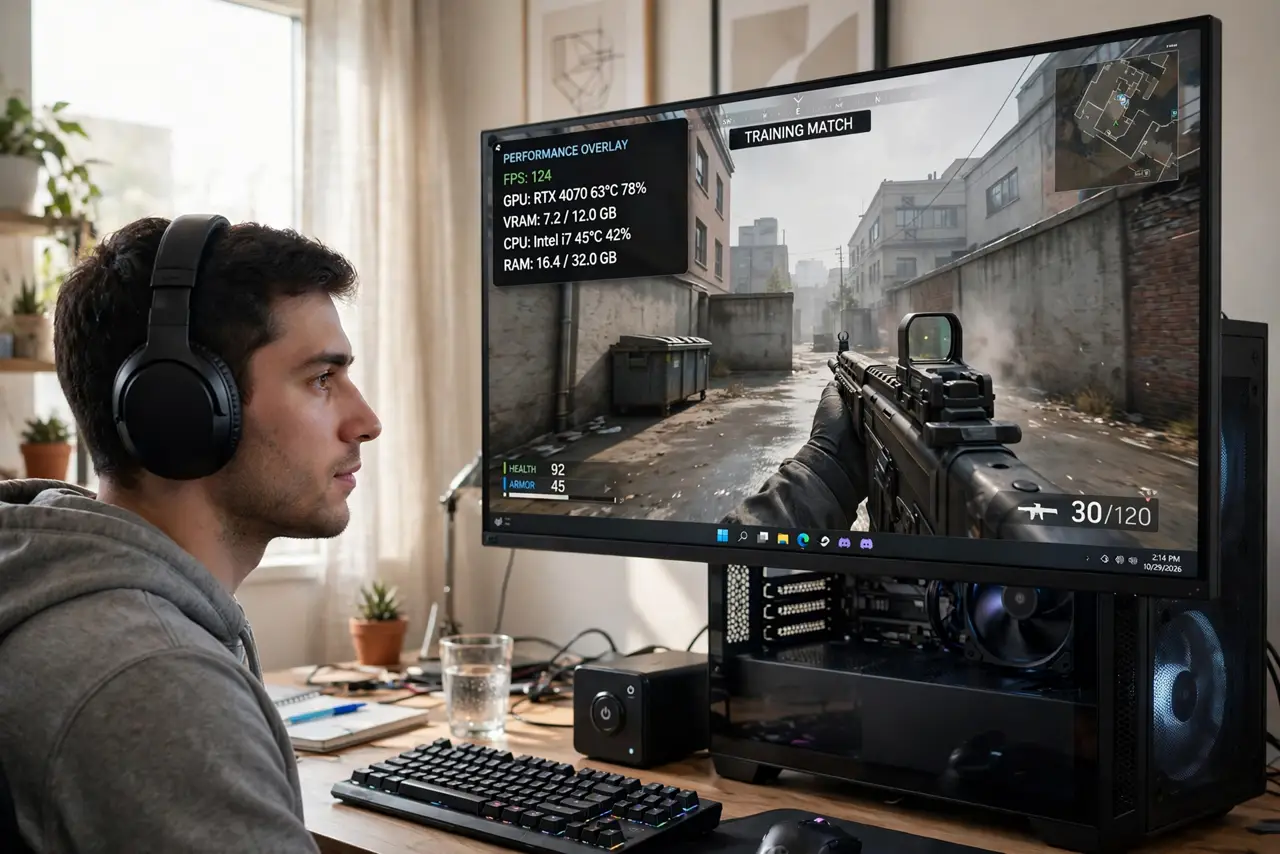
You are mid-match and want to know your frame rate, but alt-tabbing to check kills the moment — and by the time you are back, you are dead. The Xbox Game Bar has a built-in performance widget that pins FPS, CPU, GPU, and RAM over your game with one hotkey. Most players have never opened it. Here is how to set it up once and glance at it forever.
TL;DR / Quick Fix
Quick fix: press Win+G in any game to open the Xbox Game Bar, open the Performance widget, and pin it so FPS, CPU, GPU, and RAM stay visible while you play. Set it up once and check performance with a glance — no alt-tabbing.
Follow these steps
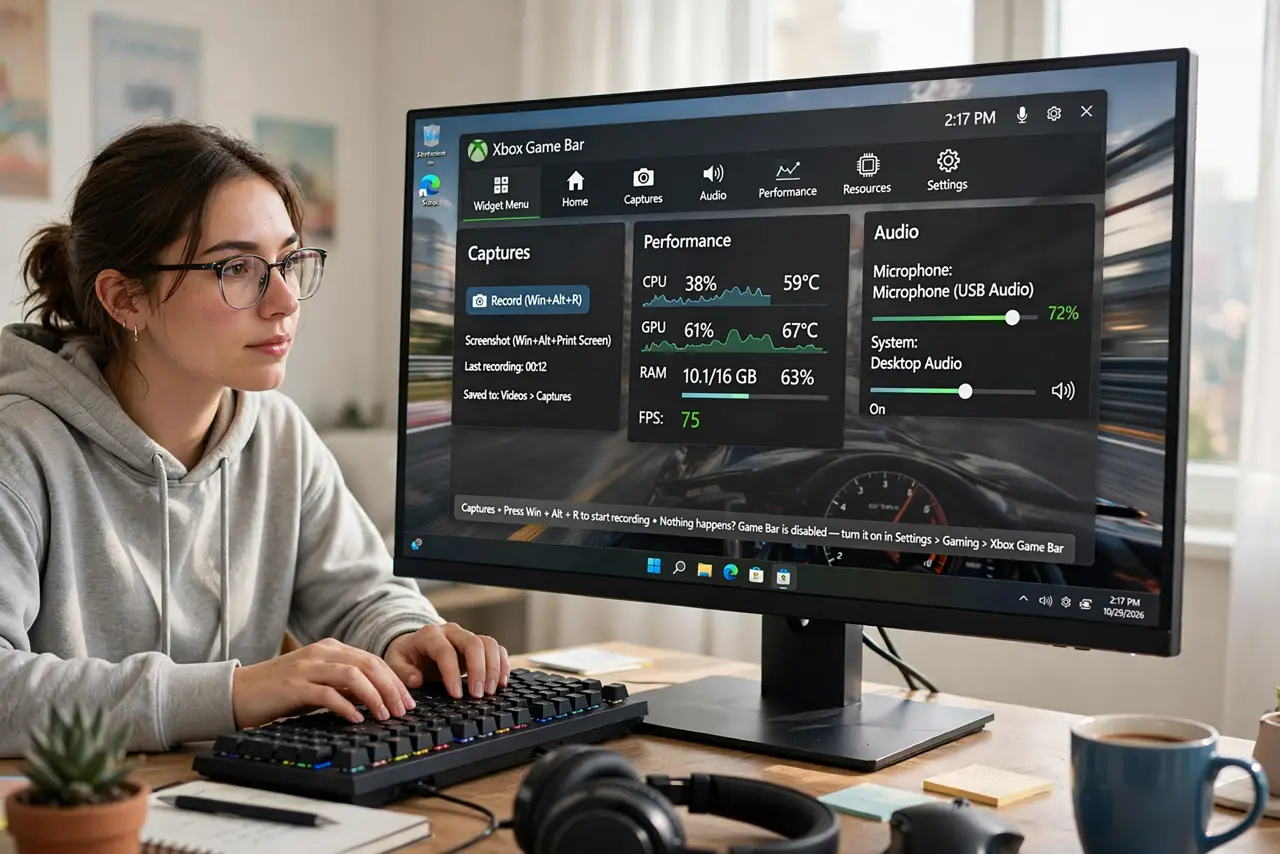
- Open Game Bar with Win+G. Press the Windows key plus G while in a game. The overlay appears over your game — if nothing happens, Game Bar is disabled; turn it on in Settings, then Gaming, then Xbox Game Bar.
- Open the Performance widget. Click the widget menu (the icon bar at the top) and choose Performance. A small panel shows FPS, CPU, GPU, VRAM, and RAM usage updating live.
- Pin the widget to your game. Click the pin icon on the Performance widget. Now it stays visible even after you dismiss the overlay with Win+G — a glanceable heads-up display for your hardware.
- Position it out of the way. Drag the pinned widget to a screen corner. Keep it small enough to ignore and big enough to read — the corner opposite your minimap is the usual spot.
- Learn what the numbers mean. FPS is smoothness; GPU near 100% means the graphics card is the limit; CPU near 100% means the processor is. This tells you which setting to lower when things chug.
- Close it with Win+G when done. Win+G toggles the full overlay; the pinned widget stays. Unpin or close the widget when you want a clean screen — it remembers nothing between games unless pinned.
What NOT to do
- Do not run three overlays at once. Game Bar plus two other FPS counters stack lag and clutter — pick one.
- Do not panic at one low FPS reading. Menu screens and loading zones dip; judge by sustained gameplay, not one glance.
- Do not leave the full overlay open while playing. The pinned widget is the glanceable part; the full bar is for setup.
- Do not assume the widget works in every game. Some anti-cheat titles block overlays — that is the game's rule, not a bug.
Frequently asked questions
Does the Performance widget hurt FPS?
Barely — the overlay costs a frame or two at most. The pinned widget alone is lighter than the full bar.
Why does Win+G do nothing?
Game Bar is likely disabled. Enable it in Settings under Gaming, and check the keyboard shortcut has not been remapped.
Can I see temperatures too?
The stock widget shows usage, not temperature. For temps you need a third-party overlay — the built-in one covers the essentials.