Capture Settings? Basics
Game DVR's capture settings are where Windows decides the quality, length, and audio of your recordings — and the defaults are tuned for safety, not for you. Clips with no microphone audio, tiny 30-second buffers, or giant files all trace back to these toggles. Five minutes here saves every future recording.
TL;DR / Quick Fix
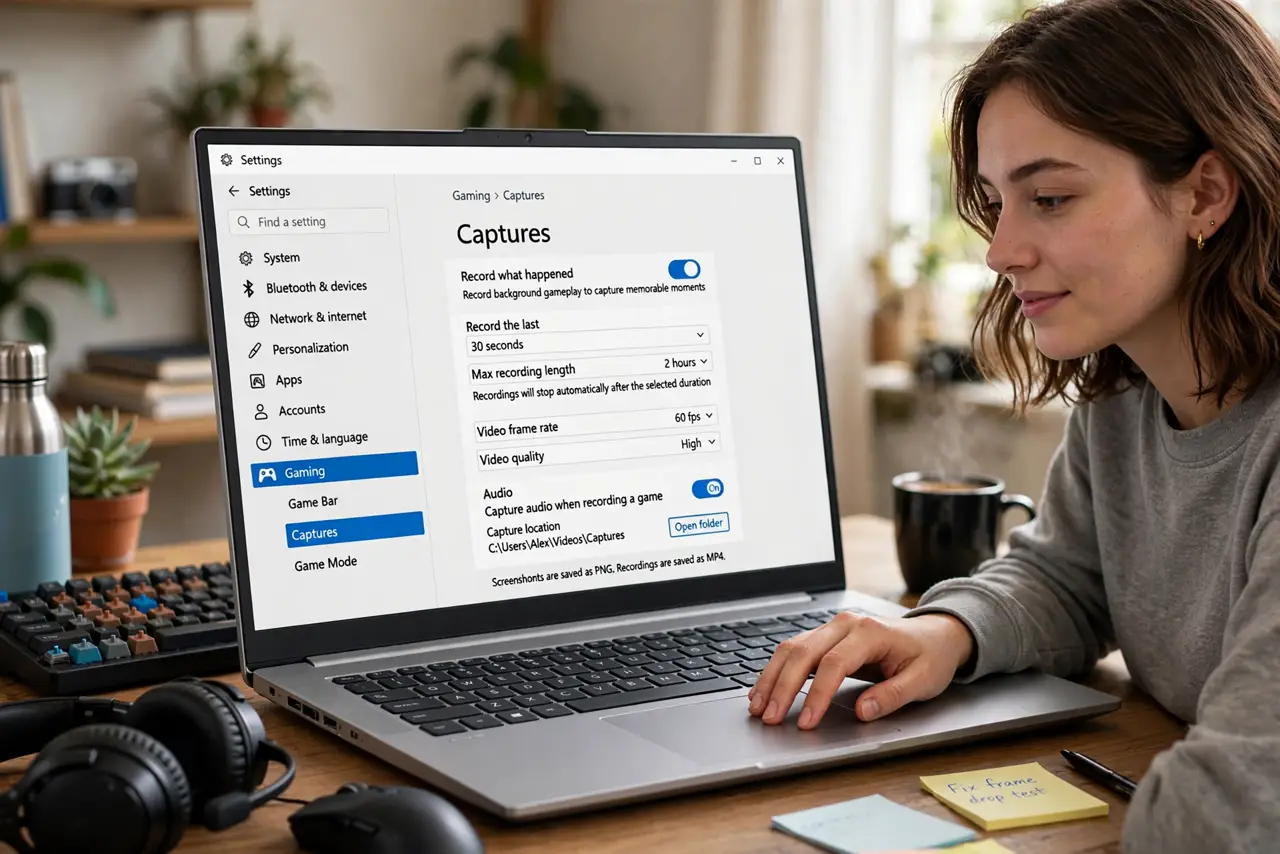
Quick fix: open Settings, then Gaming, then Captures to control recording quality, background buffer length, and audio sources. Set 1080p 30 fps for shareable files, decide whether the mic records, and cap the buffer at a few minutes. Test once with a short clip before the moment that matters.
Follow these steps
- Open the Captures page. Settings, then Gaming, then Captures — this is the control room. Everything below lives here, and most people have never opened it.
- Set video quality to match your needs. 1080p at 30 fps is the sweet spot for sharing: good-looking files that stay small. Higher settings multiply file sizes fast — reserve 4K for footage you plan to edit seriously.
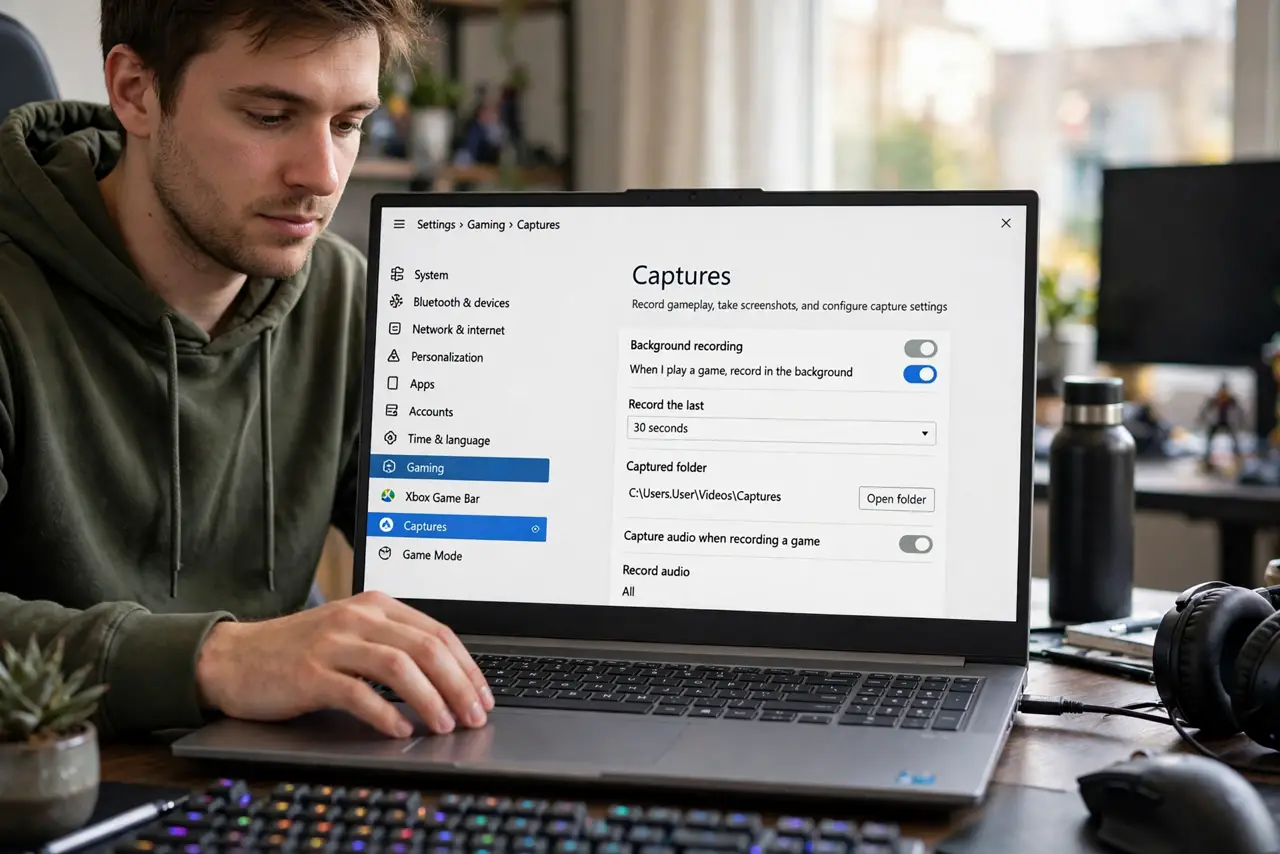
- Choose your audio sources deliberately. Separate toggles cover game audio and microphone. The classic failure is a great clip with no commentary because the mic toggle was off — decide before recording, not after.
- Set the background buffer length. This is how far back Windows key + Alt + G can reach — from 30 seconds up to 10 minutes. Longer buffers cost more disk and performance; a few minutes covers most highlight moments.
- Cap the recording length. Maximum recording length prevents a forgotten recording from filling the drive overnight. Two hours is a sane ceiling for most people.
- Confirm where clips save. Captures land in Videos, then Captures by default. If the drive is nearly full, point it at a bigger drive here — a full system drive mid-recording corrupts the clip.
What NOT to do
- Do not record at maximum quality 'just in case.' Huge files are harder to share and edit — match quality to the actual use.
- Do not forget the mic toggle. Silent clips are the number one capture-settings regret, and they are not fixable afterward.
- Do not set a 10-minute buffer on a small drive. The rolling buffer writes constantly — size it to your free space.
- Do not change settings mid-tournament. Test new settings with a throwaway clip first; surprises belong in practice, not competition.
Frequently asked questions
Why do my clips have no sound?
The audio source toggles — game, mic, or both — were not set as expected. Check them in Captures settings before recording again.
Where are my captured videos?
Videos, then Captures, as MP4 files. You can change the save folder in the same settings page.
Can I record longer than the buffer?
Yes — the buffer is only for retroactive highlights. Manual recording (Windows key + Alt + R) runs up to your maximum length setting.