Turn On Clipboard History
You copied a link, then a paragraph, and now the link is gone — the clipboard only remembers the last thing. Windows has a built-in clipboard history that keeps your recent copies and lets you pick which one to paste. It takes one keypress to enable and changes copy-paste forever.
TL;DR / Quick Fix
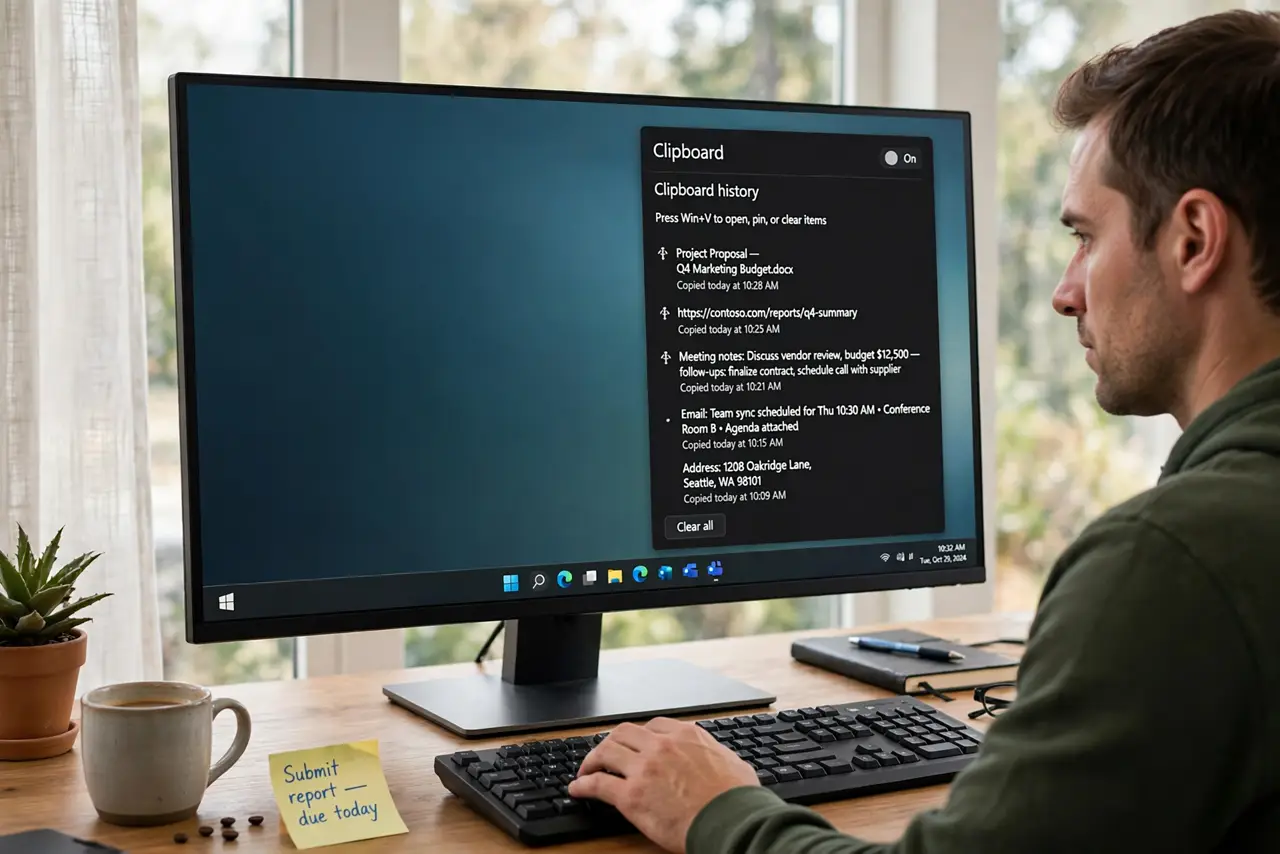
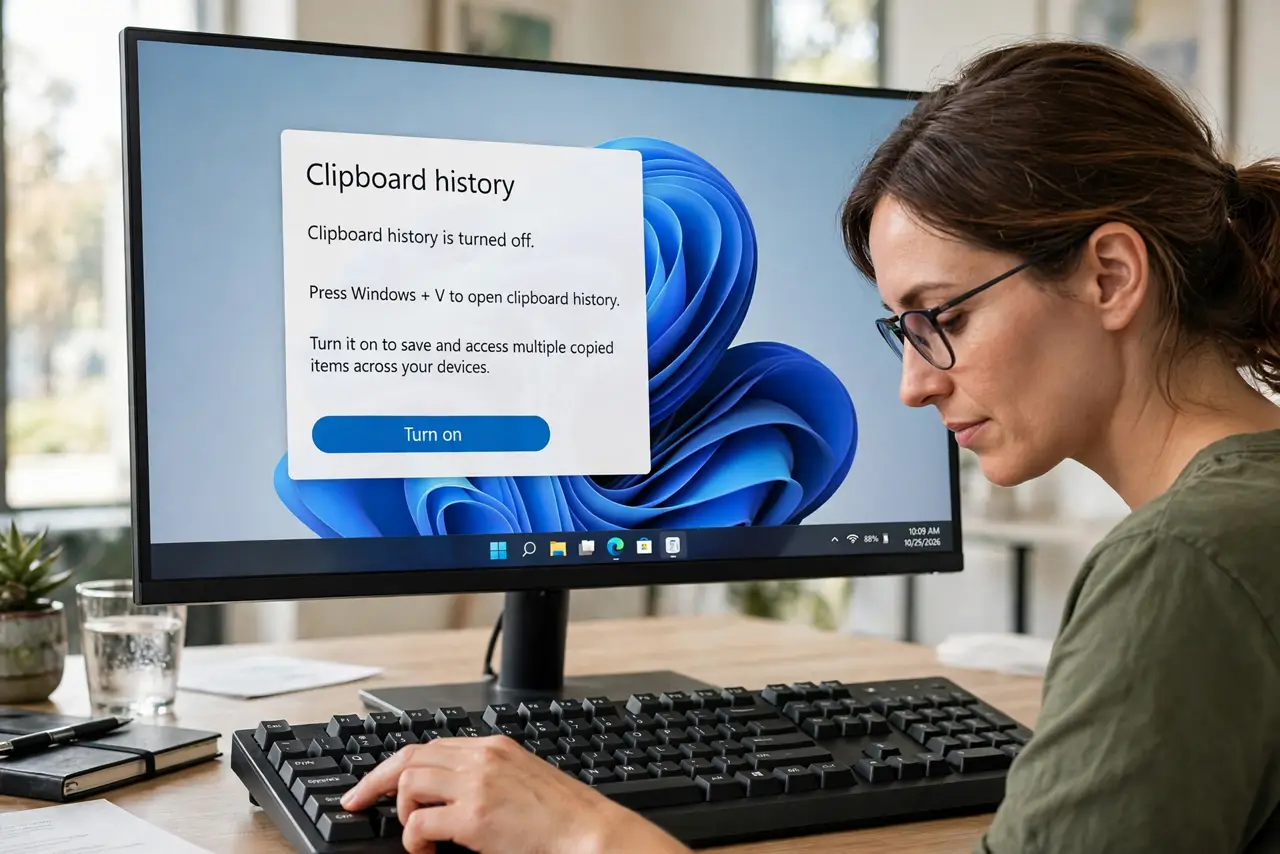
Quick fix: press Win+V once — Windows asks to turn clipboard history on right there. After that, Win+V shows everything you copied recently; click an item to paste it. Pin favorites with the pin icon. History clears on restart unless you pin items or enable sync.
Follow these steps
- Enable it with Win+V. Press Windows key + V anywhere. The first time, Windows shows a Turn on button — click it and history starts recording immediately.
- Paste from history. Copy a few things, press Win+V, and click the item you want. It pastes exactly as if you had just copied it.
- Pin the keepers. Hover an item and click the pin icon. Pinned items survive restarts, which is how you keep addresses and snippets permanently handy.
- Clear it when needed. The same panel has a Clear all option. Use it before handing the PC to someone else — history remembers passwords too.
- Decide about sync. Settings > System > Clipboard offers sync across devices. Convenient, but it copies your clipboard to the cloud — skip it on shared or work PCs, and see the sync troubleshooting guide if it misbehaves.
- Know the limits. History holds the last 25 items and clears on restart unless pinned. If the panel is ever empty when it should not be, that guide covers the fix.
What NOT to do
- Do not copy passwords and assume privacy. Clipboard history keeps them in plain text until cleared — clear right after pasting into a password field.
- Do not enable sync on a shared computer. Your copies would follow your Microsoft account to every device you sign into.
- Do not treat history as a backup. Twenty-five items and a restart limit make it a convenience, not storage.
- Do not paste blindly from history into the wrong window. Check the target field first — Win+V pastes wherever the cursor sits.
Frequently asked questions
Where did my clipboard history go after a restart?
Unpinned items clear on every restart by design. Pin the ones you want to keep, or accept history as a per-session tool.
Is clipboard history private?
It is local to your PC unless you enable sync. Anyone using your unlocked PC can open it with Win+V, so clear sensitive items.
How many items does it store?
Twenty-five. Older items drop off as new copies arrive — pinning is the only way to protect an item from rotation.