Track Time in the Clock App
Hours vanish and you cannot say where they went — the Clock app's Focus Sessions turn vague 'I worked all day' into measured, structured time. Set an interval, pick a task from To Do, and work in timed blocks with real breaks. This guide sets up the system that makes time visible.
TL;DR / Quick Fix
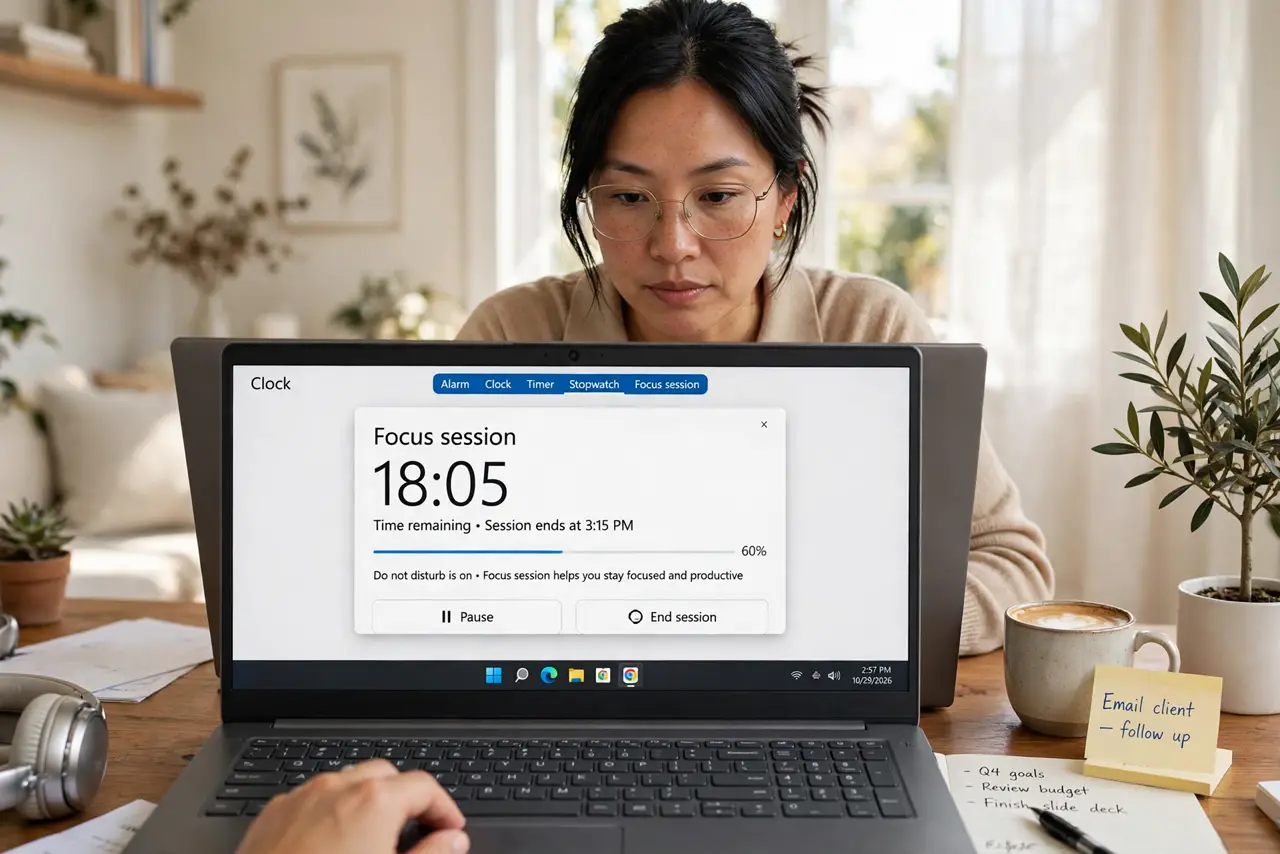
Quick fix: the Windows Clock app has Focus Sessions — set a work interval, pick a task, and it times you with breaks built in, syncing with Microsoft To Do. Start with 25-minute sessions and 5-minute breaks. Review the daily total to see where your hours actually went.
Follow these steps
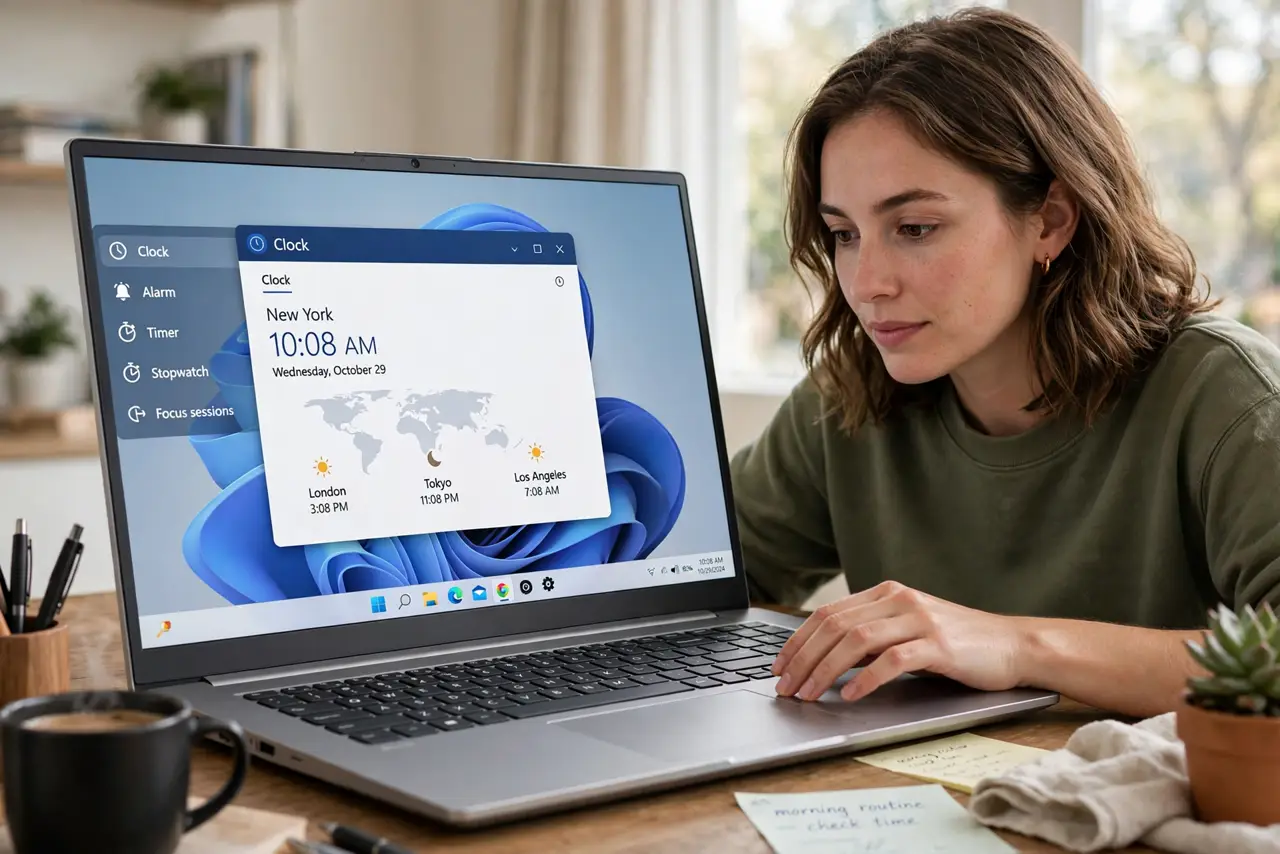
- Open the Clock app. Search 'Clock' in Start. Focus Sessions live on the app's main screen — not in Settings, where most people look first.
- Set your focus period. Choose a work interval — 25 minutes is the classic Pomodoro, 50 for deep work. The app handles the math; you pick the rhythm.
- Pick a task from Microsoft To Do. Link a task so the session has a purpose. 'Write report section 2' beats 'work' — specificity keeps you honest when the timer tempts you to drift.
- Work until the timer ends. One task, no phone, no tab-hopping until the break chime. The timer is a commitment device — its power is the boundary it draws.
- Take the breaks it gives you. Stand, stretch, look away. Breaks are part of the system, not cheating — skipping them collapses the later sessions.
- Review your daily totals. The app tallies focus time per day. Compare days to spot your productive patterns — and set multiple alarms as backup nudges for hard stops.
What NOT to do
- Do not set marathon 3-hour sessions. Focus degrades; shorter blocks with breaks outperform heroic stretches.
- Do not check the timer constantly. Glancing every two minutes is procrastination wearing a productivity costume.
- Do not skip linking a task. Untasked sessions drift — the task is what the timer protects.
- Do not run Focus Sessions with notifications blazing. Enable Do Not Disturb, or every ping shatters the block.
Frequently asked questions
Does Focus Sessions sync across devices?
The To Do tasks sync; the timer itself is per-device. Start the session where you will work.
Can I customize break lengths?
Yes — adjust focus and break durations in the settings to match your natural rhythm.
Is it better than a phone timer?
The To Do integration and daily totals are the edge — a phone timer times; Focus Sessions manages.