Clock Shows the Wrong Time Zone After Travel
You flew home and the clock still shows the departure city's time, or it bounced to the wrong zone entirely. Windows sets the zone automatically from location, and that chain breaks when location is off or the setting is manual. The fix is re-enabling the automatic chain — different from the dual-boot clock conflict, which is about two systems disagreeing.
TL;DR / Quick Fix
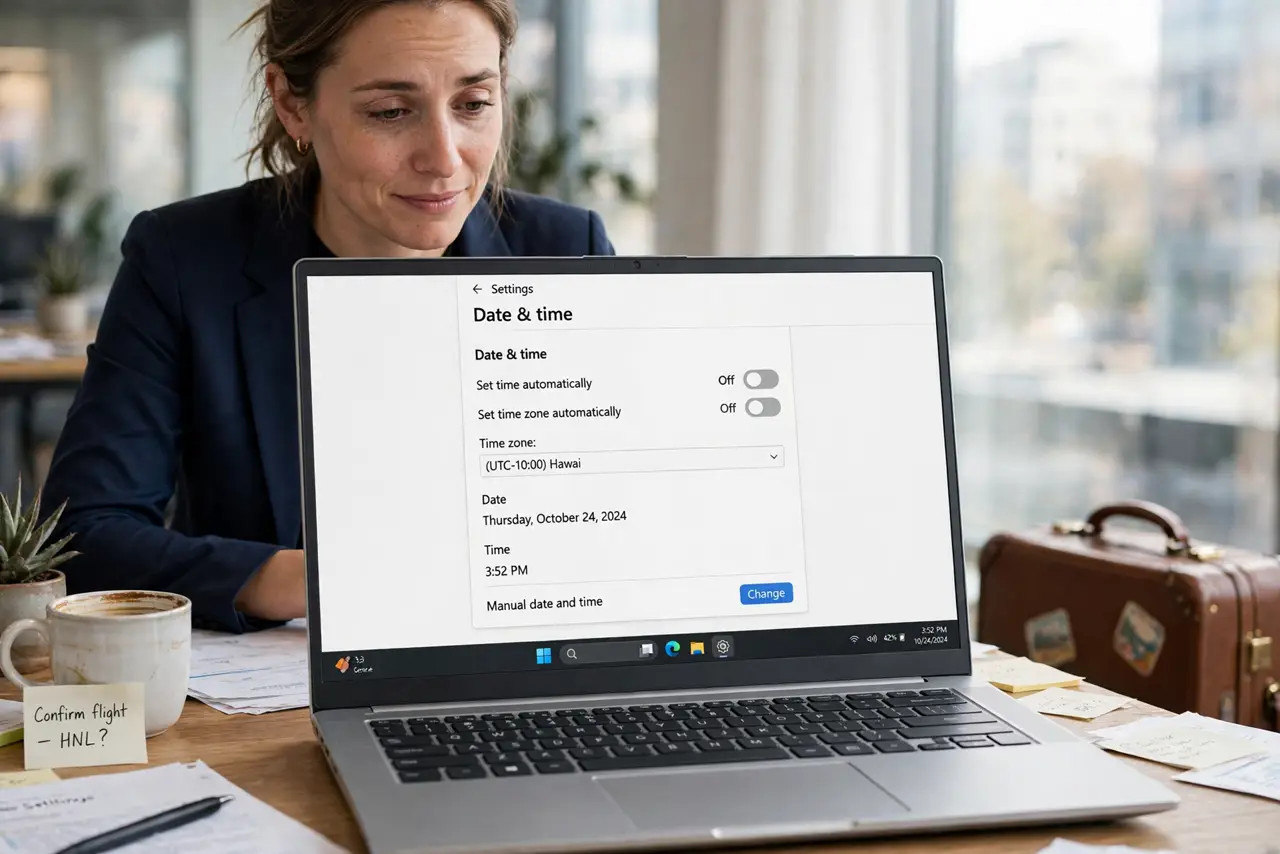
Quick fix: open date and time settings and turn on Set time zone automatically, then confirm Location services are enabled so Windows knows where you are. Sync the time manually. If the zone is still wrong, set it from the drop-down and leave automatic on for the next trip.
Follow these steps
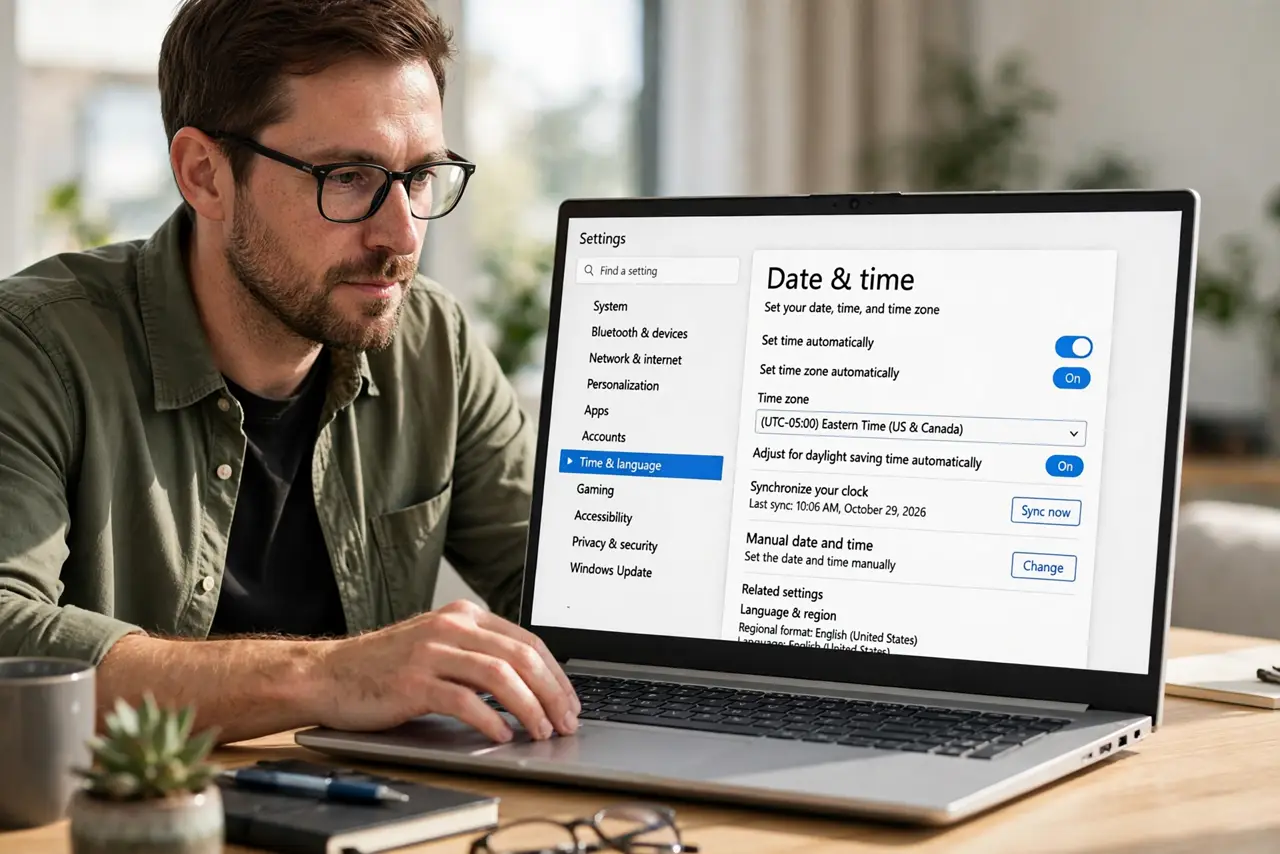
- Open the date and time settings. Go to Settings, then Time and language, then Date and time. This page holds the automatic toggles and the manual zone picker.
- Turn on automatic time zone. Enable Set time zone automatically. This is the master switch; with it off, Windows never updates the zone on its own no matter what else you do.
- Enable location services. Go to the privacy settings and confirm Location is on for the system. Windows needs location data to know which zone you are in.
- Sync the time manually once. Click Sync now in the same settings page. A manual sync corrects any drift the wrong zone introduced while you were away.
- Set the zone by hand if automatic fails. Pick your city from the time zone drop-down. Manual selection works even when location detection is broken, and you can re-enable automatic later.
- Check the taskbar clock display. Glance at the taskbar clock and confirm it shows the right local time. The taskbar clock should now agree with your phone.
What NOT to do
- Do not change the time by hand instead of the zone. Setting the wrong time with the right zone breaks certificates and sync; the zone is the correct lever.
- Do not leave location off permanently to fix this. Location is what makes automatic zones work on the next trip too.
- Do not ignore a clock that is wrong by 30 or 45 minutes. Some zones use half-hour offsets, which is correct behavior, not an error.
- Do not blame the travel app. The system clock is Windows' job, and no airline or hotel app controls it.
Frequently asked questions
Why didn't the time zone update on landing?
Because automatic time zone needs location services on. With location off, Windows has no idea you moved.
Should I use automatic or manual time zone?
Automatic for travelers, manual for desktops that never move. Manual is also the fallback when location detection misbehaves.
Why is the time right but the zone name wrong?
Border areas can confuse location detection. Picking the zone manually fixes the label without touching the time.