Calibrate Display Color?
Photos look great on your screen but wrong everywhere else — too dark, too orange, washed out. Your display's colors are off, and Windows has a built-in calibration wizard that fixes the worst of it in ten minutes, no hardware needed. It will not match a professional calibrator, but it beats the factory 'vivid' preset by a mile. Here is the walkthrough.
TL;DR / Quick Fix
Quick fix: Windows has a free Display Color Calibration wizard — search 'calibrate display color' and follow it to set gamma, brightness, contrast, and color balance. Do it in neutral room lighting with the monitor warmed up. Ten minutes fixes most 'my photos look wrong' complaints.
Follow these steps
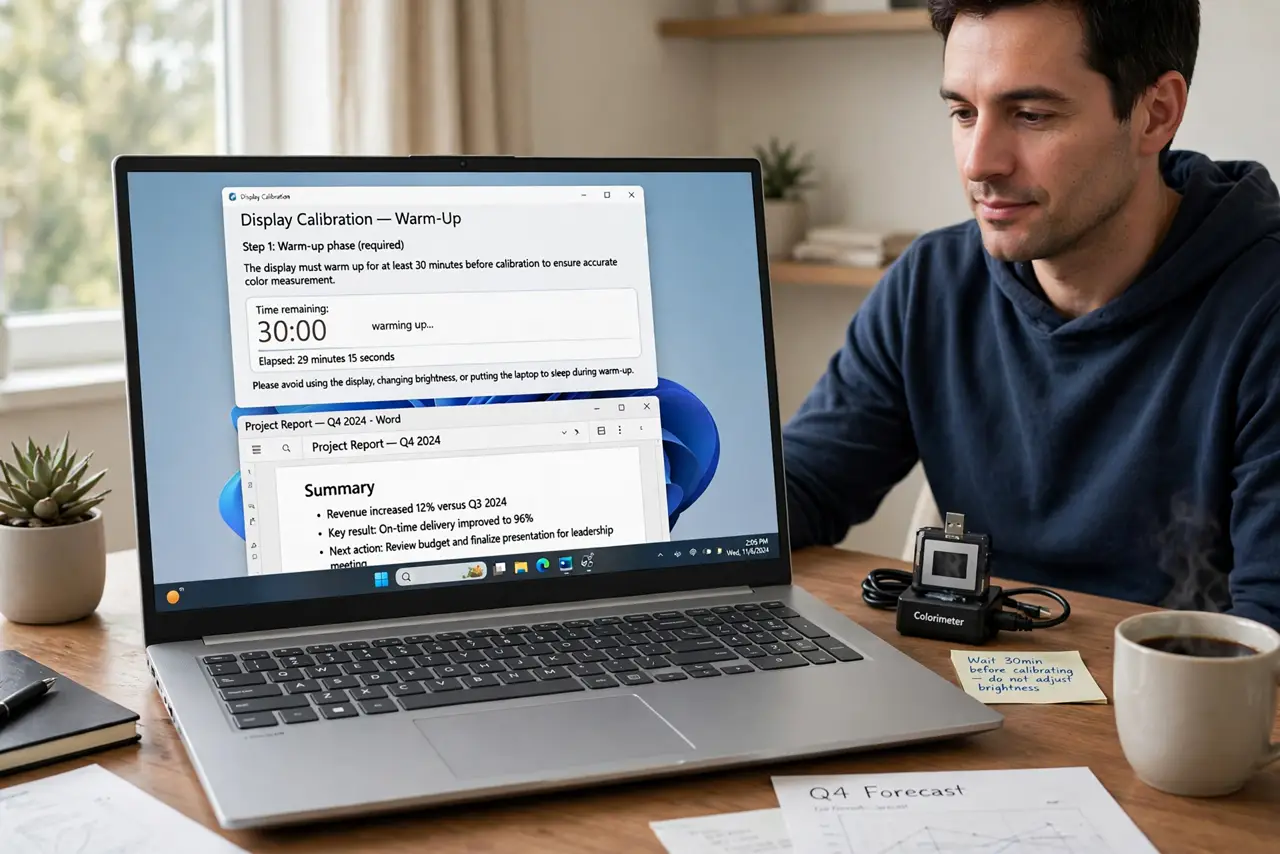
- Warm up the monitor first. Let the screen run for at least 30 minutes before calibrating — colors shift as the backlight warms up. Calibrating a cold monitor means calibrating a moving target.
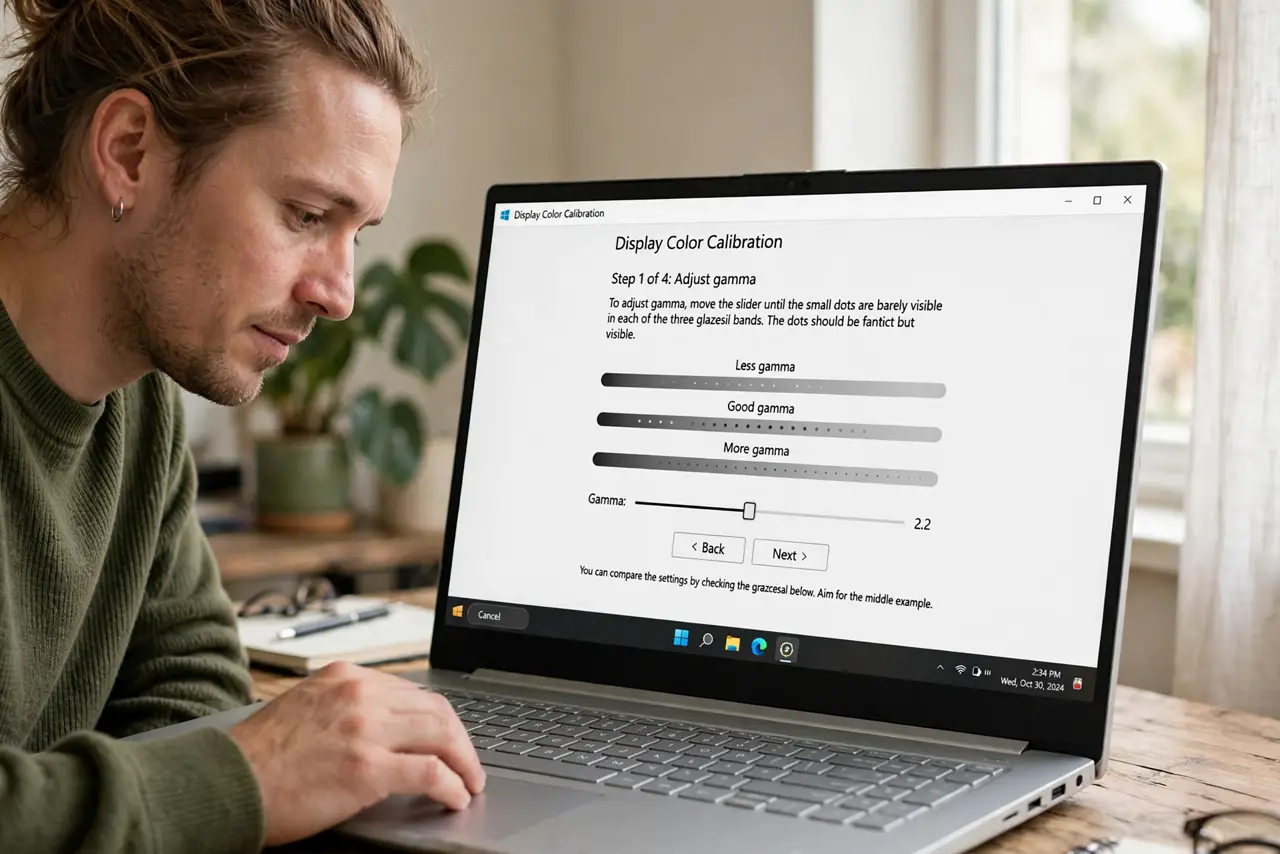
- Open the built-in wizard. Search Start for 'calibrate display color' and launch it. The wizard walks you through gamma, brightness, contrast, and color balance with example images at each step — no expertise required.
- Set gamma with the dots. The gamma screens ask you to match dot patterns until the dots fade into the background. Take your time; this step has the biggest impact on whether photos look right.
- Adjust brightness and contrast. Use the wizard's reference images: raise brightness until the dark shirt is just distinguishable, set contrast so the white shirt keeps its detail. These two interact — iterate once.
- Fix the color balance. The final screens remove color casts by adjusting red, green, and blue. Aim for neutral grays with no tint. If everything looks orange afterward, your room lighting is warm — calibrate in neutral light.
- Know the wizard's limits. Software calibration cannot fix a bad panel or measure absolute color. For paid photo work, a hardware calibrator is the real answer — but the wizard gets casual users 80% of the way there.
What NOT to do
- Do not calibrate under colored lighting. Warm lamps or RGB strips tint your perception — calibrate in neutral daylight or white light.
- Do not calibrate a cold monitor. Backlight colors drift during warm-up — give it 30 minutes first.
- Do not expect perfection from the wizard. It corrects the big errors; professional color work still needs a hardware calibrator.
- Do not leave the monitor on Vivid mode. Showroom presets fight every calibration — switch to Standard or sRGB first.
Frequently asked questions
Why do my photos look different on my phone?
Different screens, different calibrations — your phone and monitor disagree about color. Calibrating the monitor narrows the gap; it cannot make all screens identical.
How often should I recalibrate?
Every few months for casual use; monthly for photo work. Backlights drift with age, so calibration decays slowly.
Is the Windows wizard as good as a calibrator?
No — your eyes adapt and lie, while a colorimeter measures objectively. The wizard is free and good; the hardware is accurate.