Color Filters Wash Out Your Screen? Fix It
When color filters wash out the whole screen, photos look pale, videos look gray, and normal colors never return until the filter changes. The filter is an accessibility setting, so the fix is to turn it off or pick the correct filter, not to adjust your monitor brightness.
TL;DR / Quick Fix
Quick fix: open Settings, then Accessibility, then Color filters, and turn the filter off. If you need a filter, choose only the one that matches your vision need, and leave the shortcut off so it cannot retrigger by accident again later.
Follow these steps
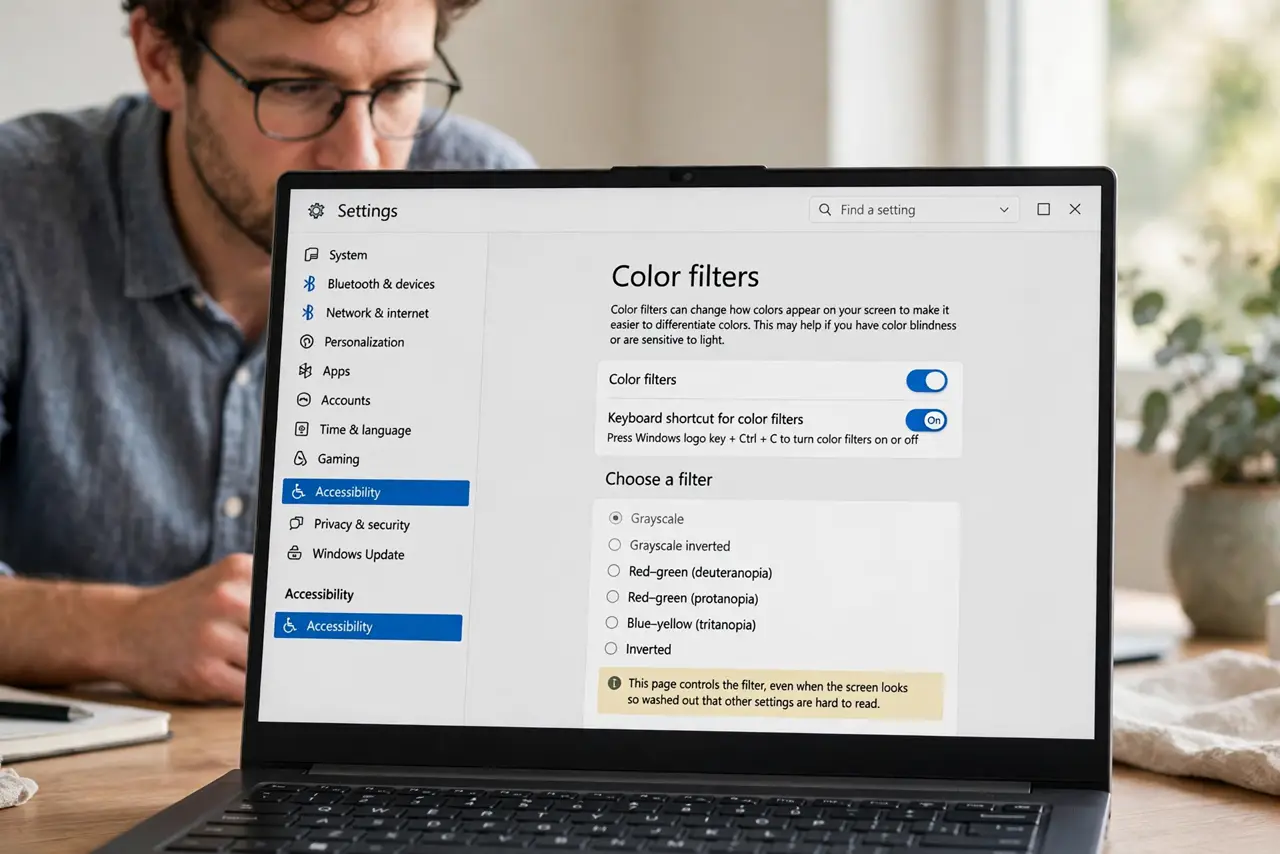
- Open Color filters settings. Open Settings, then Accessibility, then Color filters. This page controls the filter, even when the screen looks so washed out that other settings are hard to read.
- Turn the filter off. Turn the Color filters switch off. Colors should return to normal at once. If they do not, keep going, because another setting may also be active.
- Check for night light too. Open Settings, then System, then Display, and check Night light. Night light warms colors and can look like a washout when combined with a filter, so turn it off for this test.
- Choose the right filter if you need one. If you use a filter for color vision, turn it back on and choose only the filter that matches your need. Try each option briefly and keep the one that helps without washing everything out.
- Turn off the filter shortcut. On the Color filters page, turn off the keyboard shortcut for filters. The shortcut can retrigger a filter by accident, which is how many washouts start.
- Restart if colors still look wrong. Save your work and restart. If colors are still washed out after a restart with filters off, check the monitor own color settings, because the monitor may be applying its own mode.
What NOT to do
- Do not adjust monitor brightness and contrast to fight a filter. Brightness changes the whole display, while the filter is the setting that actually washes colors out.
- Do not change every app theme to compensate. A filter affects all apps at once, so fixing the filter fixes every app, while per-app changes take far longer.
- Do not reinstall a graphics driver for a washed-out screen. Color filters are an accessibility setting, not a driver fault, and a driver change will not turn the filter off.
- Do not keep the shortcut on if it keeps retriggering. The shortcut is convenient only when you use filters deliberately, and it causes washouts when pressed by accident.
Frequently asked questions
What are color filters for?
They adjust colors to help people with color vision differences see distinctions more clearly. They are an accessibility aid, not a display fault, when chosen deliberately.
Why did my screen suddenly wash out?
Usually the filter shortcut was pressed by accident, or a preset changed the filter. Turning the shortcut off stops the accidental retrigger.
Is a washed-out screen a broken monitor?
Rarely. If filters are off, night light is off, and a restart does not help, then check the monitor settings, but check Windows filters first.