Your Color Profile Resets After Every Reboot
A color profile that looks right today and wrong tomorrow is usually being replaced at startup by a graphics utility, a monitor tool, or a profile that was never set as the system default. This guide sets the profile properly and finds what overwrites it. If HDR is your real problem, see the guide on the HDR toggle being greyed out.
TL;DR / Quick Fix
Quick fix: Set the profile in Color Management. Check the profile after a restart. Then work through the remaining steps in order, checking one change at a time, and stop for a technician if you see damage, swelling, or a burning smell.
Follow these steps
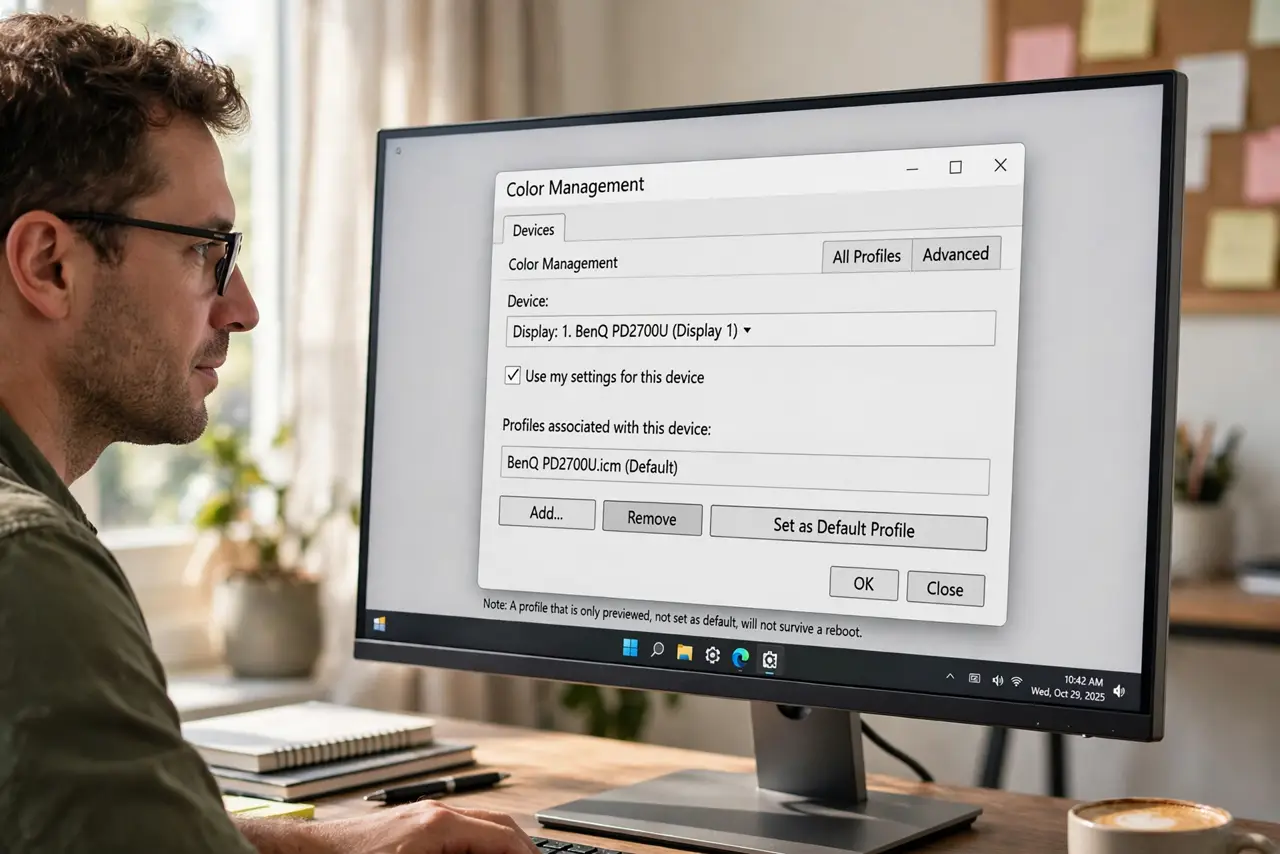
- Set the profile in Color Management. Open Color Management from Start search, select your display, tick Use my settings for this device, then add and set your profile as default. A profile that is only previewed, not set as default, will not survive a reboot.
- Check the profile after a restart. Restart Windows and open Color Management again to see which profile is now default. If yours is still listed but not default, something changed the default at startup.
- Look for graphics utilities at startup. Open Settings, then Apps, then Startup, and note graphics or monitor utilities that run at sign-in. Temporarily turn one off at a time, restart, and see whether the profile now survives.
- Check the monitor own color mode. Open the monitor on-screen menu and confirm it is not switching color modes on wake. A monitor that resets its own mode can override the Windows profile, making Windows look at fault.
- Remove duplicate profiles for the display. In Color Management, remove old or duplicate profiles for the same display, keeping only the one you want. Windows can pick a different profile when several claim to be default.
- Test with a clean startup. Restart, sign in, and check colors before opening any graphics app. If colors are right until you open one app, that app is replacing the profile, and its own color setting is the fix.
What NOT to do
- Do not keep reapplying the profile every morning. Finding the startup tool that overwrites it fixes the cause, while reapplying only hides it.
- Do not delete all color profiles. Keep at least the maker profile as a fallback, so you can return to known-good colors.
- Do not install a color manager to fix a reset. One more tool at startup usually adds another overwrite, not fewer.
- Do not assume the monitor is broken. A profile reset is almost always software, either Windows, a utility, or the monitor mode.
Frequently asked questions
What is a color profile?
It is a small file that tells Windows how your display should reproduce colors, so photos and video look as intended on that screen.
Can two monitors keep different profiles?
Yes. Color Management sets profiles per display, so each monitor can have its own default profile.
Does a profile change affect screenshots?
No. Profiles affect how your screen shows colors, not the color data stored in files.