Controlled Folder Access Blocks Your App
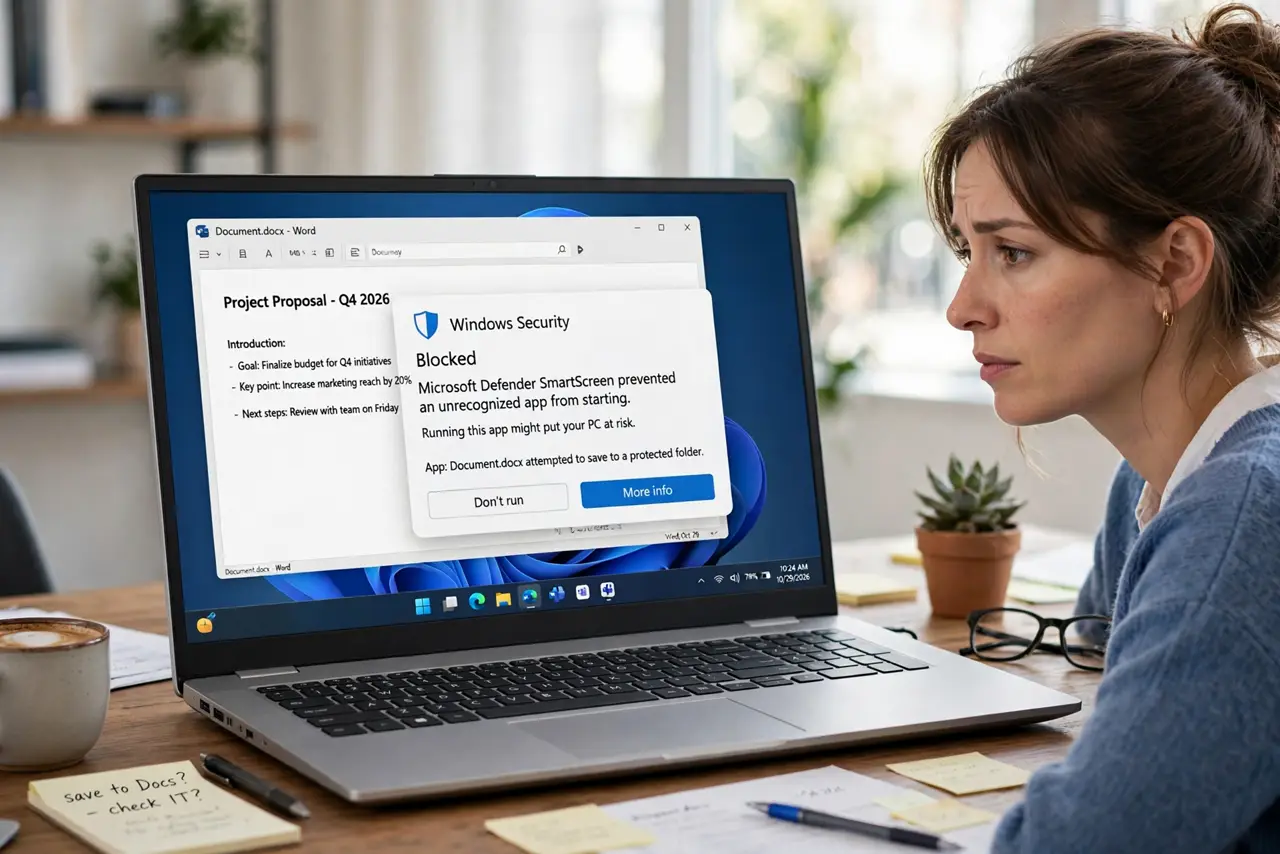
Your app cannot save files to Documents or Desktop, and there is no error — the save just silently fails. Controlled folder access, the ransomware protection in Windows Security, is blocking the app because it is not on the allowed list. The fix is allowing your trusted app through, not turning the protection off — a quieter sibling of the SmartScreen block problem.
TL;DR / Quick Fix
Quick fix: open Windows Security, go to Ransomware protection, and check the blocked history for your app. Add the app to the allowed list through Controlled folder access, then save again. The block disappears for that app only, while the ransomware protection keeps guarding your folders against everything else.
Follow these steps
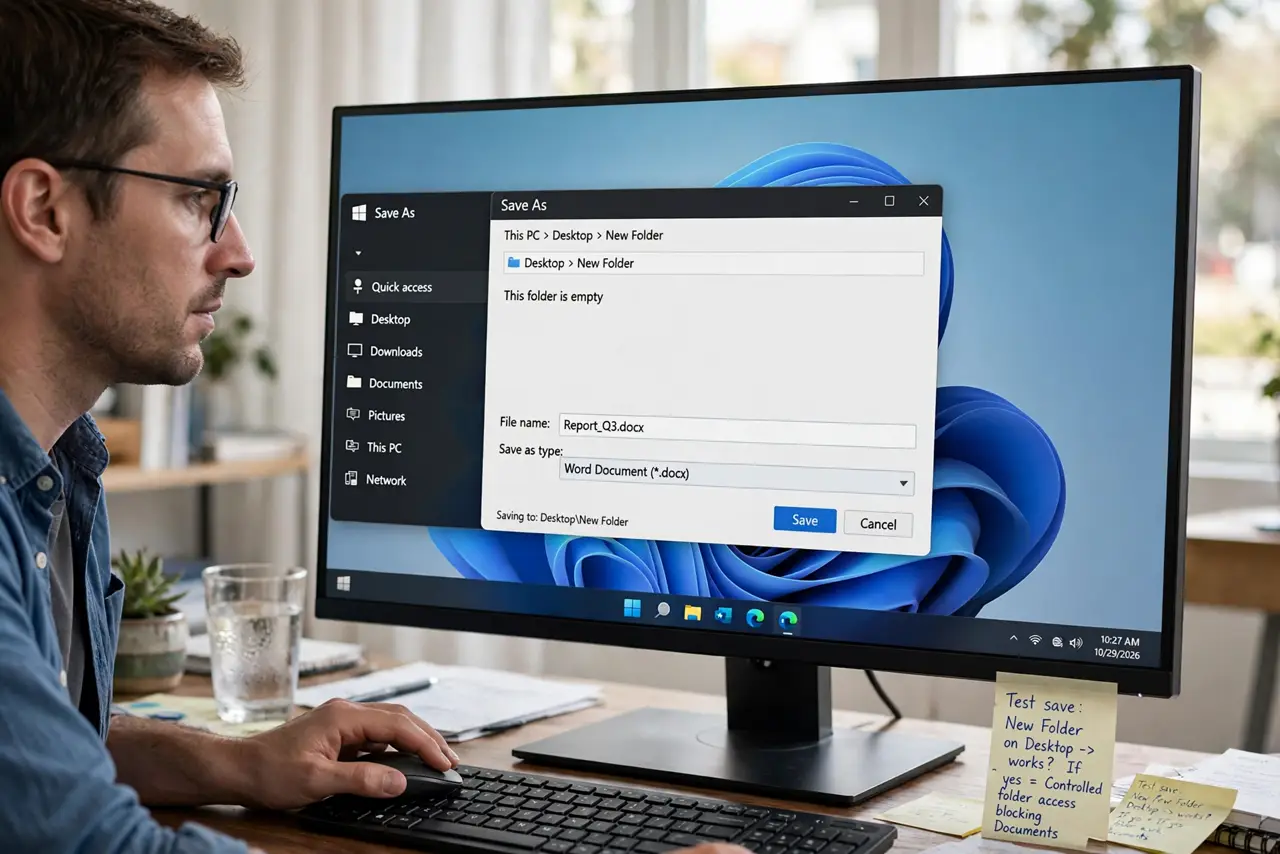
- Confirm the block is the cause. Try saving to a folder outside the protected list, like a new folder on the desktop's parent drive. If the save works there but fails in Documents, Controlled folder access is the blocker.
- Open the ransomware protection page. In Windows Security, go to Virus and threat protection, then Ransomware protection. This page shows whether Controlled folder access is on and what it blocked.
- Find your app in the block history. Click Block history and look for your app's name with a recent timestamp. The history proves which app was stopped and when, so you allow the right one.
- Allow the app through Controlled folder access. Choose Allow an app through Controlled folder access and add your program. Only add apps you installed deliberately from a trusted source.
- Test the save again. Return to your app and save to Documents. The save should now succeed, confirming the allow-list entry worked.
- Review the protected folders list. Check which folders are protected and add any work folder the default list missed. Protection only covers the folders on the list.
What NOT to do
- Do not turn Controlled folder access off to fix one app. Allowing the single app keeps ransomware protection for everything else.
- Do not allow apps you do not recognize. The block history sometimes catches updaters and helpers; allow only programs you deliberately installed.
- Do not allow your entire Downloads folder's contents. Allowing apps is precise; allowing everything that lands in Downloads is not.
- Do not assume every save failure is this feature. If allowing the app does not help, check disk space and file permissions before digging deeper.
Frequently asked questions
What is Controlled folder access?
A ransomware protection feature that only lets approved apps write to protected folders like Documents, Pictures, and Desktop.
Why does it block apps silently?
Because it stops the write at the system level. Some apps show an error, but many just act as if the save worked or quietly failed.
Should I just turn it off?
Only as a last resort. It is one of the few protections that actually stops ransomware from encrypting your files, so an allow-list entry is the better fix.