Try Copilot Vision
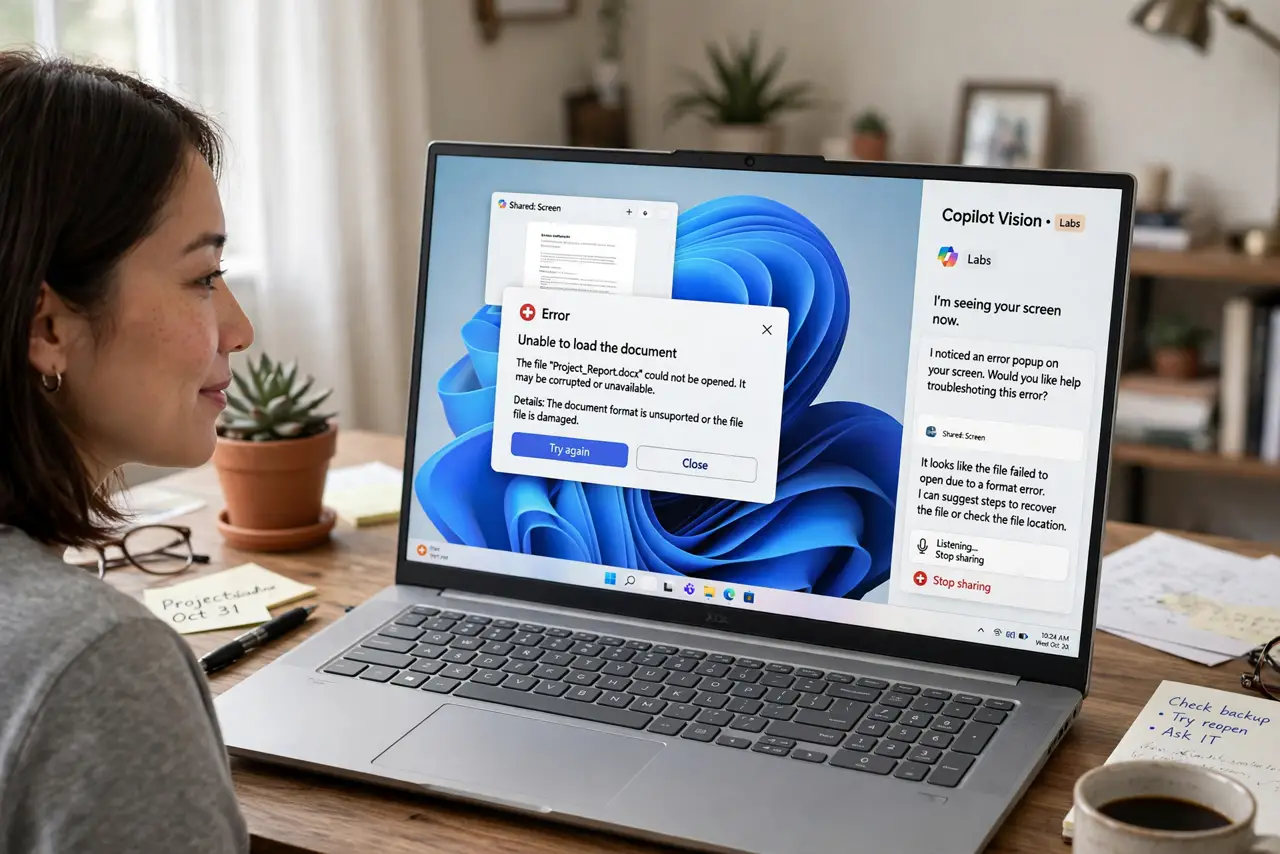
Some problems are easier to show than to describe — a cryptic error message, a settings window that makes no sense. Copilot Vision lets Copilot actually see your screen (with your permission) so it can talk you through what is in front of you. It is the visual upgrade to the everyday Copilot uses: instead of describing the problem, you show it.
TL;DR / Quick Fix
Quick fix: Copilot Vision lets you share your screen with Copilot so it can see the error or confusing window you are stuck on. It looks only when you allow it. Describe what you want, let it look, then follow along — like a friend peering over your shoulder.
Follow these steps
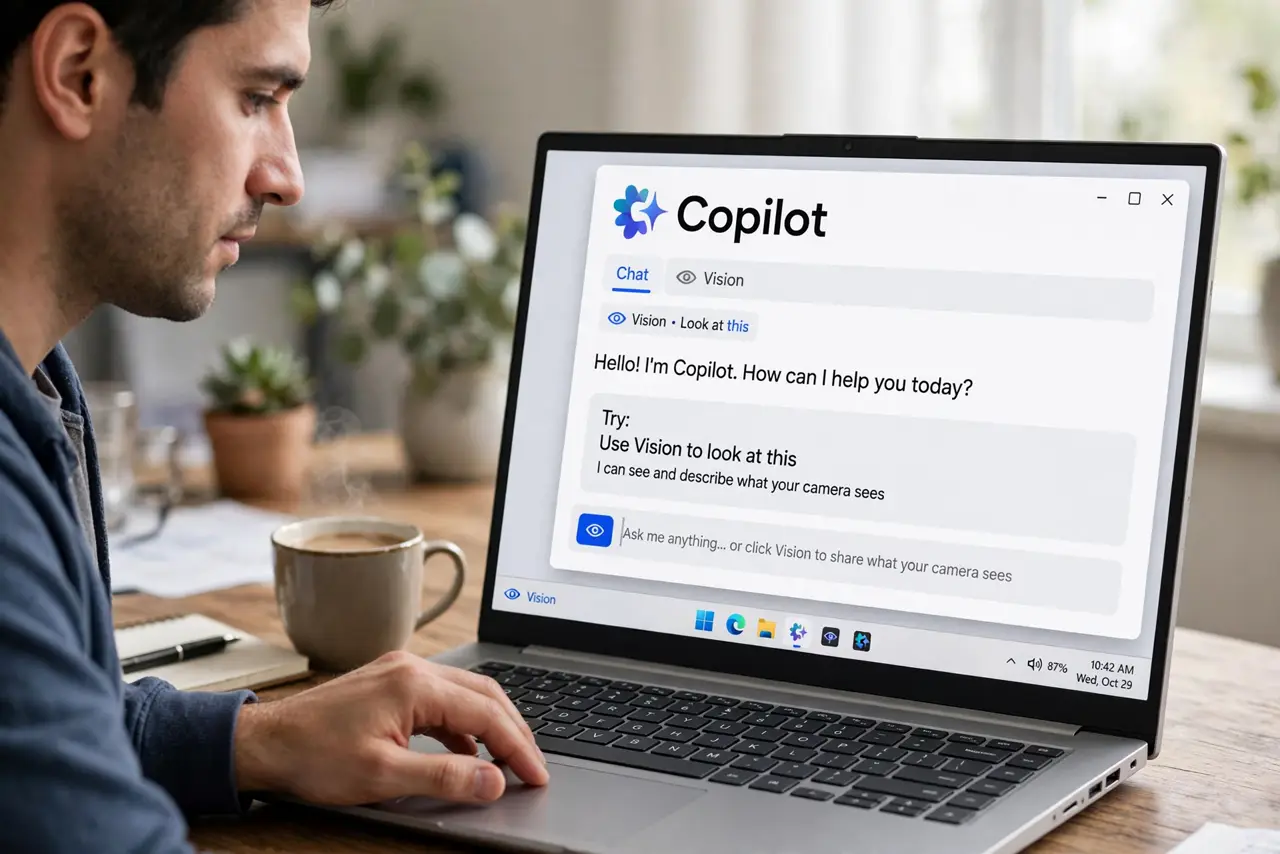
- Open Copilot first. Launch Copilot from the taskbar as usual. Vision is a mode inside Copilot, not a separate app — you start a normal chat, then invite it to look.
- Start screen sharing. Choose the Vision or share-screen option and pick what to share: a single window is safer than your whole desktop. Copilot can only see what you explicitly share.
- Point it at the problem. Bring the confusing window, error message, or settings page to the front so it is visible in the shared area. The clearer the view, the better the help.
- Ask a specific question. Say what you want: what does this error mean, where is the setting for this, is this dialog safe to accept. Specific questions get useful answers; vague ones get guesses.
- Follow along step by step. Copilot will describe what it sees and suggest next clicks. Do each step yourself — it guides, it does not take over your mouse.
- Stop sharing when done. End the screen share as soon as your problem is solved. There is no reason to leave your screen visible longer than needed.
What NOT to do
- Do not share screens showing banking, passwords, or personal documents. If it is sensitive, describe it in words instead.
- Do not leave screen sharing on in the background. Start it for the problem, stop it when the problem is fixed.
- Do not follow its clicks blindly on unfamiliar dialogs. If it says to accept something you do not understand, pause and ask why.
- Do not share someone else's private information on screen. Vision sees whatever is visible — close private windows first.
Frequently asked questions
Is Copilot Vision free?
Availability varies by region and account type, and features change often. Check the Copilot app on your PC to see what is offered to you right now.
What exactly can it see?
Only the window or screen you choose to share, and only while sharing is active. It cannot see other windows or turn sharing on by itself.
Does it record my screen?
It processes the shared view to answer your questions; it is not a screen recorder. Still, share the minimum — one window, not the whole desktop.