Search with Recall
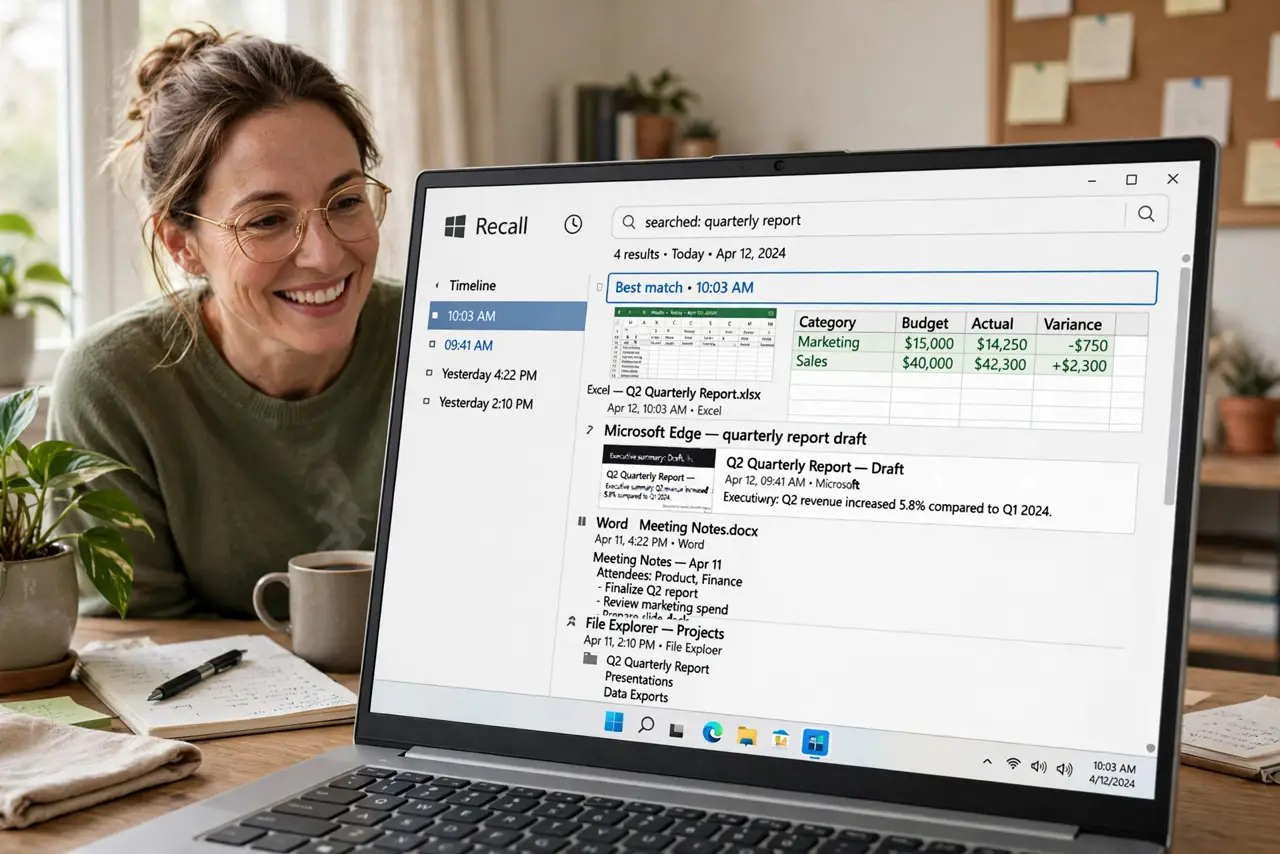
You know you saw it — the page, the document, the chat message — but where? Windows Recall takes regular snapshots of your screen so you can search back through everything you have seen, using words or a visual timeline. It is powerful, which is exactly why you should understand its privacy controls before leaning on it. Start from the Recall basics, and know how to turn snapshots off.
TL;DR / Quick Fix
Quick fix: Windows Recall snapshots your screen so you can search back to anything you saw — a page, a document, a chat. Everything is stored locally on your PC. If the idea unsettles you, pause or disable snapshots entirely. Search your past, but stay in control of it.
Follow these steps
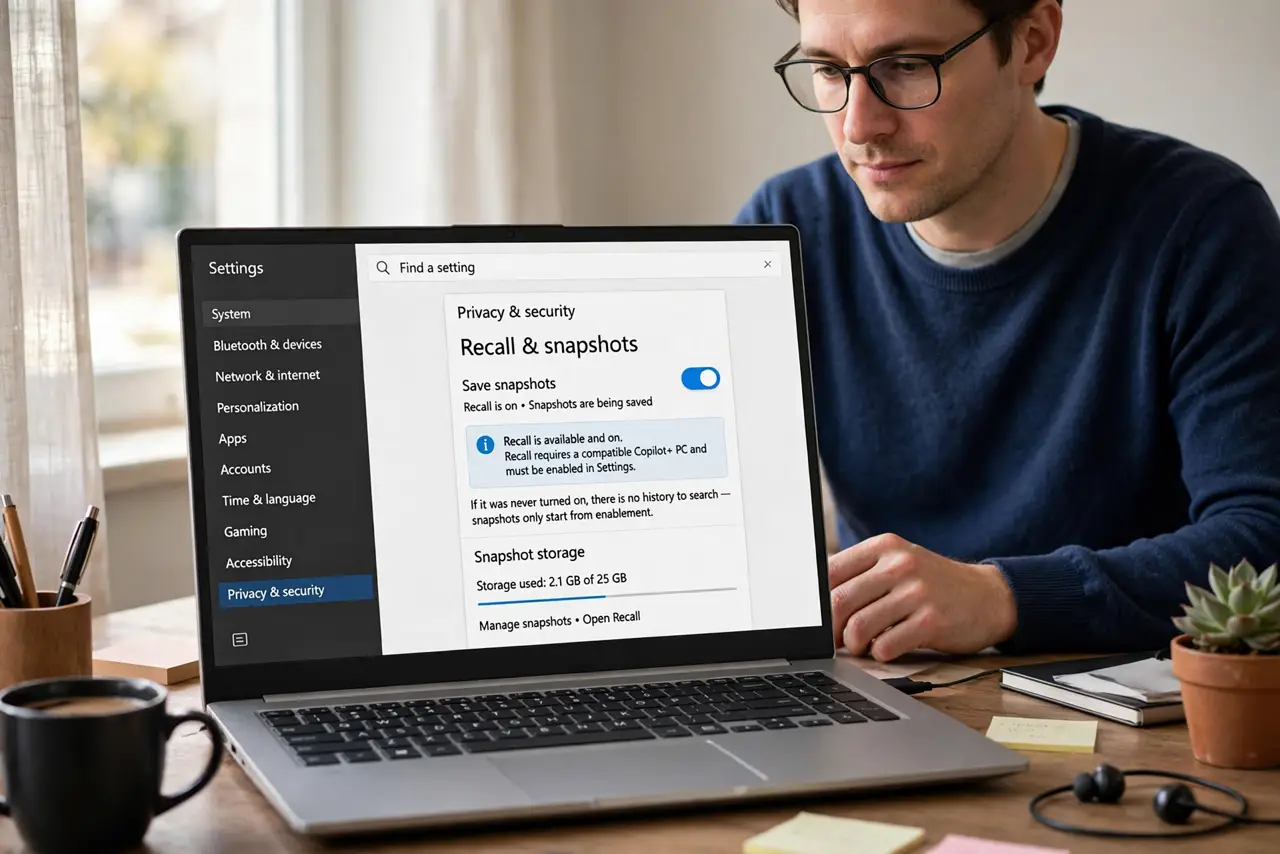
- Check Recall is available and on. Recall needs a compatible Copilot+ PC and must be enabled in Settings. If it was never turned on, there is no history to search — snapshots only start from enablement.
- Open Recall and search. Launch Recall from the taskbar or Start menu. Type what you remember — a word, a site name, a topic — and Recall surfaces matching snapshots from your timeline.
- Scrub the visual timeline. Drag along the timeline to browse your screen history visually. Sometimes you recognize the page faster by sight than by any keyword.
- Click through to the original. Selecting a snapshot can reopen the underlying app, document, or page. Recall is a finder, not just a viewer — it takes you back to the source.
- Filter and delete snapshots. You can delete individual snapshots, whole time ranges, or exclude specific apps and websites from ever being captured. Curate what Recall remembers.
- Pause or disable when you want. A pause button stops snapshots for a while; the settings let you turn the feature off entirely. Your past snapshots stay until you delete them.
What NOT to do
- Do not assume Recall is recording by default. It must be enabled, and on many PCs it is off until you turn it on.
- Do not use a shared PC with Recall on. Anyone with access to your account can browse your snapshot history.
- Do not forget sensitive exclusions. Banking apps and private browsing are typically excluded — verify yours are in the exclusion list.
- Do not treat snapshots as backups. They are low-resolution memory aids, not copies of your files — keep real backups.
Frequently asked questions
Where are Recall snapshots stored?
Locally on your PC — they do not upload to the cloud. That is the core of its privacy design, though a local snooper with your login could still see them.
Does Recall slow down my PC?
On supported hardware the impact is small, since the work is designed around the machine's AI chip. If you notice lag, pausing snapshots is one click.
Can I keep Recall off forever?
Yes. It is opt-in on most setups — simply never enable it, or disable it in Settings if it is on.