Quotes Need Two Keypresses? Fix Dead Keys
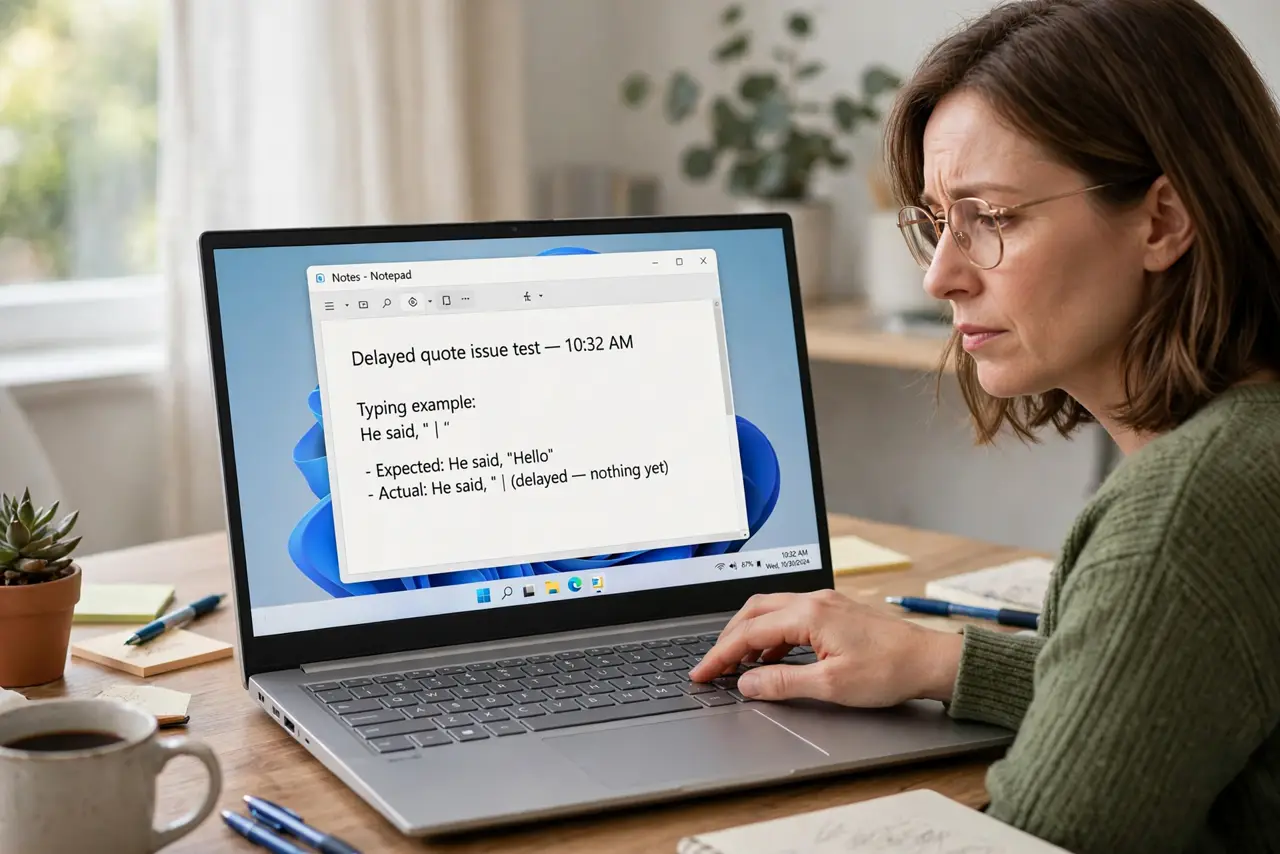
Typing a quote mark prints nothing until you press space, and typing a quote before a vowel makes an accented letter instead. That is the US-International layout's dead keys at work — the quote waits for the next key to build an accent. If you rarely type accented characters, switching to the plain US layout ends it, a layout-level cousin of the layout that switches by itself.
TL;DR / Quick Fix
Quick fix: open the language settings and change your keyboard from US-International to plain US. Quotes, apostrophes, and tildes then print immediately with one keypress. Only keep US-International if you regularly type accented characters and willingly accept the dead-key tradeoff.
Follow these steps
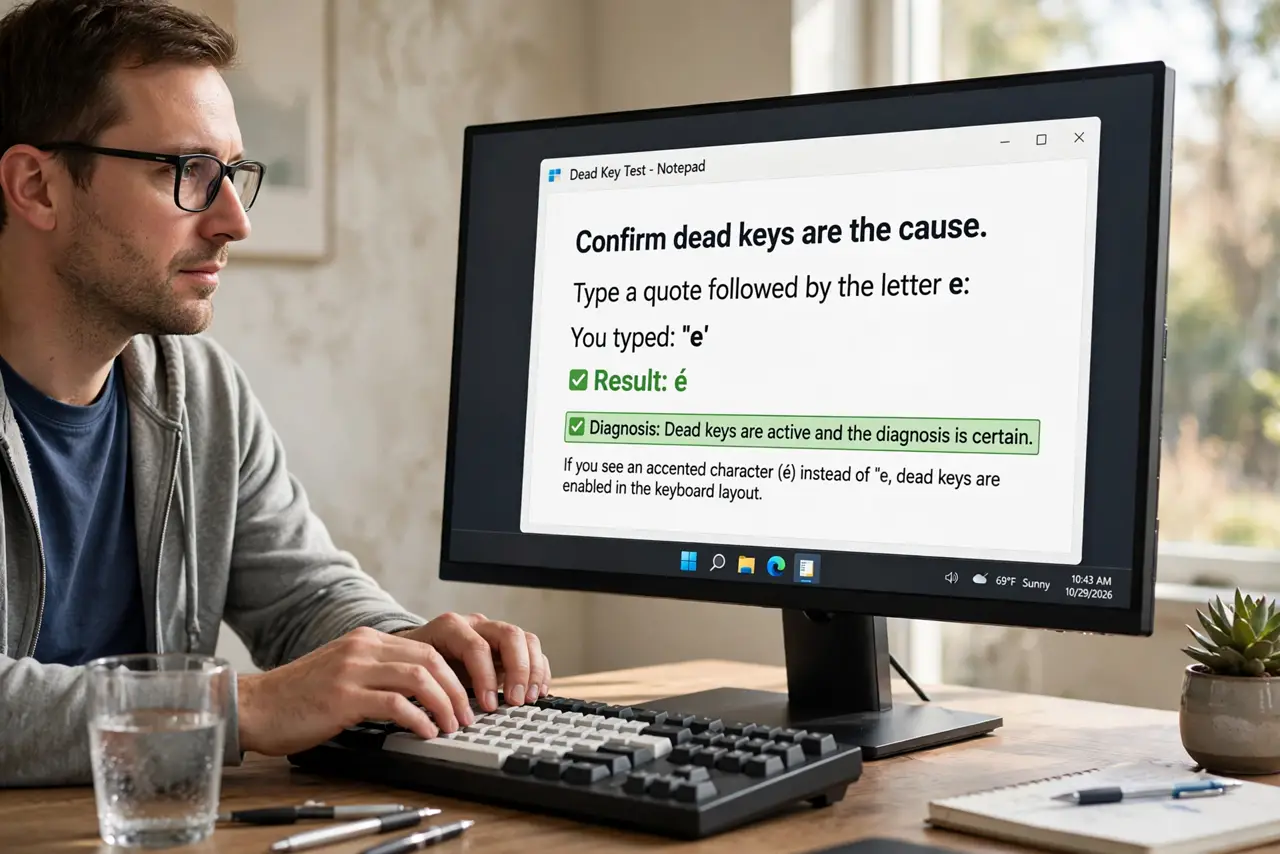
- Confirm dead keys are the cause. Type a quote followed by the letter e. If you get an accented character instead of a quote plus e, dead keys are active and the diagnosis is certain.
- Open the keyboard layout list. Go to the language settings and look at the keyboards installed under your language. You will likely see US-International listed.
- Switch to the plain US layout. Change the keyboard to US. Every key now prints immediately, and quotes and apostrophes behave the way most English typists expect.
- Remove US-International if unused. Delete the US-International layout so the switch shortcut cannot bring it back. Keeping it around invites the exact accident you just fixed.
- Learn the tradeoff before keeping it. US-International exists for typing accented characters easily. If you need those often, keep it and learn that quote-plus-space prints a plain quote.
- Test quotes in a real sentence. Type a sentence with quotes and apostrophes. Immediate characters everywhere confirm the layout change worked.
What NOT to do
- Do not remap the quote key. The key is fine; the layout's dead-key behavior is what delays it, and remapping cannot change that.
- Do not switch layouts without checking which you need. If you type in Spanish or French daily, US-International's accents may be worth the quirk.
- Do not blame sticky keys. Sticky keys affect modifiers like Shift, not the delayed printing of quotes.
- Do not reinstall the keyboard driver. This is purely a layout setting, and no driver change affects dead-key behavior.
Frequently asked questions
What are dead keys?
Keys that do not print immediately but modify the next key pressed, used to build accented characters like the e in cafe.
Why does quote plus space print a quote?
Because space is the dead key's way of saying no accent please. It is the standard escape for printing the mark itself.
Can I keep both layouts?
Yes, and Win+Space switches between them. But most people who ask this question are happier with just US.