Set Defaults per File Type
You set your favorite photo app as default, but PDFs still open in Edge, music still opens in Media Player, and web links go somewhere unexpected. Windows lets you set defaults per file type — PDF, MP3, JPG each get their own app — but the settings page buries the control three clicks deep. This guide takes the direct route to per-type defaults. For the related autoplay behavior when you plug things in, see how to control AutoPlay.
TL;DR / Quick Fix
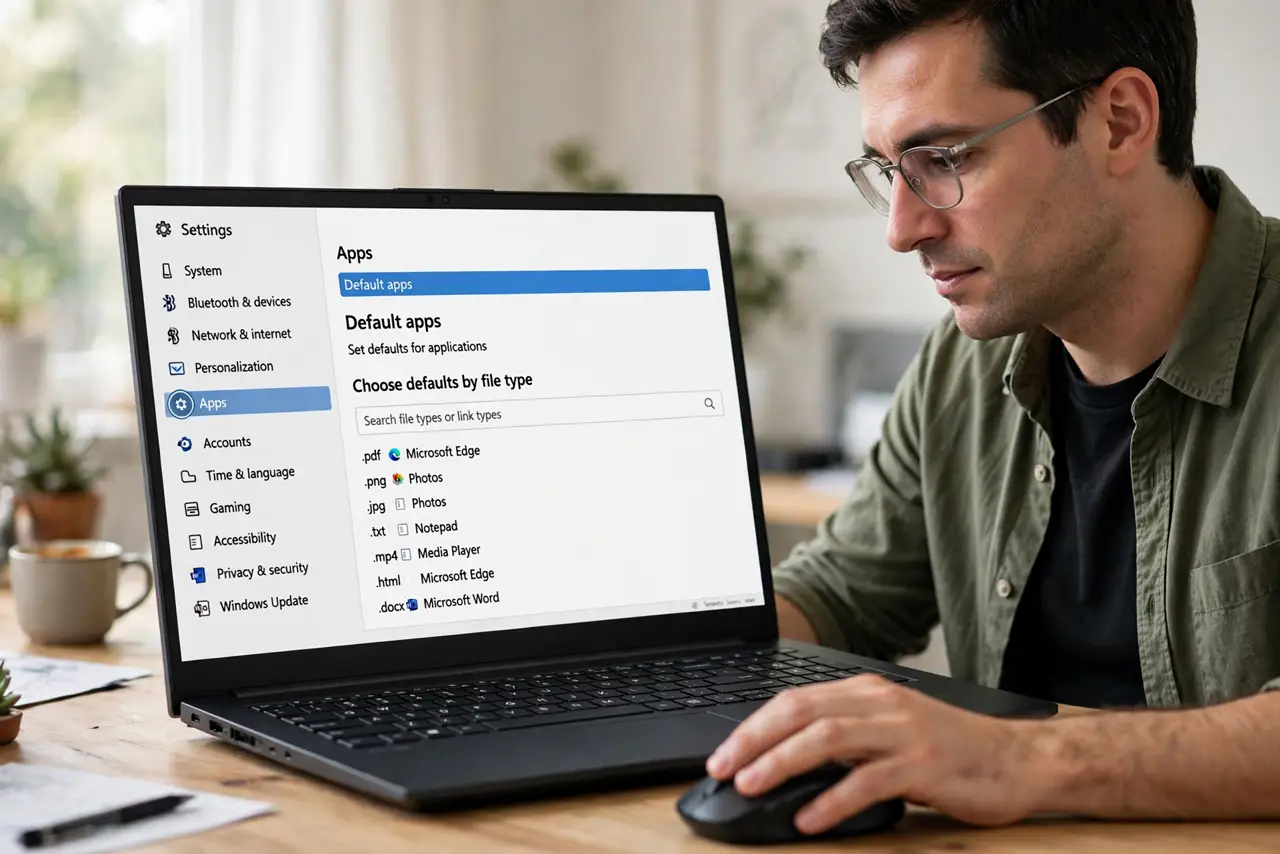
Quick fix: open Settings, go to Apps, then Default apps, and search a file type like .pdf to set its app directly — or pick an app to see every type it handles. Set the big five: browser, PDF, photos, music, video. Recheck after major updates, which sometimes reset them.
Follow these steps
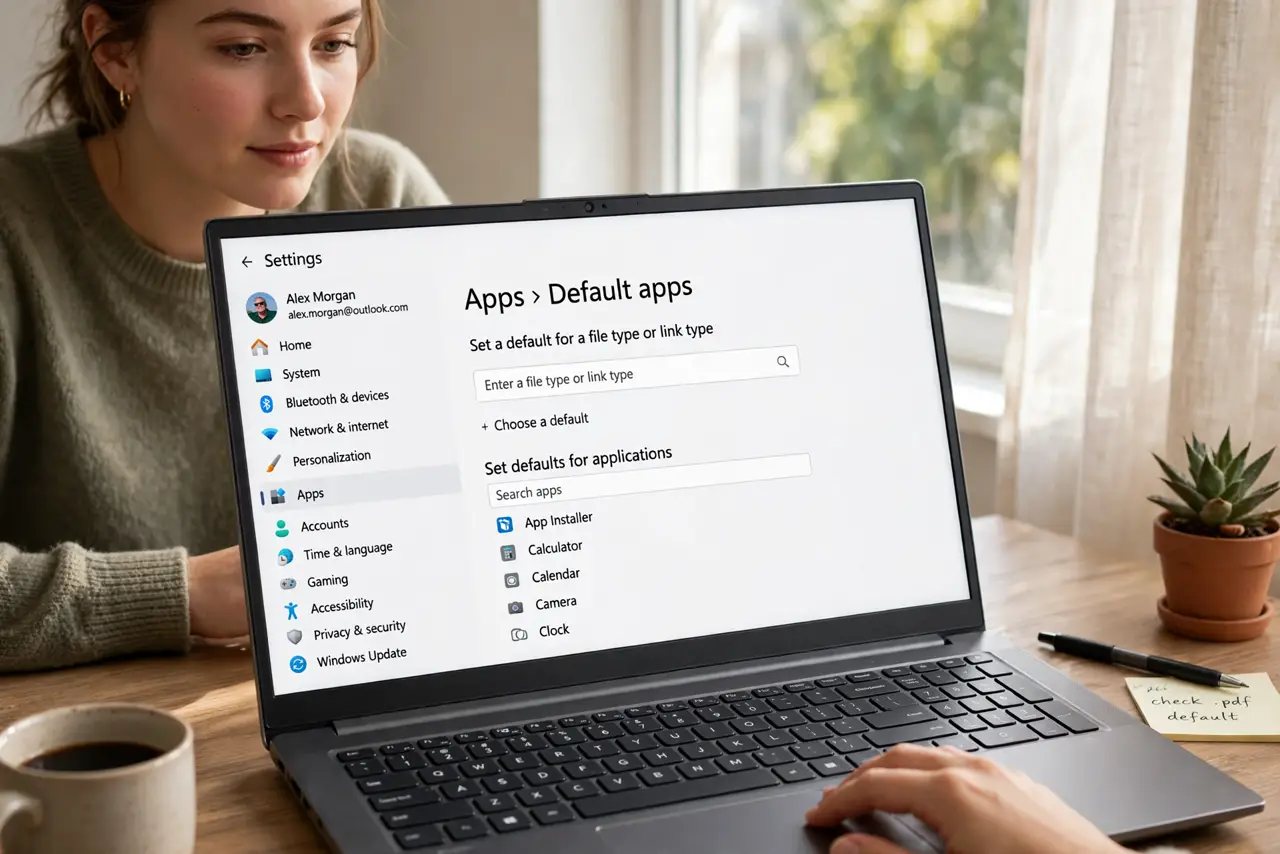
- Open Default apps settings. Go to Settings, then Apps, then Default apps. This is the master page — ignore the per-app prompts inside individual programs and do it here, once.
- Search by file type. Type .pdf, .mp3, or .jpg in the search box. Windows shows the current default app for that exact type — click it to change to your preferred app.
- Or set per app. Click an app in the list to see every file type it can handle, each with its current default. This view is faster when one app should own many types.
- Cover the big five. Set your browser, PDF reader, photo viewer, music player, and video player deliberately. These five cover nearly every 'why did that open in this' moment.
- Handle links separately. Web links (HTTP/HTTPS) have their own default, independent of file types. Set your browser for those too, or links keep opening in the wrong place.
- Recheck after major updates. Big Windows updates occasionally reset defaults to Microsoft apps. A thirty-second revisit after each feature update keeps your choices intact.
What NOT to do
- Do not set defaults inside each app's own popup. Doing it in Settings once is cleaner and survives better than five competing app prompts.
- Do not change types you do not recognize. Obscure extensions belong to specific programs; reassigning them breaks things mysteriously.
- Do not install a 'default app manager' utility. The built-in page does everything — third-party tools add risk for zero benefit.
- Do not forget the browser for links. Setting a PDF reader but leaving Edge for links is the most common half-finished job.
Frequently asked questions
Why do my defaults keep resetting?
Major Windows updates and some app reinstalls reset associations. Re-setting them in the Settings page after updates is the routine fix.
Can I set different apps for JPG and PNG?
Yes — that is the point of per-type defaults. Each extension gets its own app independently.
What does the 'default app' for email do?
It sets which program handles mailto: links. Set your actual email app there so web links compose in the right place.