Change Default Save Locations
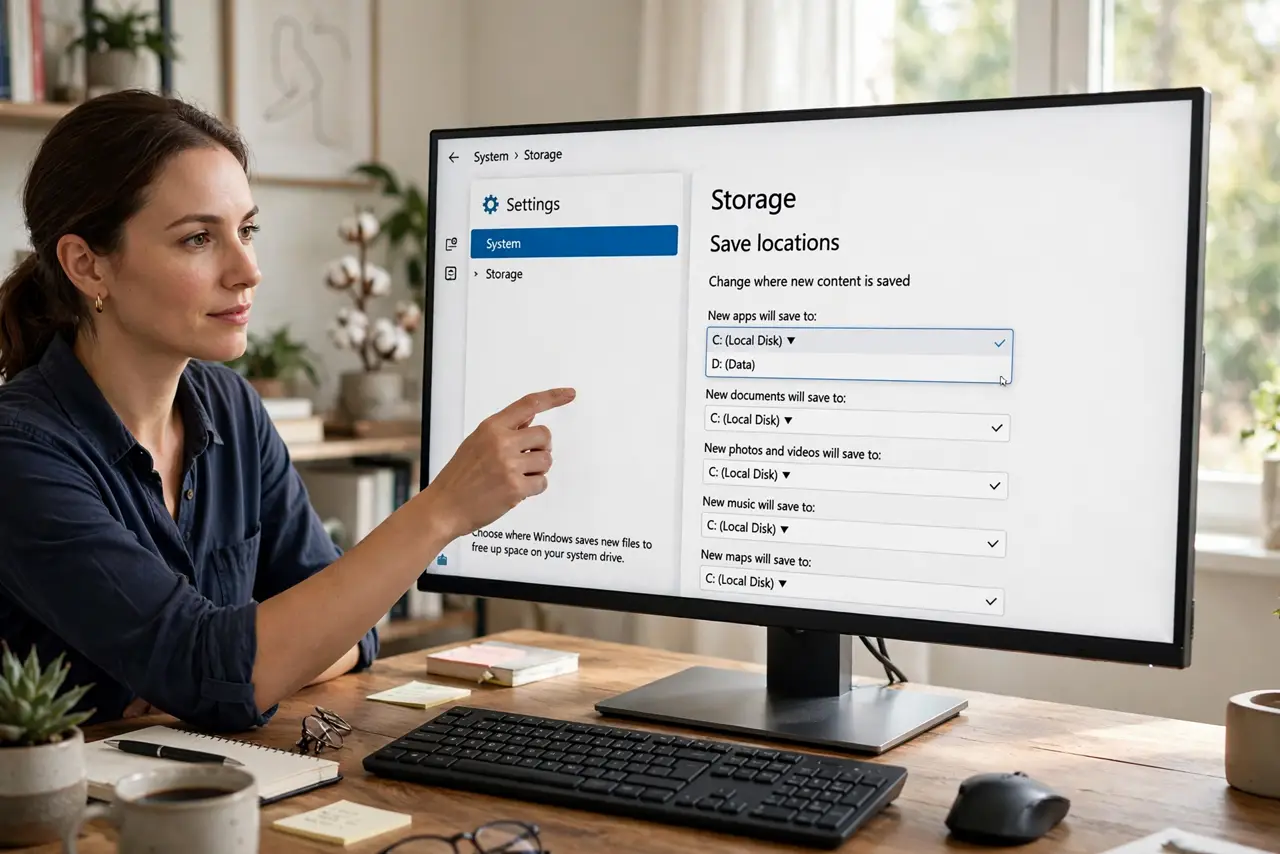
Every new app, document, and download lands on the system drive by default — which is exactly how C: fills up while your big data drive stays empty. Windows lets you change where new content goes by default: new apps, documents, music, pictures, and videos. Set it once and the small drive stops drowning.
TL;DR / Quick Fix
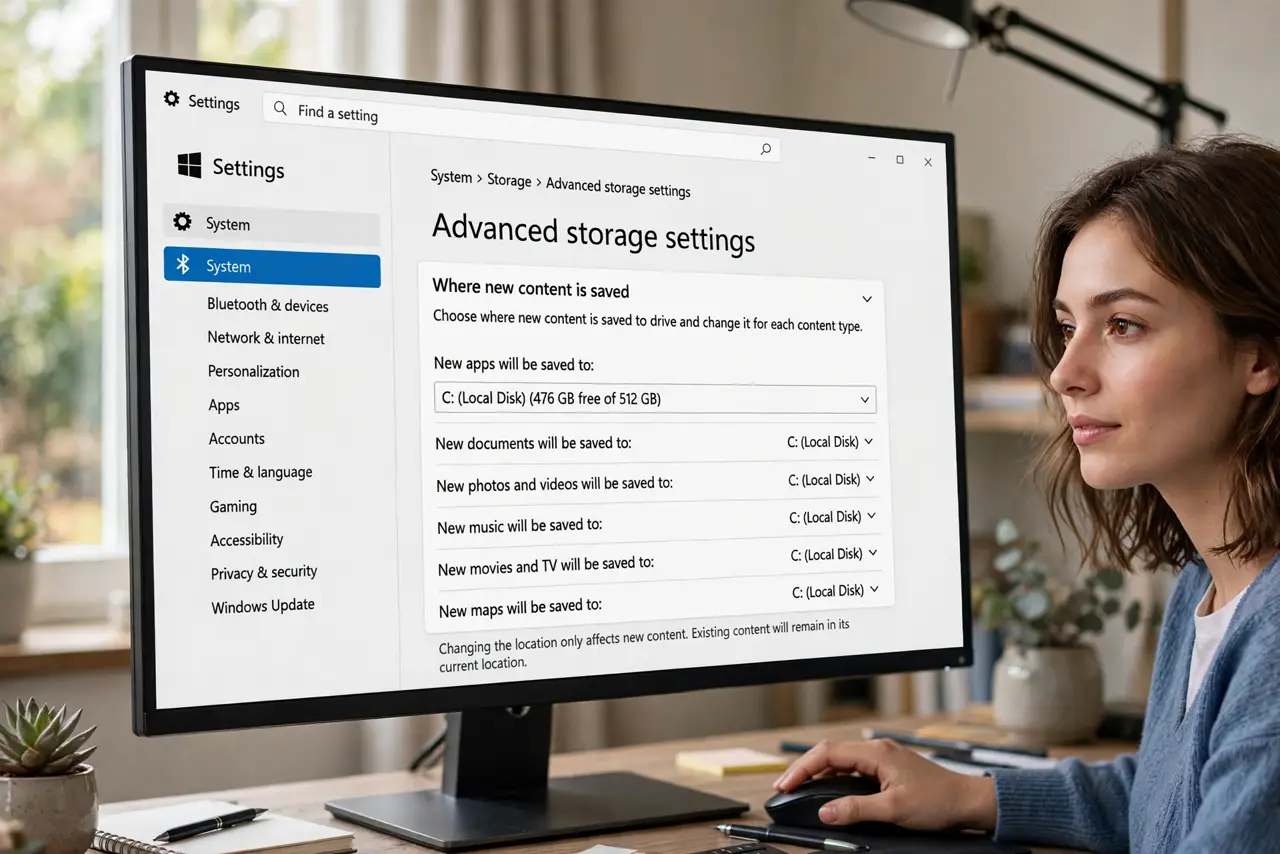
Quick fix: open Settings, go to System, then Storage, then Advanced storage settings, and open 'Where new content is saved.' Change new apps, documents, music, pictures, and videos to the roomier drive. This affects new files going forward — move your existing folders separately for instant relief.
Follow these steps
- Open 'Where new content is saved.' Go to Settings > System > Storage > Advanced storage settings. The save-locations page lists every content type with a drive dropdown.
- Change each content type. Set new apps, new documents, new music, new pictures, and new videos to your larger drive. Each dropdown saves independently — change them all.
- Understand it is forward-looking. This redirects new files. Your existing Documents folder stays where it is — move it separately for immediate space.
- Point browsers' downloads too. Browsers have their own download location setting. Change it in each browser you use, or downloads keep landing on C:.
- Check game launchers separately. Steam, Epic, and friends choose their own library drives. Set those inside each launcher — Windows' setting does not reach them.
- Verify with a test save. Create a document, save it without choosing a location, and confirm it landed on the new drive. Trust, then verify.
What NOT to do
- Do not expect existing files to migrate. This setting only steers new content — old files stay put until you move them.
- Do not set save locations to a drive you remove often. External drives that vanish mid-save corrupt files and confuse apps.
- Do not forget the setting after a Windows reinstall. Resets and fresh installs restore the defaults — recheck this page afterward.
- Do not confuse this with moving the Documents folder. Both help; save locations steer the future, folder moves fix the present.
Frequently asked questions
Will this move my existing files?
No. It only changes where new content goes. Move the existing special folders separately to reclaim space now.
Do apps installed from the Store follow this?
New Store apps do, once you change the 'new apps' dropdown. Already-installed apps stay where they are.
Why is the option grayed out?
On some managed or unusual setups the drive list is limited. The system drive always works; secondary drives must be healthy NTFS volumes.