Find What's Eating Your Disk Space
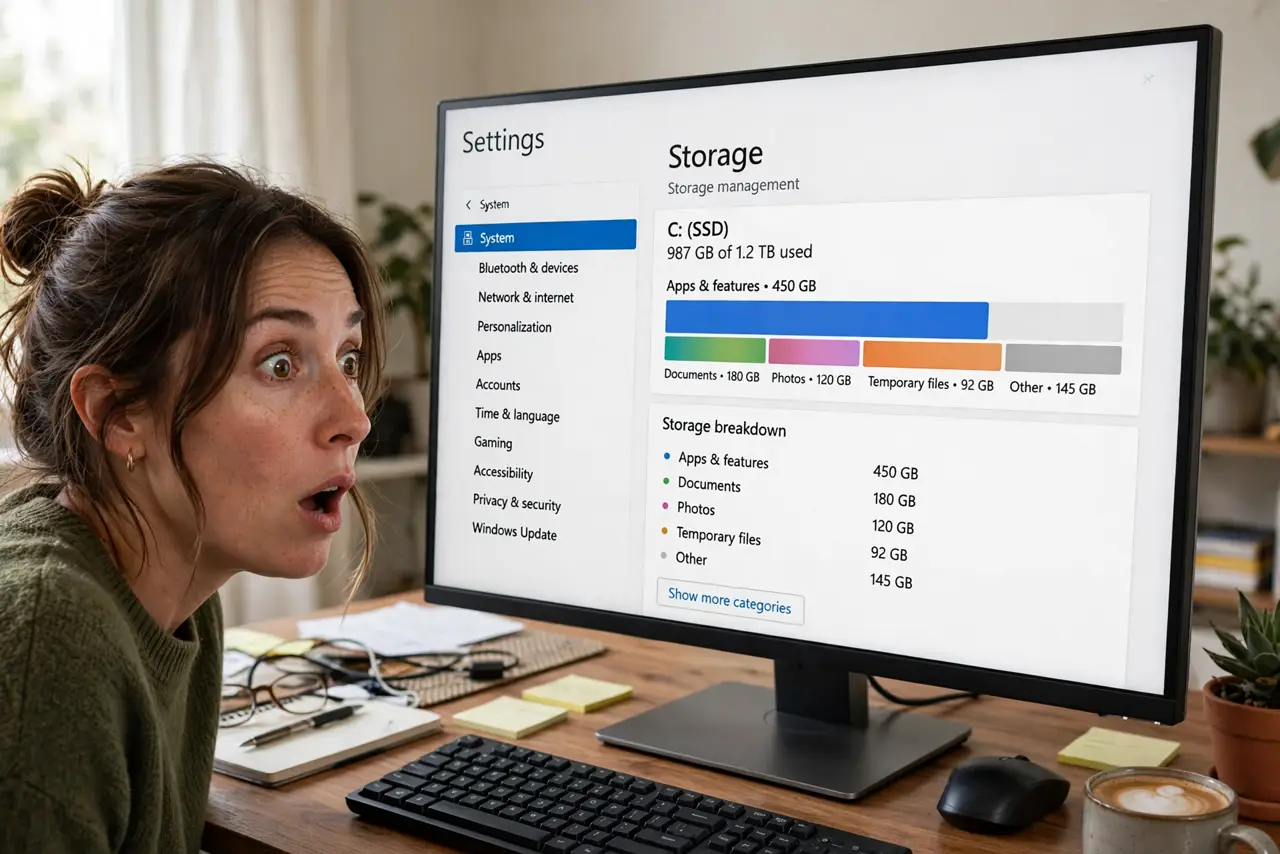
The drive was half empty last year and now it is red and full — and you have no idea what grew. Windows has a built-in map that shows exactly which categories are eating your space: apps, documents, temporary files, and the sneaky 'other.' Finding the hog is step one; deleting safely is step two.
TL;DR / Quick Fix
Quick fix: open Settings, go to System, then Storage, and look at the category breakdown — it shows what is eating the drive. Start with Temporary files and large unused apps. Never delete system folders by hand; use the built-in cleanup tools so Windows removes only what is safe.
Follow these steps
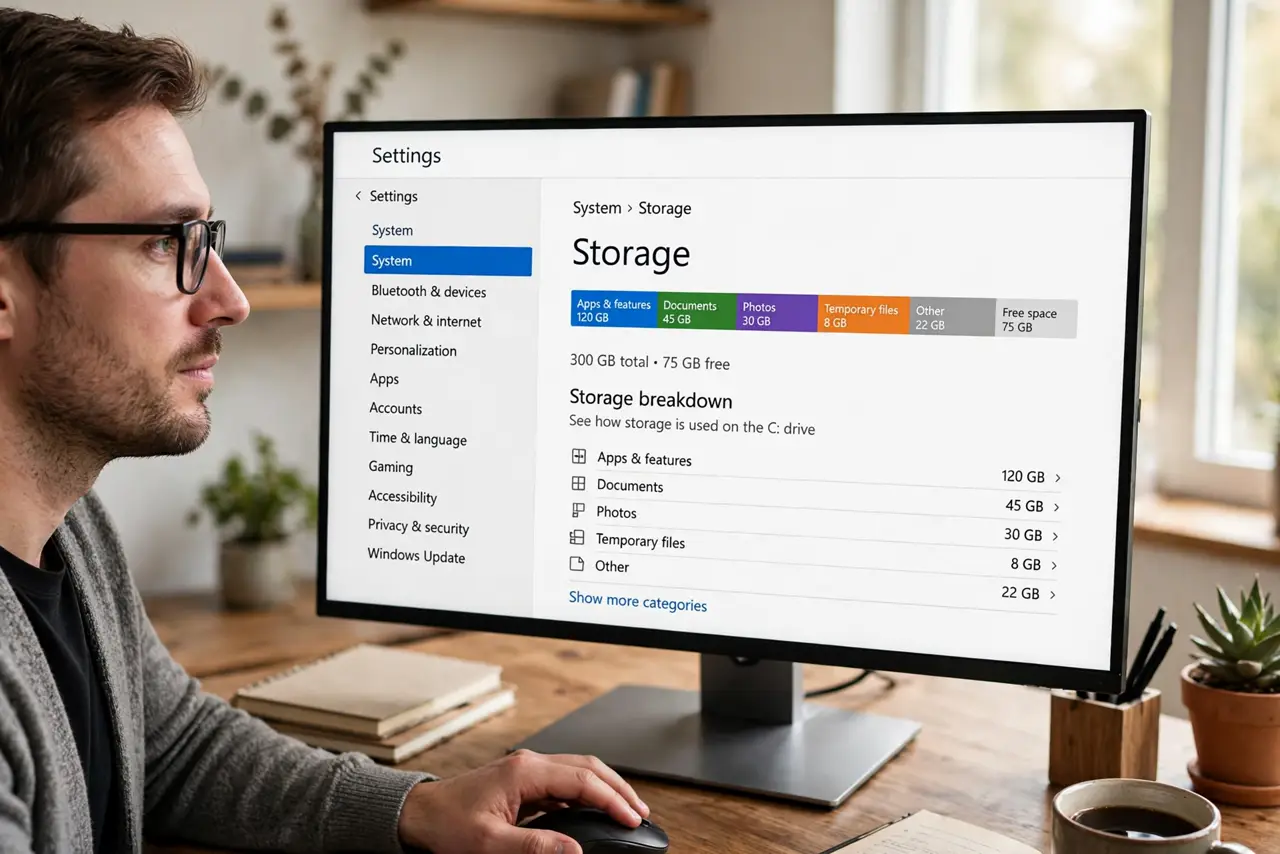
- Open the Storage breakdown. Go to Settings > System > Storage. The colored bar shows how space splits across apps, documents, temporary files, and system files — your treasure map.
- Attack Temporary files first. Click Temporary files, tick the safe categories (update leftovers, thumbnails, delivery optimization files), and remove them. See how temp cleanup works.
- Sort apps by size. Back in Storage, open Apps and sort by size. Uninstall the giants you never use — games and old creative suites are classic space hogs.
- Hunt the big personal files. Documents, videos, and downloads hide the largest single files. Sort folders by size and move what you keep to an external drive.
- Check OneDrive's local footprint. Files On-Demand keeps cloud files off the disk until opened. If everything is marked always-available, that is your missing space.
- Empty the Recycle Bin last. Deleted files still occupy space until the bin is emptied. Right-click it and empty — the final, satisfying gigabytes.
What NOT to do
- Do not delete the Windows, System32, or WinSxS folders by hand. They look big and deletable; removing them breaks the PC.
- Do not trust random 'disk cleaner' apps. Many are junkware; the built-in Storage tools do the job safely.
- Do not delete files you do not recognize from the drive root. If you cannot name it, research it before touching it.
- Do not fill the drive past about 90 percent again. Windows needs breathing room for updates and virtual memory.
Frequently asked questions
Why does my drive fill up again so fast?
Usually update leftovers, a growing downloads folder, or cloud files syncing locally. Fix the source — pause OneDrive sync or change save locations — not just the symptom.
Is it safe to delete everything in Temporary files?
The categories Windows offers there are safe by design. Do not venture into the Temp folders manually beyond what the tool lists.
How much free space should I keep?
Aim for at least 10 to 15 percent free. Below that, updates fail and the system slows noticeably.