Delay a Service at Boot
Windows finally reaches the desktop, and then — nothing responds for a minute while one chunky third-party service lumbers to life. You do not have to kill the service or live with the wait: Windows can start it on a delay, after everything urgent is already running. The setting is two clicks deep in the Services app, and it is reversible. (For apps rather than services, see delaying startup apps instead.)
TL;DR / Quick Fix
Quick fix: if one service slows your Windows startup, set it to Automatic (Delayed Start) in the Services app so it launches after everything urgent is done. Search Services, find the service, open Properties, and change the startup type. Never delay security or system services — only the third-party culprit.
Follow these steps
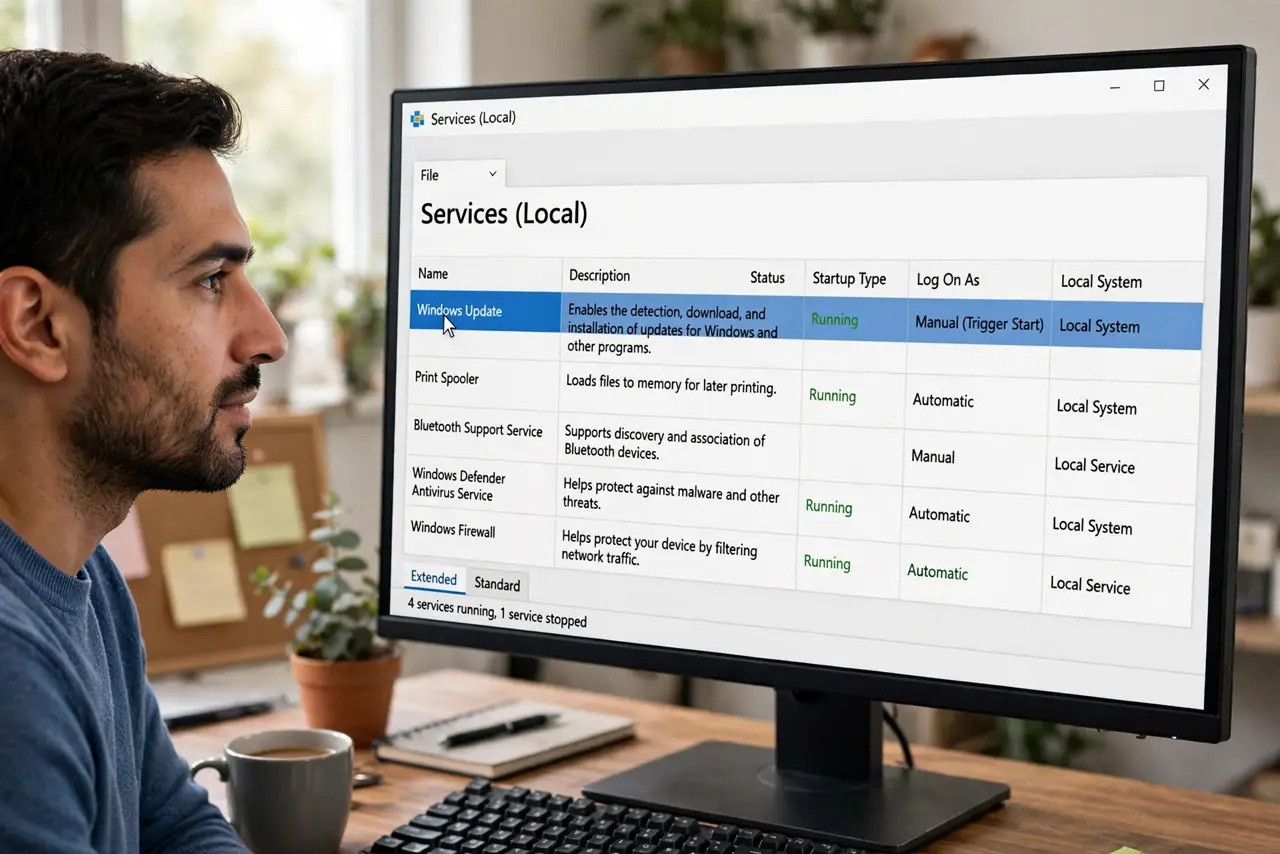
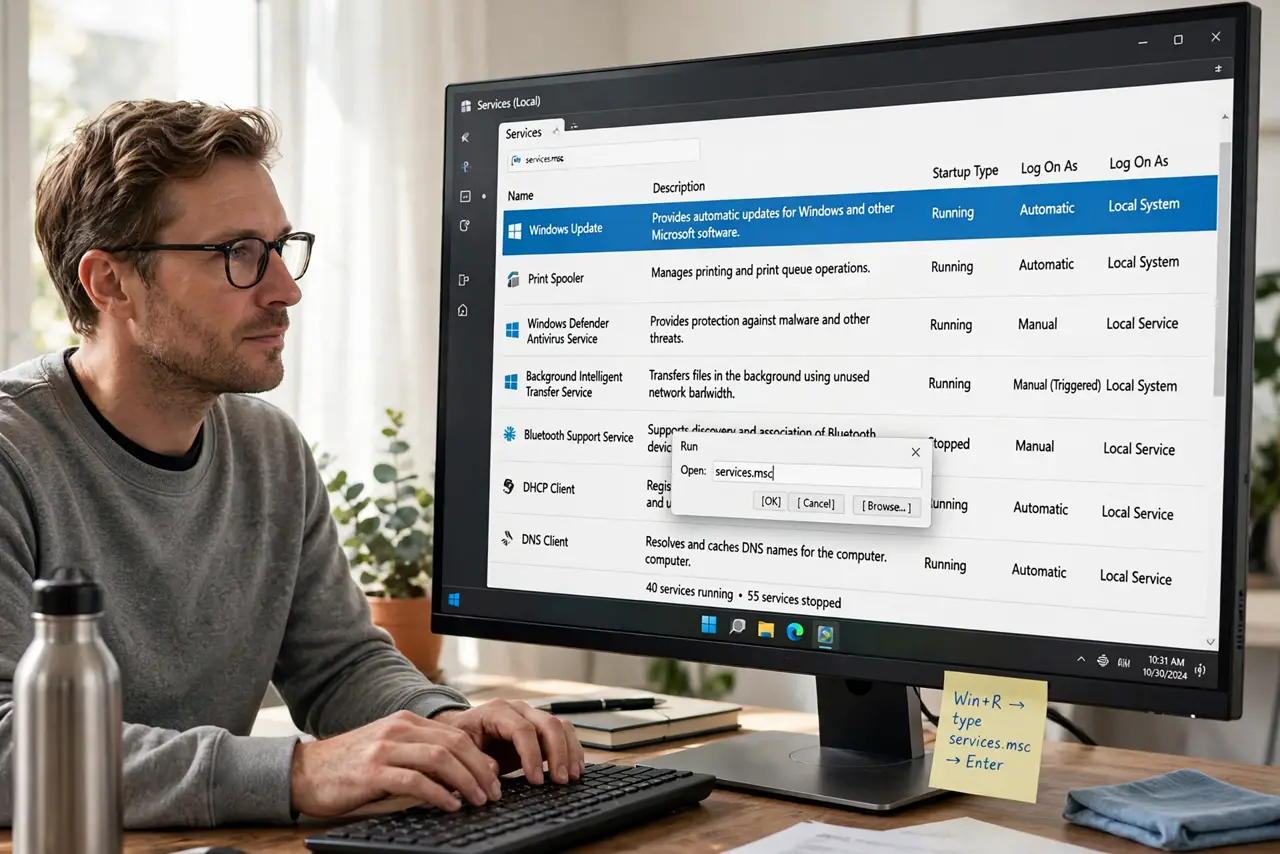
- Open the Services app. Press Win+R, type services.msc, and press Enter. This lists every background service on the system — the full backstage crew of Windows.
- Find the slow service. Scroll to the third-party service you identified (updaters, sync tools, and printer utilities are classic offenders). Double-click it to open Properties — do not touch anything you cannot name.
- Change startup to Automatic (Delayed Start). In the Startup type dropdown, choose Automatic (Delayed Start) and click OK. Windows will now launch it a couple of minutes after boot, once the desktop is responsive.
- Restart and time the difference. Reboot and notice: the desktop becomes usable sooner, and the delayed service quietly starts in the background. That is the entire payoff — responsiveness first, background chores second.
- Confirm the service still works. After a few minutes, check the service is Running in the Services list, and that its app or device works. Delayed does not mean disabled — it just waits its turn.
- Revert if anything misbehaves. If the related app complains or a device stops working, set the service back to Automatic. The change is fully reversible in the same dropdown.
What NOT to do
- Do not delay Windows system services. Anything by Microsoft with a vague name stays on Automatic — delaying the wrong one breaks boot.
- Do not delay your antivirus or security service. Protection must be awake before anything else — security never waits its turn.
- Do not disable the service instead of delaying it. Disabled means its app or device stops working entirely; delayed just means patient.
- Do not delay ten services at once. Change one, test, then move on — if something breaks you will know exactly which change did it.
Frequently asked questions
What is the difference between Automatic and Delayed?
Automatic starts during boot, competing for attention; Delayed waits until the system is idle-ish, roughly a minute or two after login. Same service, politer timing.
Will this speed up my whole PC?
It speeds up time-to-usable-desktop, which is what you feel. Total boot work is the same — it is just reordered so you are not waiting on it.
Can I delay regular startup apps too?
Yes, but through a different mechanism — Task Scheduler or the app's own settings. See the startup apps guide for that.