Stop the PC Waking Up on Its Own
Your PC was asleep. At 3 AM it roared awake, fans spinning, screen glowing in a dark room — for a Windows update, a backup, or some app's bright idea. Wake timers are the mechanism, and you can revoke their permission without breaking updates entirely.

TL;DR / Quick Fix
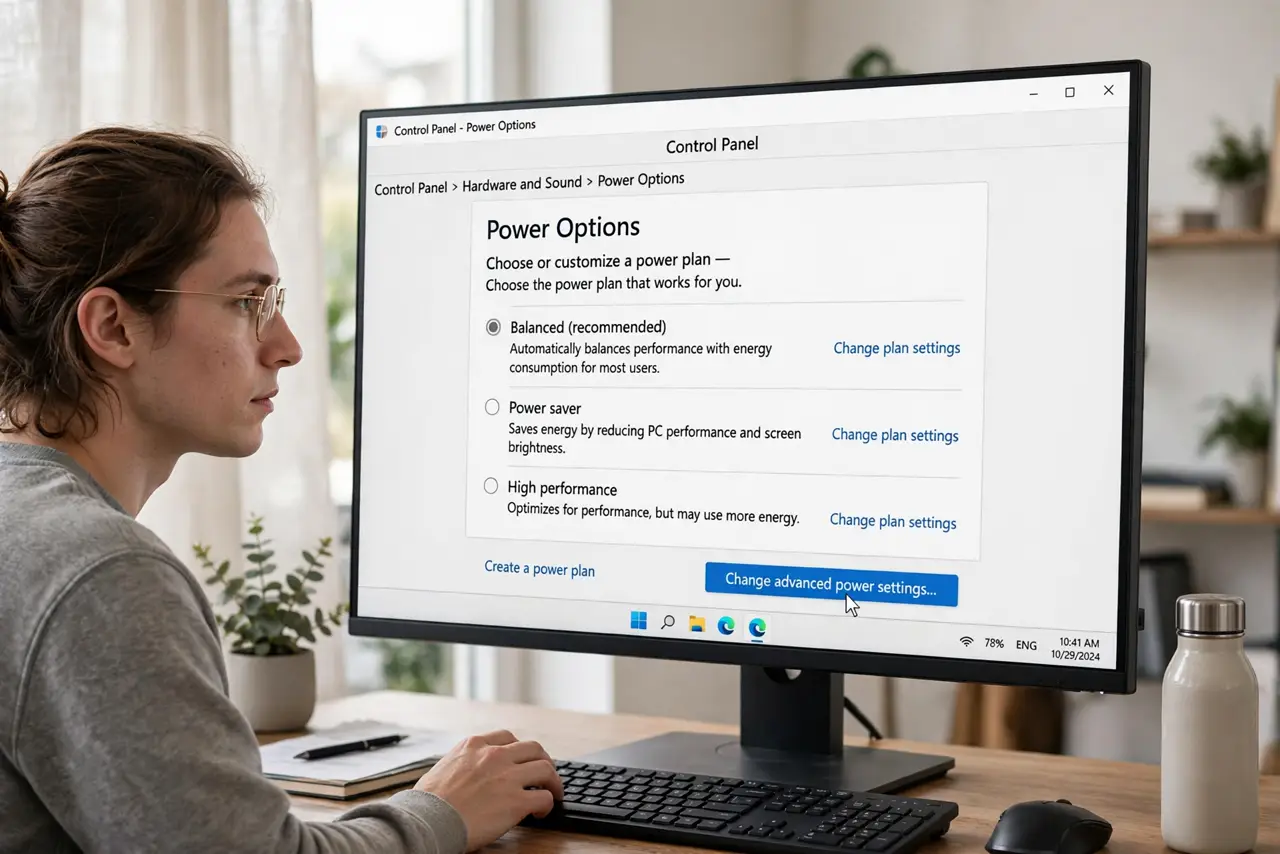
Open Control Panel > Power Options > Change plan settings > Change advanced power settings, expand Sleep > Allow wake timers, and set it to Disable. Update Orchestrator and backup tools are the usual midnight culprits. If it still wakes, run 'powercfg /waketimers' in Command Prompt to name the offender.
Follow these steps
- Open the advanced power settings. Open Control Panel > Power Options, click 'Change plan settings' on your active plan, then 'Change advanced power settings'.
- Disable wake timers. Expand Sleep > Allow wake timers and set it to Disable for both battery and plugged-in. This revokes the blanket permission.
- Name the offender. Open Command Prompt and run powercfg /waketimers. It lists exactly which tasks are scheduled to wake the PC.
- Tame Windows Update's timer. Update Orchestrator is the classic 3 AM waker. In Task Scheduler, find its Reboot task and uncheck 'Wake the computer to run this task'.
- Check backup and app timers. Backup tools and media apps set their own wake timers. Open each app's settings and look for scheduled or wake options.
- Use Important wake timers only if needed. The middle setting allows only critical Windows timers. It's the compromise if Disable feels too strict — see the update wakes case.
What NOT to do
- Do not disable the task instead of the timer. Disabling Update Orchestrator itself breaks updates — uncheck only its wake permission.
- Do not assume the PC is haunted. Every surprise wake has a listed timer; powercfg /waketimers names it.
- Do not forget laptops on battery. Wake timers drain a sleeping laptop's battery — Disable matters most there.
- Do not confuse wake timers with network wakes. Wake-on-LAN is a separate BIOS and adapter setting — see wake causes.
Frequently asked questions
Will disabling wake timers break Windows Update?
No. Updates still install at shutdown, restart, and active hours — they just can't yank the PC out of sleep at 3 AM.
Why does powercfg show no timers but the PC still wakes?
Check wake-on-LAN on the network adapter and USB wake in Device Manager — mice and keyboards can wake PCs too.
What's the difference between Disable and Important only?
Disable blocks everything; Important allows only critical Windows maintenance. Important is the gentler middle ground.