Delete Files Without the Recycle Bin
Sometimes you don't want the safety net — a giant video file you are sure about, or sensitive documents that shouldn't sit in the bin. Windows offers two honest ways to skip the Recycle Bin: a one-time key combo and a permanent default. Both still confirm before deleting, so there are no silent surprises.
TL;DR / Quick Fix
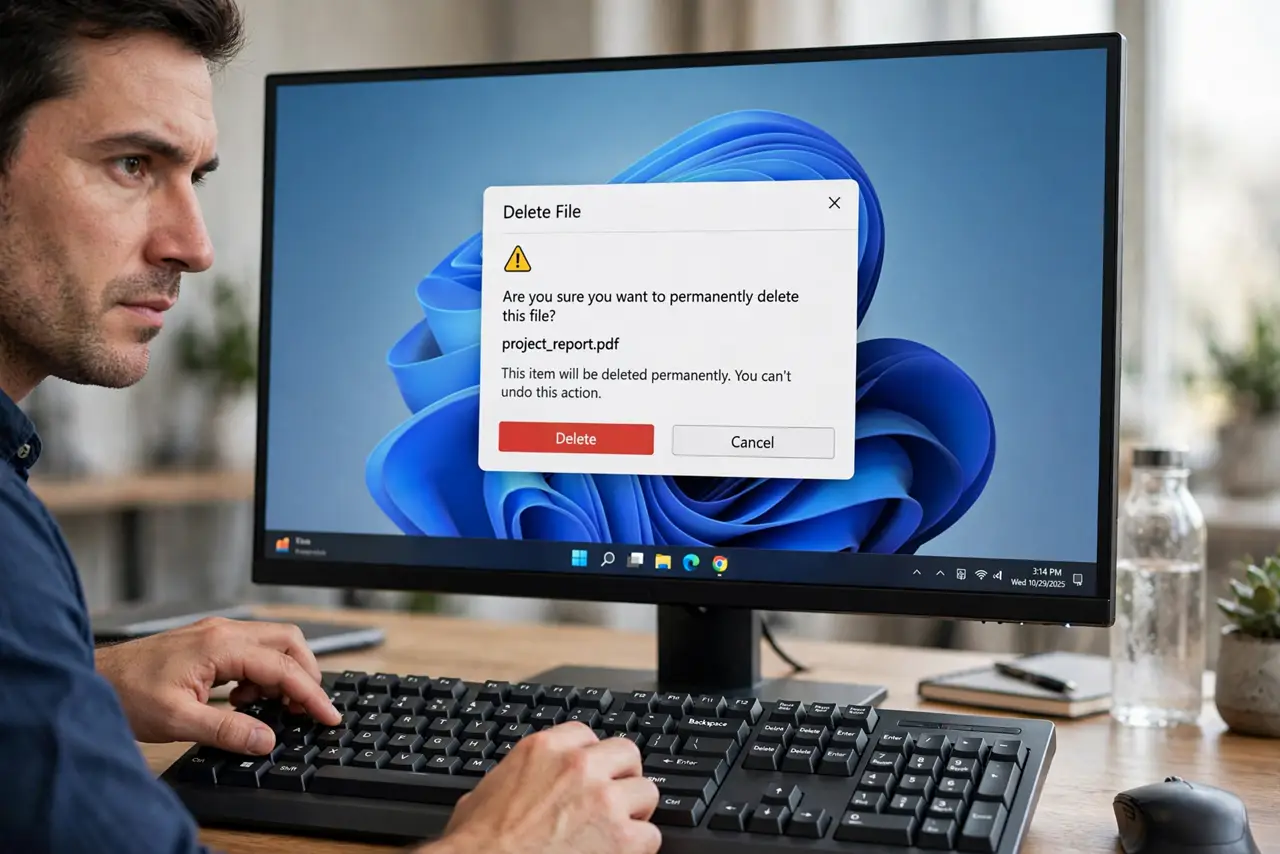
Hold Shift while pressing Delete to skip the Recycle Bin — Windows confirms, then deletes permanently. To make it the default, right-click the Recycle Bin, open Properties, and check 'Don't move files to the Recycle Bin'. There is no undo afterward, so reserve it for files you are certain about.
Follow these steps
- Use Shift + Delete for one-offs. Select the file, hold Shift, and press Delete. Windows shows a permanent-delete confirmation — confirm and it skips the bin entirely.
- Open Recycle Bin Properties for the default. Right-click the Recycle Bin icon and choose Properties. This is where the permanent behavior lives.
- Check 'Don't move files to the Recycle Bin'. Enable the checkbox, then click OK. From now on, plain Delete removes files immediately — per drive, so set it for each drive you want.
- Know there is no undo. Skipped files don't appear in the bin and can't be restored from it. Be certain before you confirm — this is the whole trade-off.
- Keep the confirmation dialog on. If you also restored the prompt, leave it enabled. The 'Are you sure?' dialog is your last checkpoint.
- Revert anytime. Uncheck the same box to bring the safety net back. Nothing about this change is permanent.
What NOT to do
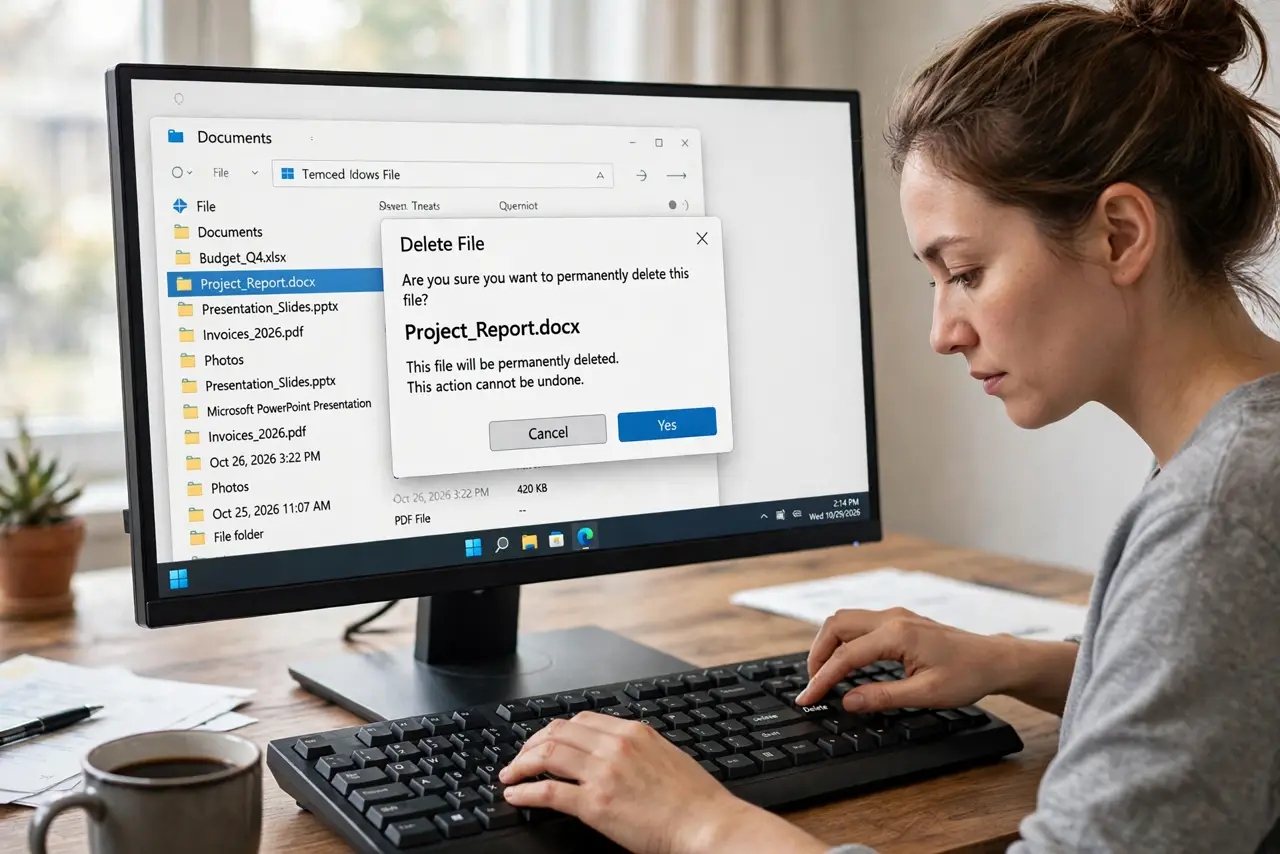
- Do not enable this and then delete casually. Without the bin, one wrong selection is gone for good.
- Do not use it for files you might need. If there is any doubt, let the file go to the bin — disk space is cheaper than regret.
- Do not confuse this with secure deletion. Skipped files are still recoverable with recovery tools until overwritten.
- Do not set it on a shared PC without telling others. Someone else's 'Delete' will behave differently than they expect.
Frequently asked questions
Does Shift + Delete work on folders too?
Yes — it permanently deletes folders and their contents, with the same confirmation dialog.
Can I recover a file deleted this way?
Not from the Recycle Bin. Recovery software might find it until overwritten, but treat it as gone.
Why would anyone want this as the default?
Huge files that would just waste bin space, or sensitive files you don't want lingering. For everything else, the bin is the safer default.