Desktop Icons Rearrange After Reboot? Fix It
Every reboot scatters your carefully arranged desktop icons like leaves. The two usual causes are 'Auto arrange icons' being on and a resolution change at startup — often a monitor that wakes up late. Three settings end the chaos, and unlike disappearing icons, your files are all still there.
TL;DR / Quick Fix
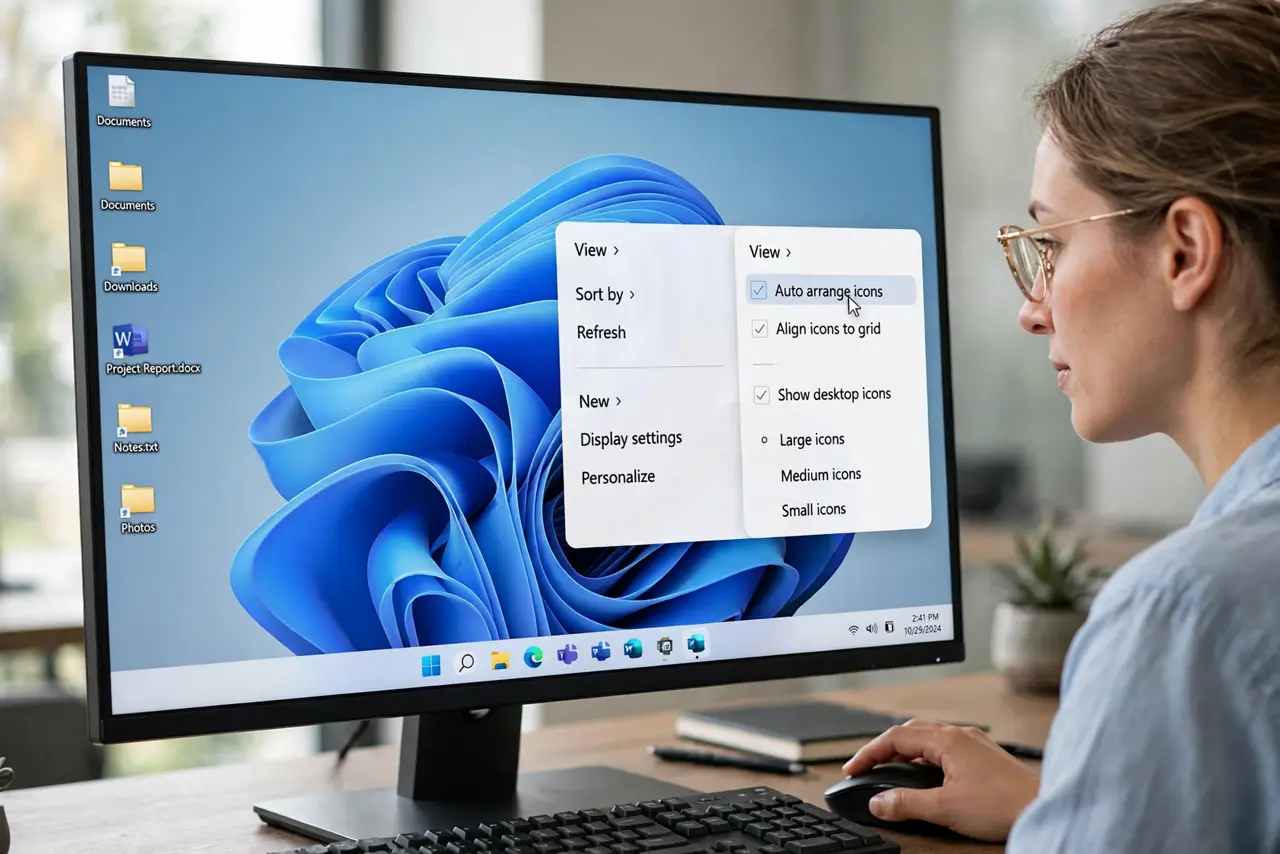
Right-click the desktop, open View, and turn off 'Auto arrange icons' while keeping 'Align icons to grid' on — that stops most reshuffling. The other cause is a resolution change at boot, often a monitor waking late. If icons scatter, uncheck 'Allow themes to change desktop icons' in Themes settings.
Follow these steps
- Turn off Auto arrange icons. Right-click the desktop, hover over View, and make sure 'Auto arrange icons' is unchecked. This is the number-one scatter cause.
- Keep Align icons to grid on. In the same View menu, keep 'Align icons to grid' checked. It keeps icons tidy without forcing them into alphabetical order.
- Stop themes from moving icons. Open Settings > Personalization > Themes > Desktop icon settings and uncheck 'Allow themes to change desktop icons'. Theme switches then leave your layout alone.
- Check your startup resolution. If a monitor wakes late, Windows boots at a fallback resolution and re-flows icons. Let the monitor fully wake before powering the PC, or check its sleep settings.
- Keep display scaling constant. Settings > System > Display > Scale should not flip between values. Inconsistent scaling re-flows the desktop every boot.
- Rebuild the icon cache if icons look wrong. A corrupt icon cache shows blank or wrong icons rather than moving them — delete IconCache.db in AppData\Local and restart to rebuild it cleanly.
What NOT to do
- Do not keep rearranging icons daily without fixing the cause. The settings above end it permanently — manual tidying does not.
- Do not install a desktop organizer to fix reboot scatter. They mask the auto-arrange and resolution causes instead of fixing them.
- Do not delete IconCache.db casually. It only fixes wrong-looking icons, not moved ones — and it rebuilds itself on restart.
- Do not blame the icons when files vanish. Moved icons are a layout issue; genuinely missing files are a different problem.
Frequently asked questions
Why do my icons move only when the second monitor is off?
With one monitor off at boot, Windows lays out the desktop for a single screen, then re-flows when the second wakes. Power both before the PC.
Does Auto arrange icons harm anything?
No — it just sorts icons automatically. Turn it off only if you prefer your own arrangement.
Will these settings survive a Windows update?
Mostly yes, but feature updates occasionally reset theme and view options. A quick revisit after big updates keeps things stable.