Speed Up Work with a Dev Drive
Your builds crawl, the IDE stutters on every file scan, and you have tried closing Chrome to no effect. Part of the drag is Windows Defender scanning every file operation in your code — thousands of tiny reads and writes per build. A Dev Drive is a special ReFS volume Windows 11 offers developers: it pairs a filesystem tuned for small-file workloads with a Defender performance mode that skips redundant scans. Moving your repo and caches onto one is a free, built-in speedup.
TL;DR / Quick Fix
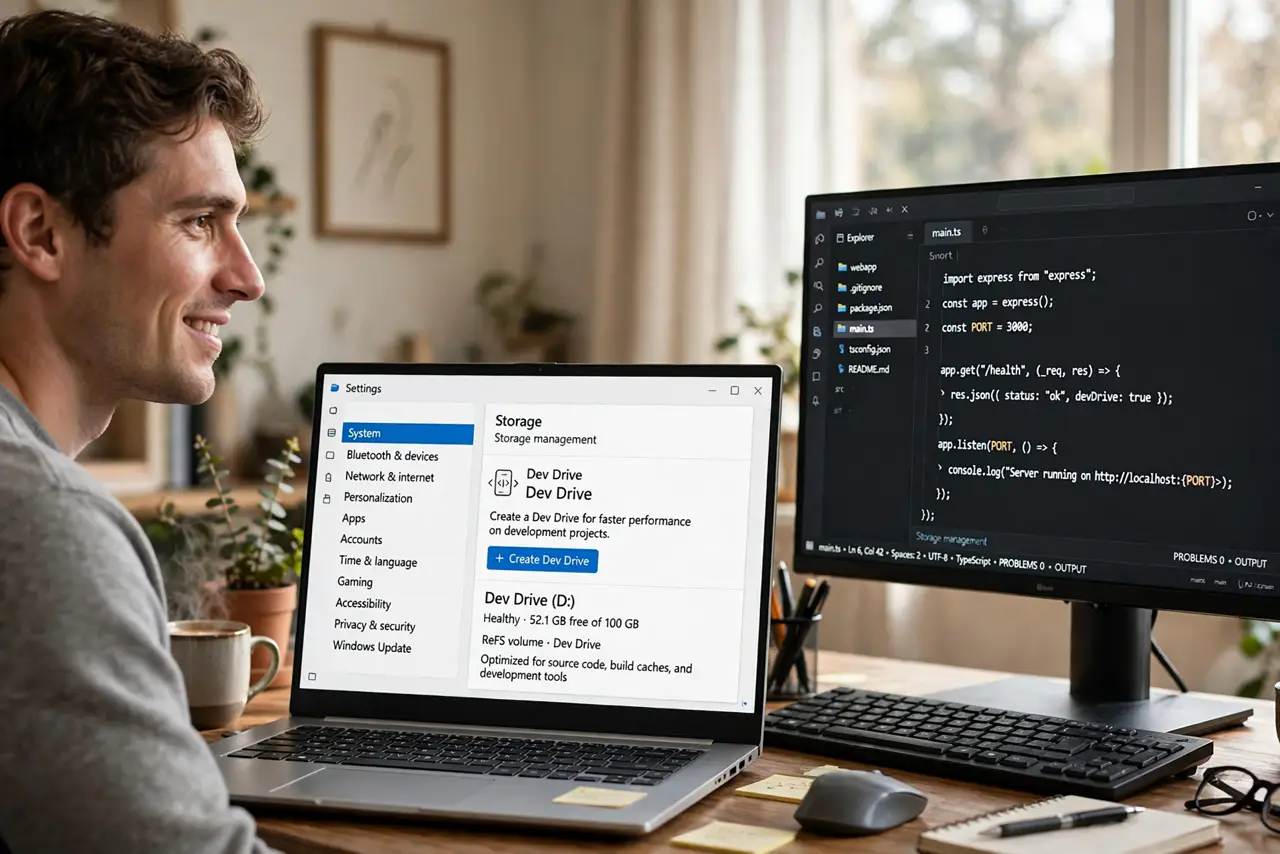
Quick fix: a Windows Dev Drive is a ReFS volume tuned for developer workloads — moving your repo onto one speeds up builds noticeably. Create it in Settings → Storage → Advanced storage settings, flag it as a Dev Drive, and move your code there. Reserve at least 50GB.
Follow these steps
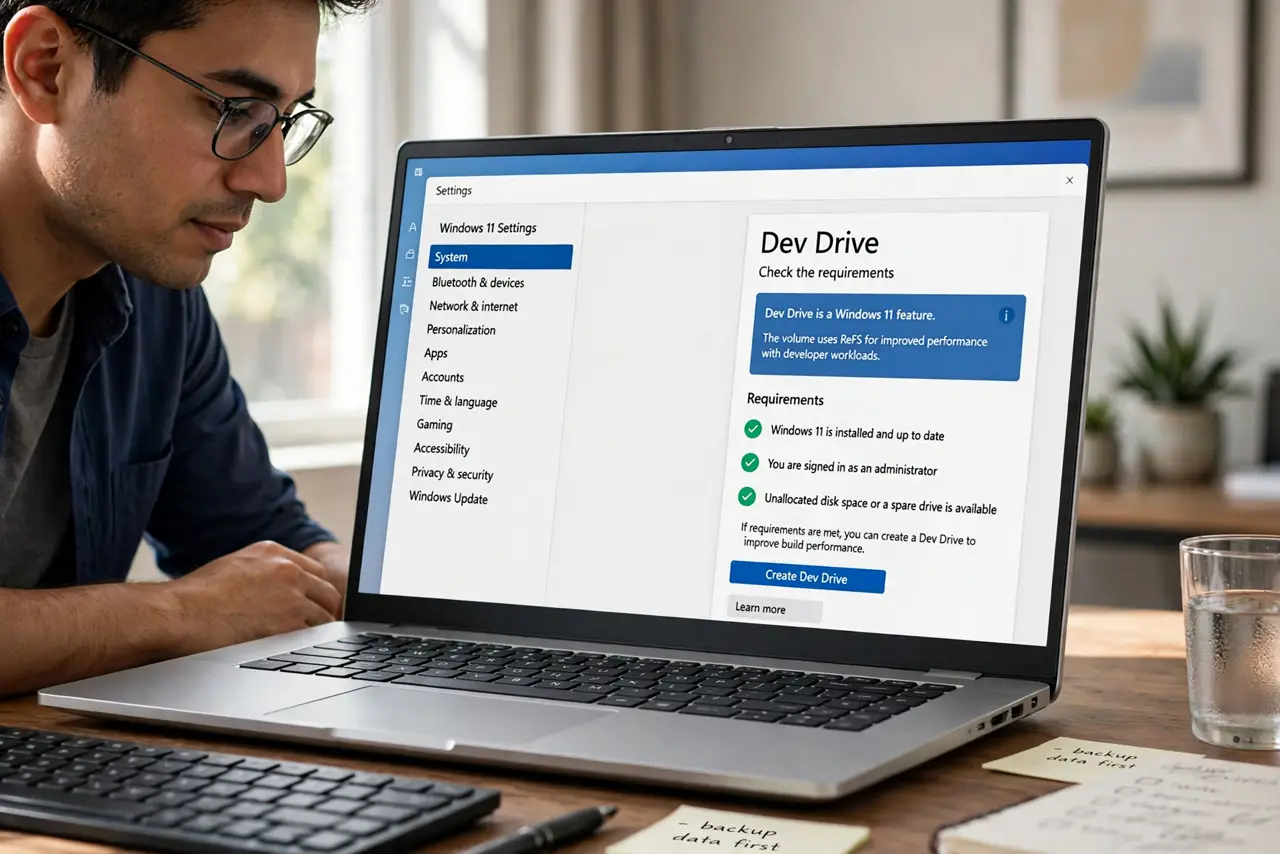
- Check the requirements. You need Windows 11, an administrator account, and unallocated disk space or a spare drive — Dev Drive is a Windows 11 feature. The volume uses ReFS, so plan for at least 50GB; tiny drives are not worth the trouble.
- Create the volume. Go to Settings → System → Storage → Advanced storage settings → Disks & volumes, choose your disk, and create a new volume. Size it generously — repos and caches grow.
- Flag it as a Dev Drive. During creation (or in the volume's properties afterward), designate it as a Dev Drive. That flag is what switches on the ReFS tuning and the Defender performance mode — a plain ReFS volume without the flag misses half the benefit.
- Move your repo and caches onto it. Clone or move your code repositories, package caches, and build output folders to the new drive. Point your IDE at the new paths — the speedup applies to whatever lives on the volume.
- Keep your backup routine covering it. A Dev Drive is still just a disk — ReFS is resilient, not a backup. Make sure your existing backup includes the new volume, just as you would back up your WSL setup before a big change.
- Measure before and after. Time a full clean build on the old location, then on the Dev Drive. Typical gains are noticeable on I/O-heavy builds — if yours barely moves, your bottleneck is CPU, not disk, and no drive will fix that.
What NOT to do
- Do not put Windows itself on a Dev Drive. It is meant for code and caches — the OS belongs on a normal NTFS system drive.
- Do not create a tiny 20GB Dev Drive. Repos, caches, and build artifacts balloon fast; an undersized volume just moves the pain.
- Do not treat the Defender performance mode as a reason to skip antivirus. The mode trims redundant scans on trusted dev workloads — it is not an excuse to download recklessly.
- Do not expect miracles on a spinning hard drive. Dev Drive helps most on SSDs; on an HDD the physics of the platter still wins.
Frequently asked questions
ReFS vs NTFS — what actually changes?
ReFS handles the many-small-files pattern of builds more efficiently and resists corruption better. For everyday documents you would never notice; for a 50,000-file repo you will.
Can I convert my existing drive to a Dev Drive?
No — it must be created fresh as a new volume. Move your code over after creation; there is no in-place conversion.
What is the minimum sensible size?
Microsoft suggests 50GB as a floor. For real projects with caches and containers, 128GB or more is more realistic.